People can’t hear you on calls, voice notes are silent, or Google Assistant doesn’t respond? A phone microphone not working problem is frustrating, but it is often caused by dust in the mic hole, a Bluetooth device still connected, app permissions or a software glitch. Most of these can be fixed at home in minutes.
This guide explains 12 easy fixes for a phone microphone not working on Android and iPhone, how to test the mic, how to fix mic issues in WhatsApp and video calls, and when it is time for a repair.
Phone Microphone Not Working: Quick Diagnosis
| Symptom | Likely cause | First fix |
|---|---|---|
| Caller can’t hear you at all | Bluetooth connected, mic blocked, mute on | Turn off Bluetooth, check mute, clean mic hole |
| Voice is very low or muffled | Dust, case covering mic, noise reduction issue | Remove case, clean mic |
| Mic works on calls but not in WhatsApp | App permission denied | Allow microphone permission |
| Mic works on speaker but not normal mode | Primary mic fault | Test with voice recorder; service centre |
| Echo or crackling | Network or hardware issue | Test on Wi-Fi calling and different network |
How to Test Your Phone Microphone
- Open the Voice Recorder or Sound Recorder app and record 10 seconds of speech; play it back.
- Record a video with the rear camera, then the front camera, and check audio (phones use different mics).
- Make a call on loudspeaker and normal mode.
- On many Android phones, dial a service code or use the brand’s diagnostic app (e.g., Samsung Members) to test hardware.
This helps you know whether the phone microphone not working issue affects all apps or just one.
12 Easy Fixes for Phone Microphone Not Working
1. Restart the phone
A restart clears temporary bugs in audio services. Try this first.
2. Check mute and volume during calls
It sounds obvious, but many people accidentally tap mute with their cheek. Check the mute icon during a call.
3. Turn off Bluetooth
If earbuds, a smartwatch or car audio are still connected, audio may route to them. Turn off Bluetooth and try again.
4. Remove the case and screen protector
Some cases cover the microphone hole at the bottom or top. Remove the case and test.
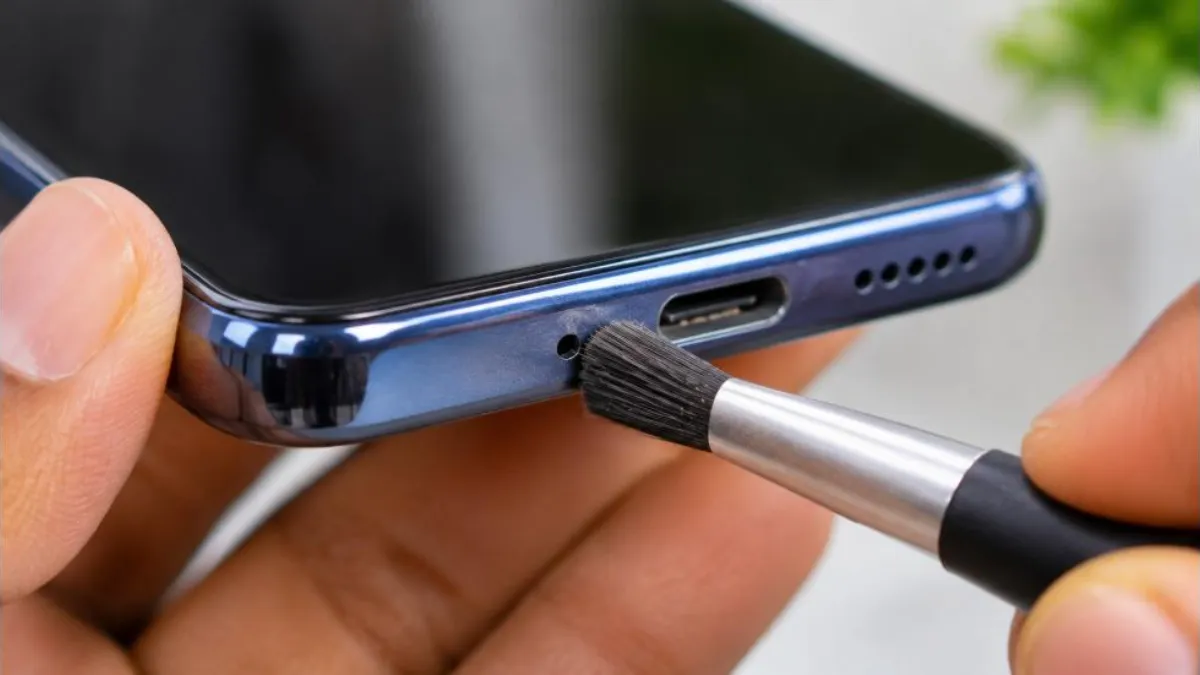
5. Clean the microphone hole carefully
Dust and lint can block the tiny mic opening. Gently use a soft, dry toothbrush or blow lightly. Do not push pins or needles inside; they can damage the mic membrane.
6. Check app permissions
On Android: Settings > Apps > [App] > Permissions > Microphone > Allow. On iPhone: Settings > Privacy & Security > Microphone.
7. Check the microphone privacy toggle
Newer Android versions include a “Microphone access” quick toggle. If it is off, all apps get silence. Swipe down and enable it.
8. Disable noise reduction or audio enhancements
Some phones have call settings like “Noise reduction”, “Voice clarity” or “Clear voice”. Rarely, these cause issues. Toggle them off and test. On some Samsung phones, check Settings > Sounds and vibration > Sound quality and effects.
9. Update apps and system software
Bugs in WhatsApp, Telegram, Google Meet or the system can block the mic. Update everything from the Play Store or App Store and install system updates.
10. Test in safe mode
If the mic works in safe mode, a third-party app (call recorder, voice changer, cleaner app) is the culprit. Uninstall recently added apps.
11. Reset app preferences or all settings
Resetting app preferences on Android, or all settings on iPhone, fixes hidden permission conflicts without deleting data.
12. Factory reset or service centre
If the phone microphone not working issue remains after all steps, back up your data and factory reset. If it still fails, the mic hardware or its connector is faulty; visit an authorised service centre.
Phone Microphone Not Working in WhatsApp
- Allow microphone permission for WhatsApp.
- Close other apps using the mic (voice recorder, call recorder, Assistant).
- Update WhatsApp.
- Clear WhatsApp cache (not data): Settings > Apps > WhatsApp > Storage > Clear cache.
- Test a voice note with the phone near your mouth.
Mic Not Working in Google Meet, Zoom or Teams
- Check in-app mute button and system microphone permission.
- Ensure Bluetooth headsets are disconnected if you want to use the phone mic.
- Close other call apps running in the background.
- Rejoin the meeting.
Microphone Not Working With Earphones
If the phone mic works but the earphone mic does not, the earphones may be faulty or incompatible. Test another pair. For wired earphones, check if your phone needs a specific USB-C adapter with mic support. For Bluetooth earbuds, reset and re-pair them.
Signs of Hardware Damage
- No sound in voice recorder, calls and videos, even in safe mode.
- Problem started after water exposure or a fall.
- Loud crackling or static in all recordings.
- Only one mic fails (for example, video recording works but calls don’t), suggesting the primary mic is damaged.
Related Fixes
Sound problems often come together. See our guides on phone speaker volume low, Bluetooth not connecting and WhatsApp Web not working. Apple users can also check Apple Support for microphone help.
Why Is My Phone Microphone Not Working? Main Causes
- Audio routing: Sound goes to Bluetooth earbuds, a car system or a smartwatch.
- Blocked mic: Dust, lint, sweat or a phone case covering the hole.
- Permissions: Apps not allowed to use the mic.
- Privacy toggle: Microphone access turned off system-wide.
- Software bugs: After updates or app conflicts.
- Third-party apps: Call recorders and voice changers holding the mic.
- Network issues: Poor signal can make callers think your mic is broken.
- Hardware damage: Water, drops or a loose connector.
Is It the Mic or the Network?
Sometimes a phone microphone not working complaint is actually a network problem. If your voice cuts in and out, or the caller hears robotic sounds, test these:
- Record a voice note offline. If it sounds clear, the mic is fine.
- Switch from 4G/5G to Wi-Fi calling, or move to an area with better signal.
- Turn on VoLTE in SIM settings for clearer calls.
- Try calling another number to rule out the other person’s phone.
Phone Microphone Not Working After Water Exposure
Water can block or damage the mic. Switch off the phone, wipe it dry and let it dry in a ventilated place for at least a day. Many water-resistant phones recover once water evaporates from the mic mesh. If the phone microphone not working issue continues after drying, visit a service centre quickly to prevent corrosion.
Google Assistant or Siri Not Hearing You
- Check that the assistant has microphone permission.
- Retrain voice match in Assistant settings.
- Turn off battery saver, which may limit background listening.
- Speak closer to the phone in noisy places.
- Make sure the language setting matches the language you speak.
Brand-Specific Tips
| Brand | Useful setting or tool |
|---|---|
| Samsung | Samsung Members app > Diagnostics > Mic test |
| Xiaomi / Redmi / POCO | Settings > About phone > tap All specs or use the hardware test menu where available |
| Vivo / iQOO | iManager or service app diagnostics |
| Oppo / Realme / OnePlus | Phone Manager or service app tools |
| iPhone | Voice Memos test; Apple Support diagnostics |
Tools and names vary by model; search “diagnostic” in Settings.
Phone Microphone Not Working: Step-by-Step Checklist
- Restart the phone.
- Turn off Bluetooth and unplug earphones.
- Check mute during calls.
- Remove case and screen protector edges near the mic.
- Gently clean the mic holes with a soft brush.
- Enable microphone access in quick settings.
- Allow mic permission for the app.
- Test with the voice recorder and video recording.
- Update apps and system software.
- Test in safe mode and remove conflicting apps.
- Reset app preferences or all settings.
- Back up and factory reset, then visit a service centre if needed.
Working through this list in order fixes most phone microphone not working problems without spending money.
How Many Microphones Does a Phone Have?
Most modern smartphones have two to four microphones. The primary mic at the bottom picks up your voice on calls. A secondary mic near the top or back helps with noise cancellation and video recording. Some phones add more mics for stereo audio. This is why a phone microphone not working on calls can still record video sound, or vice versa. Testing each mode helps a technician find the faulty part quickly.
Prevent Mic Problems
- Use cases with proper cut-outs for mics.
- Avoid keeping the phone in dusty pockets or bags with lint.
- Keep the phone away from water, sweat and steam.
- Install apps only from official stores.
- Review microphone permissions every few months.
- Update software regularly.
Real Example
Meera, a teacher, found that students could not hear her during online classes on her phone. The voice recorder worked fine. She discovered that her Bluetooth earbuds in her bag were still connected, so the class app was using their mic. Turning off Bluetooth solved the phone microphone not working issue instantly.
Fixing Mic Issues for Online Classes and Work Calls
Students and professionals rely on phone mics for classes, interviews and meetings. Before an important call:
- Do a 10-second test recording in a quiet room.
- Join the meeting 5 minutes early and use the app’s audio test feature if available.
- Keep a wired earphone with mic as backup.
- Close background apps like music players and recorders.
- Put the phone on Do Not Disturb to avoid interruptions.
- Keep the phone charged; some phones limit performance on low battery.
Third-Party Apps That Commonly Cause Mic Problems
| App type | Why it causes issues |
|---|---|
| Call recorders | Hold the microphone during calls |
| Voice changers | Intercept audio input |
| Screen recorders with audio | Keep mic busy in background |
| Cleaner and booster apps | Kill audio services or change permissions |
| Voice assistants from unknown developers | Constantly listen and block other apps |
If any of these were installed recently, remove them and test again.
When to Choose Repair vs Replacement
On many phones, the main microphone sits on the charging port board, which is relatively affordable to replace at authorised centres. If your phone is older and has other issues like battery wear or a cracked screen, compare the total repair cost with the price of a new phone. For newer phones, repair is usually the better choice.
Phone Microphone Not Working on Speakerphone
If people hear you on normal calls but not on loudspeaker, the secondary microphone may be blocked or faulty. Check the small hole near the top edge or rear camera, clean it gently and remove the case. If the phone microphone not working issue only happens on speaker, it is often this second mic.
Phone Microphone Not Working in Video Recording
When videos have no sound, check camera app settings for audio options, make sure no external mic or Bluetooth device is selected, and test both front and rear cameras. Some camera modes use different mics. If both fail in all apps, the issue may be hardware.
Accessibility and Hearing Aids
Phones connected to hearing aids via Bluetooth may route mic input through the hearing device. Check accessibility settings and the hearing aid app. Switching the call audio source back to the phone usually solves this.
Keep Software Up to Date
Manufacturers regularly fix audio bugs in updates. Turn on automatic updates for apps and check for system updates every month. Many reports of a phone microphone not working after an update are resolved by the next patch, so installing updates promptly is one of the easiest fixes.
Quick Tips for Clear Calls Every Day
Even when your mic works, call quality depends on how you hold and use the phone. Keep the bottom of the phone near your mouth rather than your ear only, avoid covering the mic with your fingers, and step away from fans, traffic and loud televisions. In windy places, turn your back to the wind or use earphones with a mic close to your mouth. For important calls, Wi-Fi calling in a quiet room usually gives the clearest results. Small habits like these reduce complaints that callers cannot hear you, and help you notice real faults early.
Finally, keep a note of the fixes that worked for your phone. If the problem returns months later, you will know exactly what to try first, saving time and avoiding an unnecessary repair visit. Share these steps with family members, especially elders, who often depend on clear calls to stay in touch.
Most of the time, the problem is simple and the fix takes only a few minutes. Start with the basics, test after each step, and you will soon be back to clear calls, voice notes and video chats without spending money on repairs. Keep this guide handy for the next time someone at home says their phone mic suddenly stopped working.
Frequently Asked Questions
Why can’t people hear me on calls?
Common reasons are a connected Bluetooth device, mute, a blocked mic hole, or a phone case covering the mic.
How do I clean my phone microphone?
Use a soft, dry brush or gently blow air. Never poke with pins.
Can a software update fix the mic?
Yes, if the issue is caused by a bug.
Why does the mic work on speaker but not normal calls?
Phones use different microphones for different modes. The primary mic may be blocked or faulty.
Is mic repair expensive?
It varies by model. Often the mic is part of the charging board, which may need replacement. Get a quote from an authorised centre.
Conclusion
A phone microphone not working problem is usually caused by Bluetooth, permissions, dust or a software glitch. Restart, disconnect Bluetooth, remove the case, clean the mic hole gently, check permissions and update software. If the mic still fails in safe mode and after a reset, visit an authorised service centre.