
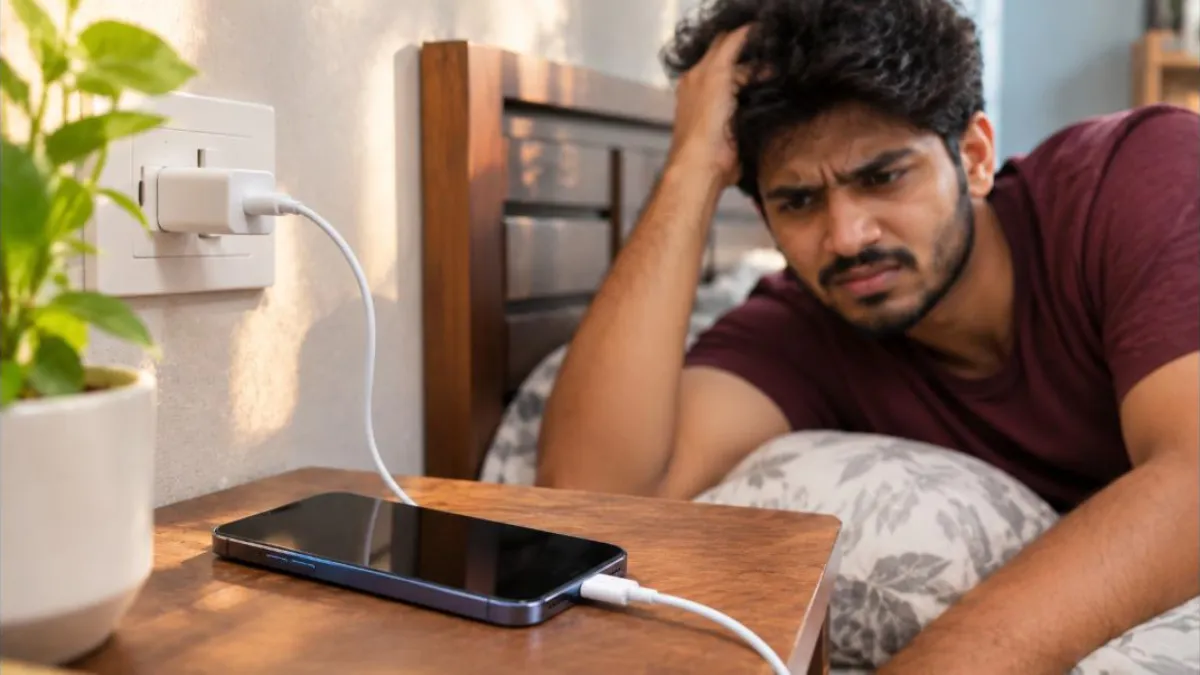
You plug in your phone at night and wake up to find the battery still at 10 percent. Or the charging icon appears and disappears again and again. Phone Not Charging is a common problem, and in most cases it is caused by something simple like a dirty port, a damaged cable or a software glitch. This 2026 guide explains why it happens and gives you 11 easy fixes for Android and iPhone that you can try at home before visiting a service centre.
Follow the steps one by one and test charging after each fix. Many people solve Phone Not Charging in under ten minutes, without spending any money.
Table of Contents
Common Reasons for Phone Not Charging
- Damaged, bent or cheap charging cable
- Faulty or low-power charger adapter
- Dust, lint or debris inside the charging port
- Loose or worn charging port
- Power socket or extension board problem
- Software glitch or app using too much power
- Battery protection due to high temperature
- Optimised charging pausing charge at 80 percent
- Water or moisture detected in the port
- Old or failing battery
Quick Diagnosis Table
| What you see | Likely cause | Try first |
|---|---|---|
| No charging icon at all | Cable, adapter, socket or port | Change cable, adapter and socket |
| Charging starts and stops | Loose cable or dirty port | Clean the port, use a firm cable |
| Very slow charging | Low-power adapter or heavy usage | Use original fast charger, stop using phone |
| Stops at 80 percent | Optimised or adaptive charging | This is normal; it finishes later |
| Moisture warning | Wet port | Unplug and let it dry completely |
| Charges only when off | Software or background drain | Restart, check battery usage |
11 Easy Fixes for Phone Not Charging
1. Try a different cable
Cables are the most common failure point. Look for frayed edges, bent connectors or loose fit. Try another cable that you know works, preferably the original or a certified one.
2. Try a different charger adapter
Adapters can fail too. Use the original adapter or a certified one that supports your phone’s charging standard. A laptop USB port or a weak old adapter may charge very slowly or not at all.
3. Change the power socket
Plug the charger into a different wall socket. Extension boards and loose sockets often cause Phone Not Charging issues. If you are charging in a car, try a wall socket at home to rule out the car charger.
4. Clean the charging port carefully
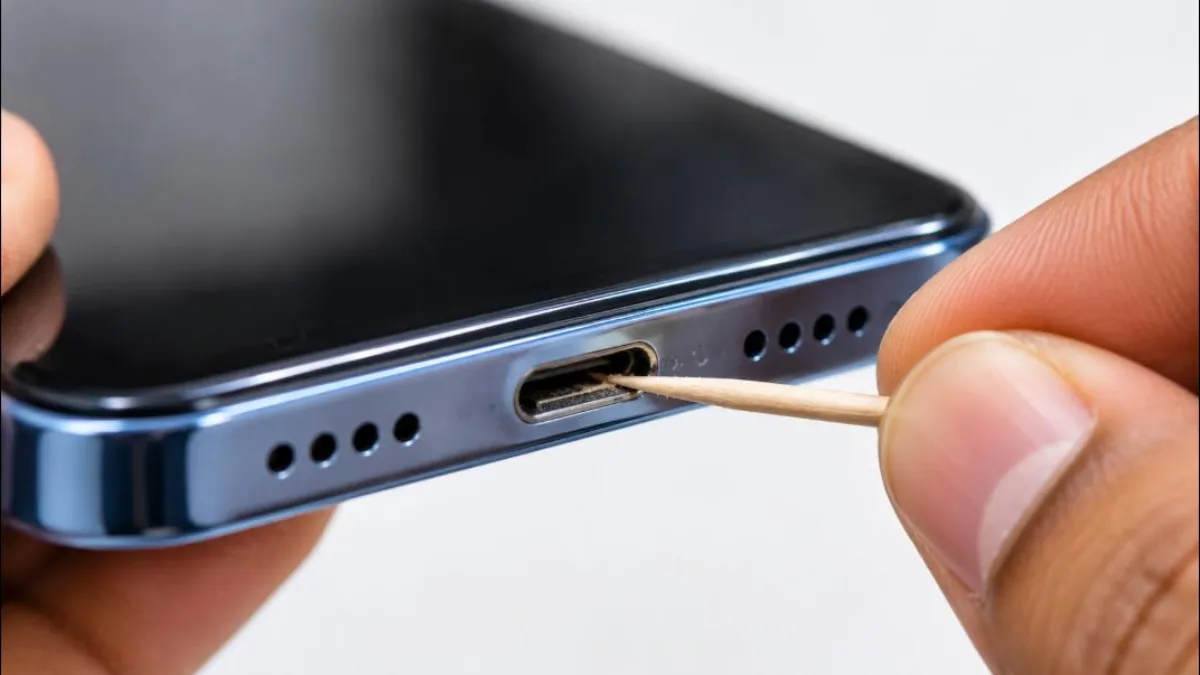
Pocket lint and dust collect inside USB-C and Lightning ports. Switch off the phone, shine a torch into the port, and gently remove debris with a wooden toothpick or a soft brush. Do not use metal pins, water or liquids. A small puff of air can also help.
5. Restart the phone
A restart fixes software glitches that stop the phone from recognising the charger. Hold the power button, choose Restart, and try charging again.
6. Charge with the phone switched off
If the phone charges when switched off but not when on, an app or process may be using power faster than the charger supplies it. Check battery usage in Settings to find the culprit.
7. Let the phone cool down
Phones stop or slow charging when they are too hot, to protect the battery. If your phone feels hot, unplug it, remove the case and let it cool in a shaded place for 15 to 20 minutes. Then try again. Never cool a phone in a fridge.
8. Check for moisture
Many phones show a “moisture detected” warning and block charging if the port is wet. Unplug the cable, wipe the phone, and let it dry in open air for a few hours. Do not use a hair dryer on high heat or put the phone in rice; rice dust can enter the port.
9. Check optimised or adaptive charging
Modern phones may pause charging at around 80 percent to protect battery health, then finish before your usual wake-up time. If your phone stops at 80 percent, it may not be a fault. On iPhone, check Settings > Battery > Charging. On Android, look for Adaptive Charging or Protect Battery options in Battery settings.
10. Update software and check apps
Bugs in software can cause Phone Not Charging or abnormal battery drain. Install the latest system update. Then check battery usage for apps using unusually high power and uninstall suspicious ones. Booting into safe mode on Android can show whether a third-party app is the cause.
11. Check battery health and get service
Batteries wear out over time. If your phone is more than two or three years old, the battery may be weak. On iPhone, check Settings > Battery > Battery Health. Many Android brands show battery health in settings or support apps. If the battery is swollen, the phone feels bloated, or the charging port is loose, visit an authorised service centre.
Phone Not Charging on Android
- Samsung: Use Device Care in Settings to check battery and run diagnostics in the Samsung Members app.
- Xiaomi, Redmi, POCO: Check the Battery section and disable heavy background apps.
- OnePlus, Oppo, Realme: Use the original SuperVOOC or SUPERVOOC-compatible charger for fast charging; other chargers may charge slowly.
- Google Pixel: Check Adaptive Charging and run the Pixel diagnostic tools if available.
- Motorola and others: Check for software updates and try charging in safe mode.
Phone Not Charging on iPhone
- Use an Apple or MFi-certified cable and a reliable USB-C power adapter.
- Clean the Lightning or USB-C port carefully with a wooden toothpick.
- If you see “Accessory not supported”, the cable may be uncertified or damaged.
- Check Optimised Battery Charging, which can delay charging past 80 percent.
- Force restart the iPhone if it does not respond to charging.
- Check Battery Health and visit an Apple authorised service provider if needed.
Wireless Charging Not Working
If your phone supports wireless charging but it is not working, check these points:
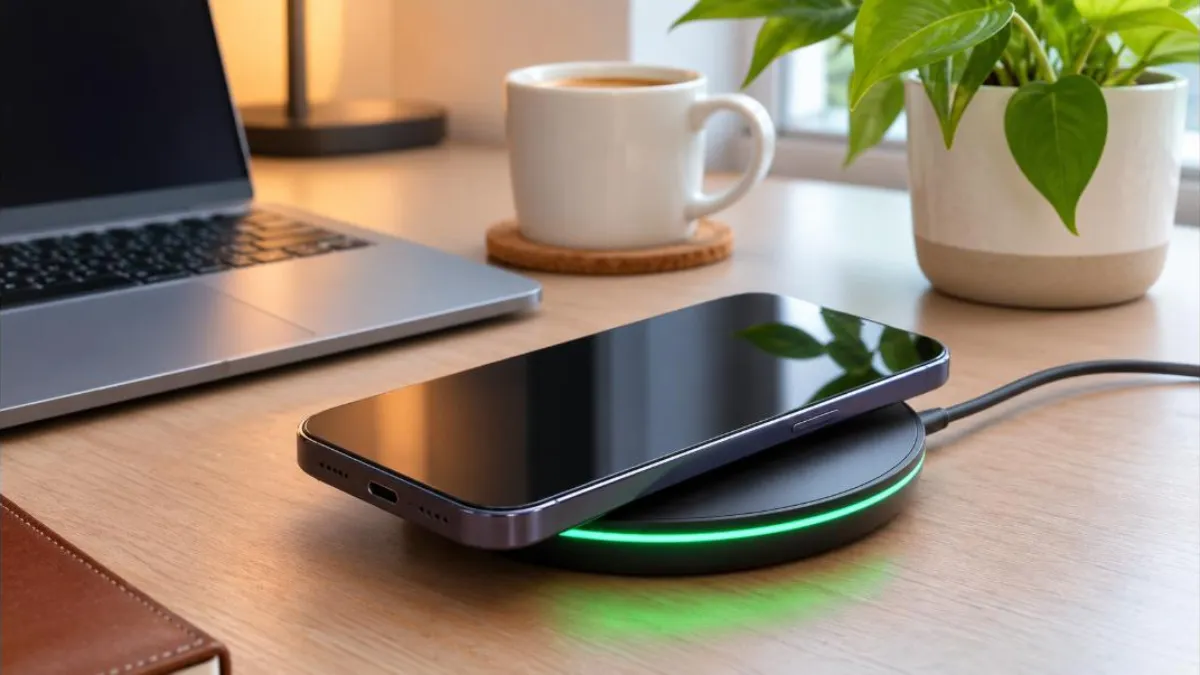
- Remove thick cases, metal plates or magnetic rings from the back of the phone.
- Align the phone at the centre of the charging pad.
- Use a certified Qi or Qi2 charger with the correct power adapter.
- Keep the pad on a flat surface away from heat.
- Make sure wireless charging is enabled in settings, if your phone has an option.
Phone Charging Very Slowly
Slow charging is a cousin of Phone Not Charging. Here are common reasons and fixes:
| Reason | Fix |
|---|---|
| Low-wattage adapter | Use the adapter that matches your phone’s fast charging standard |
| Using phone while charging | Avoid games and video while charging |
| Charging from laptop USB | Use a wall charger |
| Hot environment | Charge in a cool place |
| Battery saver off and many apps running | Close apps or enable battery saver |
| Worn cable | Replace with a certified cable |
Signs of a Hardware Problem
If you have tried every software and accessory fix, the Phone Not Charging problem may be hardware related. Watch for these signs:
- The cable feels loose in the port even when clean
- Charging works only when you hold the cable at an angle
- The phone back is bulging or the screen is lifting
- The battery drains from 100 to 0 very quickly
- The phone shuts down at 20 to 30 percent
- No response even with multiple known-good chargers
In these cases, visit an authorised service centre. A loose port or swollen battery needs professional repair. Using a swollen battery is unsafe.
Safe Charging Habits
- Use original or certified chargers and cables.
- Charge on a hard, flat surface, not on beds or sofas.
- Avoid charging in direct sunlight or very hot rooms.
- Keep the port clean and dry.
- Avoid letting the battery drop to 0 percent often.
- Use optimised charging features to reduce battery stress.
- Do not use the phone heavily while charging.
- Unplug cables by holding the connector, not by pulling the wire.
Heat is also a big factor in charging problems. If your phone gets hot while charging, see our guide on fixing a phone hanging problem, which also covers heavy apps and background load. Laptop users can read our laptop not charging fix guide.
Real-Life Examples
Example 1: Lint in the port
Nisha’s phone stopped charging unless she pressed the cable. A torch showed lint packed inside the port. She gently cleaned it with a wooden toothpick and the cable clicked firmly again. Charging returned to normal.
Example 2: Cheap cable from a roadside shop
Vishnu bought a cheap cable after losing his original. His phone charged extremely slowly and sometimes not at all. After switching to a certified cable, charging speed returned.
Example 3: Stopping at 80 percent
Meera thought her new phone had a Phone Not Charging fault because it always stopped at 80 percent overnight. It was optimised charging, which completes the charge just before her alarm. She left it on to protect battery health.
Example 4: Swollen battery
An old phone of Rajesh started bulging at the back and would not charge. He stopped using it immediately and took it to the service centre for a safe battery replacement.
Phone Not Charging After Water Exposure
If your phone fell in water or got wet in rain, do not charge it until it is completely dry. Switch it off, wipe it, remove the SIM tray and let it dry in a ventilated area. Even water-resistant phones should not be charged while the port is wet. If it still does not charge after drying, the port or internal parts may be damaged and need service.
Charger Compatibility Guide
| Charging standard | Common on | Tip |
|---|---|---|
| USB Power Delivery (USB-PD) | iPhone, Pixel, many Android phones | Use a USB-C PD adapter for fast charging |
| Brand fast charging (SuperVOOC, Warp, HyperCharge) | Oppo, OnePlus, Realme, Xiaomi | Full speed usually needs the brand charger and cable |
| Qualcomm Quick Charge | Some Android phones | Compatible chargers work at rated speed |
| Qi / Qi2 wireless | Many flagships and iPhones | Use certified pads and the right adapter |
Phone Not Charging: Troubleshooting Order
When you are in a hurry, follow this simple order. It starts with the easiest and cheapest checks and moves to service only when needed.
- Check the socket and switch.
- Try another cable.
- Try another adapter.
- Clean the port gently.
- Restart the phone.
- Let the phone cool if hot.
- Check for moisture warning and dry the port.
- Check optimised charging settings.
- Update software and check battery usage.
- Try safe mode on Android.
- Check battery health and visit service.
Phone Not Charging for Kids and Seniors
Children often bend cables while playing, and seniors may use the same old cable for years. Keep a spare certified cable at home, label chargers for each phone, and teach family members to plug and unplug by holding the connector. For elderly parents, a short cable near the bed and a charger with a clear indicator light helps them know when the phone is charging. These small steps prevent many Phone Not Charging complaints at home.
Phone Not Charging Myths
| Myth | Fact |
|---|---|
| Charging overnight always damages the battery | Modern phones manage charging and many use optimised charging to reduce stress |
| Putting a phone in rice fixes water damage | Rice can leave dust in the port; air drying in a ventilated place is better |
| Any charger works the same | Power output and standards differ; certified chargers are safer and faster |
| You must drain the battery to 0 before charging | Lithium-ion batteries do not need full discharge; partial charging is fine |
| Fast charging ruins batteries quickly | Phones are designed for their fast charging; heat is the bigger concern |
Phone Not Charging in Cars and Power Banks
Car chargers and power banks are common causes of Phone Not Charging complaints while travelling. Many car USB ports give very low power that cannot keep up with navigation and music. Use a good quality car adapter that supports your phone’s fast charging standard. For power banks, check that the power bank itself is charged, that you pressed its power button if it has one, and that the cable is in the correct output port. Cheap power banks may show full charge but deliver little power.
Is It the Phone or the Accessory?
The fastest way to isolate a Phone Not Charging problem is the swap test. Use your cable and adapter on another phone; if that phone charges, your accessories are fine. Then use a known-good cable and adapter on your phone; if it still does not charge, the issue is with your phone’s port, battery or software. This simple test saves time and helps you explain the issue clearly at the service centre.
Keep a note of what you tried and the results. Service technicians can diagnose faster when you tell them that a Phone Not Charging issue happens with all chargers, only when the phone is on, or only when it is hot.
Cost of Repair: What to Expect
Repair costs differ by brand, model and city, so we do not list fixed prices. In general, a cable or adapter replacement is the cheapest fix, a charging port repair costs more, and a battery replacement varies widely between budget and premium phones. Always ask the authorised service centre for an estimate and warranty details before approving repairs. If your phone is under warranty, charging port or battery issues not caused by physical or water damage may be covered.
Charging Accessories Checklist
Before you decide that your phone has a Phone Not Charging fault, run through a quick accessories checklist. Look at the cable along its full length for cuts, kinks or exposed wires. Check both ends of the cable for bent pins or burn marks. Make sure the adapter is not loose in the wall socket and does not get unusually hot. Confirm that the adapter output matches what your phone expects, especially for fast charging. If you use a magnetic or wireless charger, remove metal plates and thick covers.
Keep one known-good original cable and adapter at home only for testing. When charging becomes slow or stops, plug in this tested pair first. If the phone charges normally with it, you know the problem is with your everyday accessories and you can replace them without visiting a repair shop.
Frequently Asked Questions
Why is my phone plugged in but not charging?
Common causes are a damaged cable, faulty adapter, dirty port, high temperature or moisture in the port. Try another cable and adapter first, then clean the port.
How do I clean my phone’s charging port safely?
Switch off the phone and gently remove lint with a wooden toothpick or soft brush. Do not use metal objects, water or cleaning liquids.
Why does my phone stop charging at 80 percent?
This is usually optimised or adaptive charging, which protects battery health. It completes the charge later, often before your usual wake-up time.
Can a software update fix Phone Not Charging?
Yes, if the issue is caused by a bug. Updates can fix charging detection and battery management problems.
Is it safe to use a fast charger from another brand?
Certified chargers from reputable brands are generally safe, but they may charge at standard speed rather than full fast-charging speed.
Should I replace the battery or the phone?
If the phone is otherwise in good condition, a battery replacement at an authorised centre is often worthwhile. For very old phones, compare repair cost with a new phone.
Conclusion
Most Phone Not Charging problems are fixed by changing the cable or adapter, cleaning the port, restarting the phone or letting it cool down. Check optimised charging before assuming a fault, keep software updated and use certified accessories. If the port is loose or the battery is swollen, get it repaired at an authorised service centre. For official guidance, see Apple’s charging help and Android Help.