Is your laptop running slow, taking minutes to boot, freezing when you open Chrome, or making the fan roar for simple tasks? A slow laptop wastes time and patience, but you don’t always need a new one. Most performance problems come from too many startup apps, low storage, outdated drivers, overheating or an old hard drive, and many can be fixed for free.
This guide gives 15 easy fixes for a laptop running slow on Windows 11 and Windows 10, from quick cleanup steps to smart upgrades like SSD and RAM, so you can get back to a smooth experience.
Laptop Running Slow: Quick Fix Table
| Problem | Likely cause | Fix |
|---|---|---|
| Slow boot | Too many startup apps, HDD | Disable startup apps, upgrade to SSD |
| Slow browsing | Too many tabs, extensions | Close tabs, remove extensions, enable memory saver |
| Freezing with many apps | Low RAM | Close apps, add RAM if possible |
| Fan loud, laptop hot | Dust, blocked vents, heavy apps | Clean vents, use on hard surface |
| Disk at 100% in Task Manager | HDD, updates, indexing | Wait for updates, SSD upgrade |
| Sudden slowness, pop-ups | Malware | Full Windows Security scan |
15 Easy Fixes for Laptop Running Slow
1. Restart properly
Many people only close the lid for weeks. A full restart clears memory and finishes pending updates. Use Start > Power > Restart.
2. Check Task Manager
Press Ctrl + Shift + Esc. Sort by CPU, Memory and Disk to see which apps use the most resources. End tasks you don’t need.
3. Disable startup apps
In Task Manager, open the Startup apps tab and disable programs you don’t need at boot (for example, game launchers, music apps, updaters). This alone can make a laptop running slow boot much faster.
4. Free up disk space
Windows needs free space for updates and virtual memory. Go to Settings > System > Storage, turn on Storage Sense, and use “Cleanup recommendations” to remove temporary files, old downloads and the Recycle Bin.
5. Uninstall unused programs
Settings > Apps > Installed apps. Remove trial software, old games, toolbars and duplicate utilities, especially pre-installed bloatware.
6. Limit browser tabs and extensions
Browsers are the biggest RAM users on most laptops. Close unused tabs, remove extensions you don’t use, and enable features like Memory Saver in Chrome or Sleeping Tabs in Edge.
7. Update Windows and drivers
Go to Settings > Windows Update and install all updates, including optional driver updates. Also check your laptop maker’s support app (for example, from HP, Dell, Lenovo, Asus or Acer) for BIOS and chipset updates.
8. Scan for malware
Open Windows Security > Virus & threat protection > Scan options > Full scan. Malware and adware can consume CPU and slow everything. Avoid installing “PC booster” software from unknown sources.
9. Choose the right power mode
Settings > System > Power & battery > Power mode. Choose “Balanced” or “Best performance” when plugged in. “Best power efficiency” saves battery but can make the laptop feel slow.
10. Reduce visual effects
Search “Adjust the appearance and performance of Windows” and choose “Adjust for best performance”, or keep only smooth fonts enabled. This helps older laptops with weak graphics.
11. Clean dust and improve cooling
Overheating makes processors slow down (thermal throttling). Use the laptop on a hard, flat surface, not on beds or pillows. Clean vents with compressed air. If the laptop is several years old, a service centre can clean the fan and replace thermal paste.
12. Upgrade to an SSD
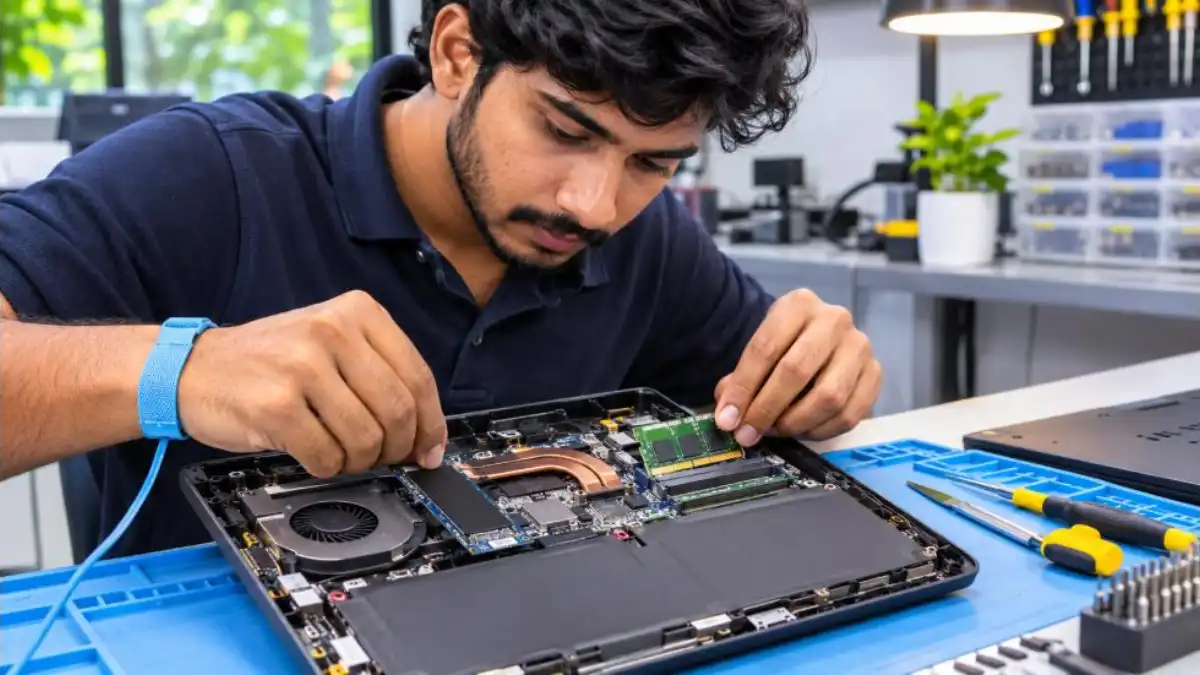
If your laptop still uses a hard disk drive (HDD), upgrading to a solid state drive (SSD) is the single biggest improvement. Boot time can drop from minutes to seconds, and apps open much faster. Check your laptop model for SATA or NVMe support before buying.
13. Add more RAM
For Windows 11 with modern browsers, 8 GB is a practical minimum and 16 GB is comfortable for multitasking. Many laptops allow RAM upgrades; some thin models have soldered RAM that cannot be upgraded. Check your model’s specifications.
14. Run disk and system checks
Open Command Prompt as administrator and run sfc /scannow to repair system files. If you use an HDD, check its health with the manufacturer’s tool; failing drives become very slow.
15. Reset Windows (last option)
If the laptop running slow problem continues after all fixes, back up your files and use Settings > System > Recovery > Reset this PC. Choose “Keep my files” first; if that doesn’t help, choose “Remove everything” for a clean start.
How Much RAM and Storage Do You Need?
| Use | RAM | Storage |
|---|---|---|
| Browsing, office work, online classes | 8 GB | 256 GB SSD |
| Heavy multitasking, coding | 16 GB | 512 GB SSD |
| Photo and video editing, gaming | 16–32 GB | 512 GB–1 TB SSD |

Related Guides
See our fixes for laptop not charging, Wi-Fi connected but no internet and Windows 11 screenshot. For official guidance, visit Microsoft Windows Support.
Why Is My Laptop Running Slow? Main Reasons
- Too many startup programs loading at boot.
- Low free storage, especially under 10–15% free.
- Old hard disk drive (HDD) instead of an SSD.
- Not enough RAM for modern browsers and apps.
- Background updates and indexing after a fresh install.
- Overheating from dust and blocked vents.
- Malware or adware running hidden processes.
- Outdated drivers or BIOS.
- Battery saver mode limiting performance.
- Ageing hardware that cannot keep up with new software.
Most cases of a laptop running slow involve two or three of these causes together, so combine several fixes for the best result.
Laptop Running Slow After a Windows Update
Right after a big update, Windows optimises apps, rebuilds search indexes and installs drivers. Leave the laptop plugged in and connected to the internet for an hour or two. Restart once or twice. If your laptop running slow continues for days after an update:
- Install any pending optional or driver updates.
- Check the laptop maker’s support app for compatibility updates.
- Use “Go back” in Recovery settings within the allowed period if the update caused serious issues.
Laptop Running Slow on Battery but Fine When Charging
This is often due to power settings. Windows and many laptop brands reduce CPU speed on battery to save power. Choose a balanced power mode on battery, close heavy apps, and check the battery health. A worn-out battery can also force the laptop into low-power states. Our guide on laptop not charging covers battery health checks.
Browser Optimisation Tips
- Keep fewer than 10–15 tabs open on 8 GB RAM laptops.
- Use bookmarks or a reading list instead of leaving tabs open.
- Remove extensions you don’t use every week.
- Clear cached images and files once a month.
- Turn on memory saver or sleeping tabs features.
- Use one browser instead of running two at the same time.
Students: Quick Speed-Up Routine
For students using laptops for online classes and assignments, a weekly 10-minute routine keeps things smooth: restart the laptop, run Storage Sense, close unused apps, update Windows, and check Task Manager for anything unusual. A laptop running slow during an exam submission is stressful, so do this routine before important deadlines.

Step-by-Step: 20-Minute Speed-Up Plan
| Minutes | Task |
|---|---|
| 0–2 | Restart the laptop fully |
| 2–5 | Open Task Manager; end heavy unwanted tasks; disable startup apps |
| 5–9 | Run Storage Sense and cleanup recommendations |
| 9–12 | Uninstall unused programs |
| 12–15 | Remove browser extensions; clear browser cache |
| 15–18 | Start Windows Update and driver updates |
| 18–20 | Start a quick Windows Security scan; set power mode to Balanced |
After this plan, restart once more and test. Most users notice a big difference straight away.
Understanding Task Manager Readings
- CPU near 100% for long: A program or malware is overloading the processor.
- Memory above 85–90%: Too many apps or tabs, or not enough RAM.
- Disk at 100%: Common on HDDs during updates or indexing; an SSD fixes this.
- GPU high: Games, video or browser hardware acceleration.
Watching these numbers helps you understand exactly why your laptop feels slow at a particular moment.
Is It Time to Buy a New Laptop?
Consider replacing your laptop if:
- It is more than 6–7 years old and cannot run supported versions of Windows well.
- RAM and storage cannot be upgraded.
- The battery, keyboard and screen also need repair.
- Repair and upgrade costs approach the price of a new budget laptop.
Otherwise, an SSD and RAM upgrade plus software cleanup can give an older laptop several more years of useful life.
Prevent Slowness in Future
- Install software only from trusted sources.
- Keep at least 20% free storage.
- Restart at least once a week.
- Update Windows and drivers regularly.
- Clean vents every few months and avoid soft surfaces.
- Back up files to cloud or external drives to keep the internal drive light.
Laptop Running Slow While Gaming or Video Editing
Heavy tasks push laptops to their limits. To improve performance:
- Plug in the charger; many laptops limit GPU power on battery.
- Select the dedicated graphics card for games and editors in Windows graphics settings.
- Update GPU drivers from NVIDIA, AMD or Intel.
- Use a cooling pad and keep the room ventilated.
- Lower in-game graphics settings or preview resolution in editors.
- Close browsers and background apps before starting.
Laptop Running Slow Because of Low Storage
When the C: drive is nearly full, Windows struggles with virtual memory and updates, and a laptop running slow becomes very noticeable. Move photos and videos to an external drive or cloud, uninstall large games you no longer play, and empty the Downloads folder. Use OneDrive’s “Files On-Demand” to keep files in the cloud while still seeing them in File Explorer.
Laptop Running Slow After Virus Removal
Even after removing malware, leftover startup entries or browser changes can keep the laptop slow. Reset your browser settings, check startup apps again, and run an offline scan from Windows Security. If problems continue, a Windows reset with “Keep my files” gives a clean system.
Real Example
Nikhil’s five-year-old laptop took four minutes to boot and froze during online meetings. Task Manager showed the disk at 100%. He disabled six startup apps, cleaned 30 GB of junk files and replaced the HDD with a 512 GB SSD. Boot time dropped to under 20 seconds, and meetings ran smoothly. His laptop running slow problem was solved for a fraction of the cost of a new laptop.
Useful Built-In Windows Tools
| Tool | What it does | How to open |
|---|---|---|
| Task Manager | Shows resource use, startup apps | Ctrl + Shift + Esc |
| Storage Sense | Automatically cleans temporary files | Settings > System > Storage |
| Windows Security | Scans for viruses and threats | Start menu search |
| Resource Monitor | Detailed CPU, disk, network and memory view | Search “Resource Monitor” |
| Disk Cleanup | Removes system junk and old update files | Search “Disk Cleanup” |
| Windows Update | Installs fixes and drivers | Settings > Windows Update |
These free tools are enough for most users; there is no need for paid optimisation software.
Backup Before Big Changes
Before upgrading storage or resetting Windows, back up documents, photos and important files to an external drive or cloud. Note your software licence keys and browser passwords (use your browser’s sync feature). With a backup ready, you can make changes confidently.
Keep Your Laptop Physically Healthy
Physical care also affects speed. Avoid eating over the keyboard, store the laptop in a padded bag, and don’t block vents when using it on your lap. Every few months, power it off, unplug it and gently clean the keyboard and vents. A cool, clean laptop runs faster and lasts longer.
Final Tips
Speed problems rarely have a single magic fix. Think of your laptop like a vehicle that needs regular servicing: small cleanups every week, updates every month and a deeper check every few months. Track what changes before the slowness starts, such as a new app, an update or a full drive, because that clue often points straight to the cause. If you use the laptop for work or studies, schedule maintenance on weekends so that it never slows you down at critical moments.
When in doubt, start with the simplest steps: restart, check Task Manager and free up storage. Then move to updates, malware scans and cooling. Only after these should you consider hardware upgrades or a reset. Following this order saves time and money, and in most cases brings your laptop back to a fast, comfortable experience for everyday tasks like browsing, online classes, office work and entertainment.
Share this guide with friends and family whose computers feel sluggish. A few minutes of cleanup and smart settings can make an old laptop feel surprisingly quick again, and help everyone get more done with less frustration every single day.
Remember to keep a backup routine and revisit these steps whenever performance drops.
With regular care, smart settings and the right upgrades at the right time, your laptop can stay fast, reliable and ready for work, study and entertainment for many years to come.
Start with one fix today and notice the difference.
Frequently Asked Questions
Why is my new laptop running slow?
New laptops often run updates, indexing and pre-installed apps in the background. Let updates finish, remove bloatware and disable unnecessary startup apps.
Will an SSD really make my laptop faster?
Yes. Replacing an HDD with an SSD is the most noticeable upgrade for boot time and app loading.
Is 4 GB RAM enough for Windows 11?
It can run, but it will feel slow with modern browsers. 8 GB or more is recommended.
Do PC cleaner apps help?
Built-in Windows tools are enough. Many third-party cleaners add ads or background processes.
Should I reset Windows to fix slowness?
Only after trying other fixes. Back up your files first.
Conclusion
A laptop running slow can usually be fixed without buying a new one. Restart, check Task Manager, disable startup apps, free disk space, update Windows and drivers, scan for malware and keep the laptop cool. For older laptops, an SSD and more RAM can make it feel new again.