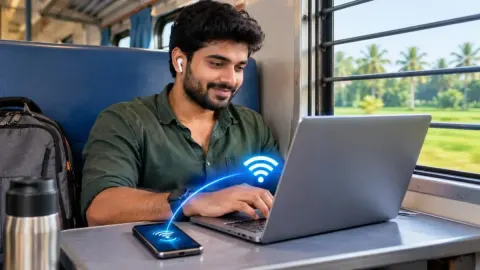

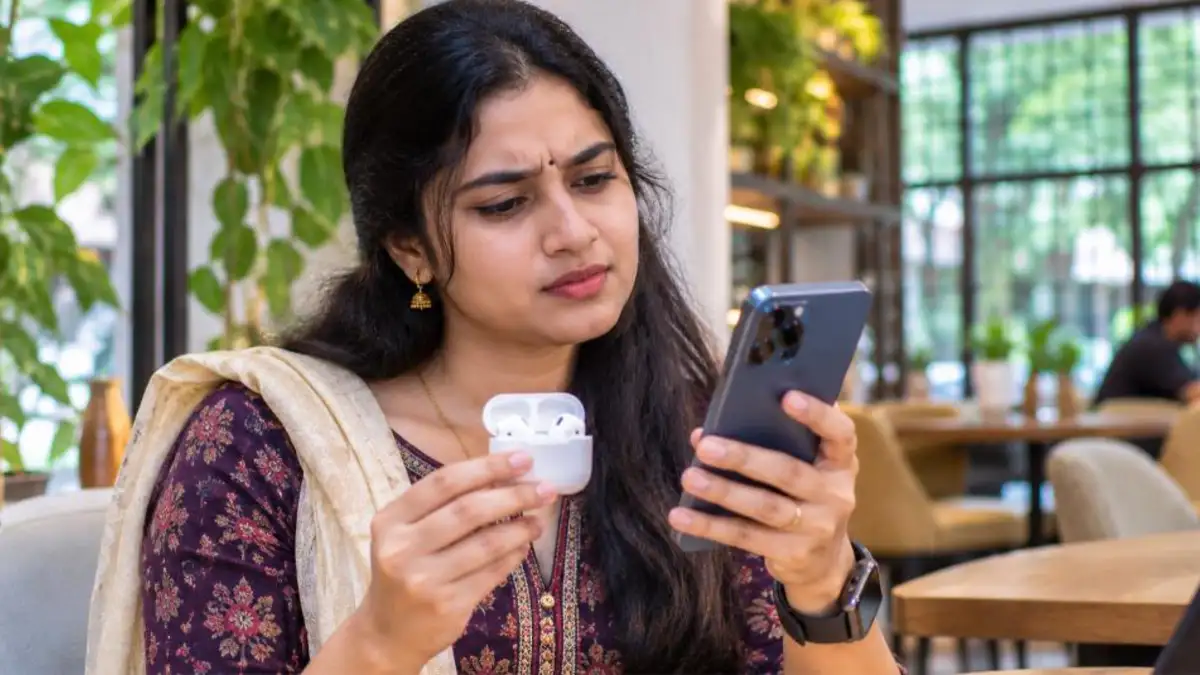
Your earbuds won’t pair, the car stereo refuses to recognise your phone, or the smartwatch keeps disconnecting? A Bluetooth not connecting problem is one of the most common smartphone issues, and it usually happens at the worst time – just before a call or a long drive. The good news is that most Bluetooth problems are caused by small software glitches or settings, not hardware failure, and you can fix them in a few minutes.
This guide explains why Bluetooth is not connecting, and gives 12 easy fixes for Android and iPhone, special tips for earbuds, car systems, smartwatches and laptops, and when it is time to visit a service centre.
Table of Contents
Why Is Bluetooth Not Connecting?
Before trying fixes, it helps to understand the common reasons for Bluetooth not connecting:
- Device not in pairing mode: Earbuds, speakers and car systems must be in pairing mode to appear on your phone.
- Already connected to another device: Many earbuds automatically connect to the last device used, such as a laptop or tablet.
- Old pairing data: Corrupted or outdated pairing information prevents a fresh connection.
- Low battery: Accessories with very low battery may fail to connect or keep dropping.
- Distance and interference: Walls, Wi-Fi routers, microwaves and many nearby Bluetooth devices can weaken the signal.
- Software bugs: Outdated system software or app updates can cause Bluetooth not connecting issues.
- Battery saver or permissions: Power-saving modes and missing app permissions may block Bluetooth features.
- Compatibility: Very old Bluetooth versions or unsupported codecs may cause problems with new devices.
Quick Checks Before You Start
- Make sure Bluetooth is turned on in your phone’s quick settings.
- Charge your earbuds, speaker or watch for at least 15 minutes.
- Keep the device within 1–2 metres of your phone while pairing.
- Turn off Bluetooth on other nearby phones, tablets or laptops that might grab the connection.
- Check that the accessory’s LED shows pairing mode (usually blinking blue or white).
12 Easy Fixes for Bluetooth Not Connecting
1. Turn Bluetooth off and on
The simplest fix is often the best. Turn Bluetooth off, wait 10 seconds and turn it back on. This resets the Bluetooth radio and clears temporary glitches that cause Bluetooth not connecting errors.
2. Restart your phone and the accessory
Restarting clears memory and background processes. Switch off your phone completely, restart the earbuds or speaker (put earbuds back in the case and close the lid for a few seconds), then turn both on again and try connecting.
3. Put the device in pairing mode correctly
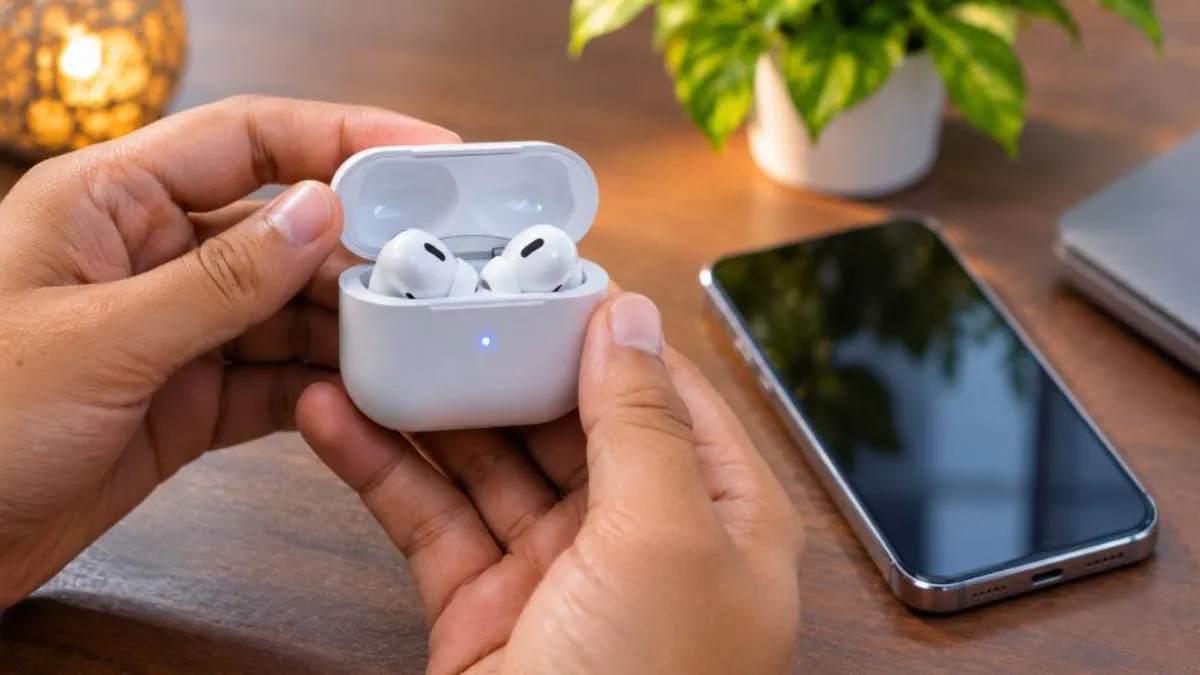
Each brand has its own method. For many earbuds, open the case and press and hold the button on the case or touch both earbuds for a few seconds until the light blinks. For speakers, hold the Bluetooth button. Check the user manual or the brand’s app if you are unsure.
4. Forget the device and pair again
Old pairing data is a very common reason for Bluetooth not connecting.
- Android: Go to Settings > Connected devices (or Bluetooth), tap the gear icon next to the device, and select Forget or Unpair.
- iPhone: Go to Settings > Bluetooth, tap the (i) icon next to the device, and choose Forget This Device.
Then put the accessory in pairing mode and pair it again as a new device.
5. Disconnect from other phones and laptops
If your earbuds were last used with a laptop, they may connect to it automatically. Turn off Bluetooth on the laptop or remove the earbuds from its device list, then connect to your phone.
6. Reset the earbuds or speaker
Most earbuds have a factory reset option – often holding the case button for 10–15 seconds until the light flashes in a different colour. A reset clears all old pairings in the accessory and often fixes stubborn Bluetooth not connecting problems.
7. Clear Bluetooth cache (Android)
On many Android phones you can clear the Bluetooth app’s cache:
- Go to Settings > Apps.
- Tap the menu and enable Show system apps.
- Find and open Bluetooth.
- Tap Storage and choose Clear cache.
- Restart your phone and pair again.
8. Reset network settings
Resetting network settings clears Wi-Fi, mobile data and Bluetooth configurations, which can fix deeper Bluetooth not connecting issues. You will need to reconnect to Wi-Fi networks afterwards.
- Android: Settings > System > Reset options > Reset Wi-Fi, mobile & Bluetooth.
- iPhone: Settings > General > Transfer or Reset iPhone > Reset > Reset Network Settings.
9. Turn off battery saver and allow permissions
Battery saver modes can limit background Bluetooth activity. Turn off battery saver while pairing. Also check that companion apps for your earbuds or watch have Bluetooth, location (on some Android versions) and “Nearby devices” permissions.
10. Update your phone and accessory firmware
Software updates often include Bluetooth fixes. Update your phone from Settings > System update (Android) or Settings > General > Software Update (iPhone). Also open the earbud or watch companion app to check for firmware updates.
11. Check for interference
Move away from Wi-Fi routers, microwaves and crowded areas with many Bluetooth devices. Thick walls and metal objects also block signals. Try connecting in a different room to see if Bluetooth not connecting is caused by interference.
12. Test with another device
Try pairing the accessory with another phone, and your phone with another accessory. This tells you which device has the problem. If the accessory connects everywhere except your phone, the issue is with your phone’s software or settings. If it fails with every phone, the accessory may be faulty.
Bluetooth Not Connecting on Samsung, Xiaomi, Vivo and Other Android Brands
Android brands add their own features on top of Google’s system, and some of these can cause Bluetooth not connecting problems:
| Brand | Setting to check |
|---|---|
| Samsung | Turn off “Adaptive battery” restrictions for the earbud app; check Settings > Connections > Bluetooth > Advanced |
| Xiaomi / Redmi / POCO | Allow “Autostart” for the companion app and set battery saver to “No restrictions” |
| Vivo / iQOO | Allow background activity and high background power consumption for the app |
| Oppo / Realme / OnePlus | Disable battery optimisation for the companion app; check “Bluetooth scanning” in location settings |
| Google Pixel | Check Connected devices > Connection preferences and Fast Pair settings |
Aggressive battery management on some phones closes background apps, which makes earbuds and smartwatches disconnect. Allowing the companion app to run in the background often fixes repeated Bluetooth not connecting or dropping issues.
Bluetooth Not Connecting on iPhone: Extra Tips
- Check Control Centre: Turning Bluetooth off from Control Centre only disconnects devices temporarily. Use Settings > Bluetooth to fully toggle it.
- AirPods: Place both AirPods in the case, open the lid near your iPhone, and follow the on-screen animation. To reset, hold the setup button on the case until the light flashes amber, then white.
- Non-Apple earbuds: Make sure they are in pairing mode before opening Settings > Bluetooth.
- Focus modes: Some Focus settings can silence notifications from accessories; review them if your watch seems disconnected.
- Restart after update: If Bluetooth not connecting started after an iOS update, restart the iPhone and re-pair the accessory.
Bluetooth Not Connecting to Smartwatch or Fitness Band
Smartwatches depend heavily on their companion apps. If your watch shows Bluetooth not connecting:
- Open the companion app and check if it shows the watch as disconnected.
- Make sure the app has Bluetooth, notification and background permissions.
- Remove the watch from the app and from your phone’s Bluetooth list.
- Reset the watch from its own settings menu.
- Pair again through the app, not directly from phone Bluetooth settings – most watches require app-based pairing.
Bluetooth Not Connecting to Laptop or PC
- Windows: Go to Settings > Bluetooth & devices, remove the device and add it again. Run the Bluetooth troubleshooter if available, and update Bluetooth drivers from Device Manager.
- Mac: Open System Settings > Bluetooth, remove the device and reconnect. Restart the Mac if the device does not appear.
- Airplane mode: Make sure airplane mode is off on the laptop.
- USB dongles: If your desktop uses a USB Bluetooth adapter, plug it into a different USB port away from other wireless receivers.
Bluetooth Connected But No Sound?
Sometimes Bluetooth is connected but you can’t hear anything. Try these steps:
- Increase the volume on both the phone and the accessory.
- In the device’s Bluetooth settings, make sure “Media audio” or “Phone calls” is enabled.
- Check that audio isn’t being routed to another device, such as a smart TV or second speaker.
- Disable “Absolute volume” in Android Developer options if volume is too low or uneven.
- Clean the earbud mesh gently with a dry soft brush – earwax can block sound.
Understanding Bluetooth Versions, Range and Codecs
Knowing a little about how Bluetooth works helps you understand why some connections are better than others.
- Bluetooth versions: Newer versions such as Bluetooth 5.0 and above offer better range, faster pairing and lower power use than older versions like 4.2. Devices are backward compatible, but the connection works at the level of the older device.
- Range: Most phones and earbuds work reliably within about 10 metres in open space. Walls, bodies and metal reduce this range considerably.
- Codecs: Audio codecs like SBC, AAC, aptX and LDAC decide sound quality and stability. High-quality codecs need a stronger connection; switching to a more stable codec in Developer options can reduce dropouts on some Android phones.
- Multipoint: Some earbuds can connect to two devices at once. This is convenient but can confuse connections if both devices try to play audio.
- Bluetooth LE Audio: Newer phones and earbuds support LE Audio for better efficiency. Both devices must support it to use these features.
Bluetooth Not Connecting: Troubleshooting Checklist
| Symptom | Most likely cause | Best fix |
|---|---|---|
| Device not showing in list | Not in pairing mode | Activate pairing mode; keep devices close |
| Pairing fails repeatedly | Old pairing data | Forget device on phone and reset accessory |
| Connects then disconnects | Battery saver or interference | Disable battery optimisation; move away from routers |
| Connected but no sound | Audio profile disabled | Enable media audio in device settings |
| Only one earbud works | Earbuds out of sync | Factory reset earbuds |
| Car won’t connect | Too many paired phones | Delete old phones from car list |
| Nothing connects at all | Software or hardware fault | Reset network settings; update; visit service centre |
Use this checklist to quickly match your symptom with the right solution instead of trying every fix one by one.
How to Prevent Bluetooth Problems in Future
- Keep your phone and accessory firmware updated.
- Don’t pair too many devices; remove ones you no longer use.
- Charge accessories regularly and avoid letting batteries drain completely.
- Store earbuds in their case to protect contacts from dust and moisture.
- Avoid cheap, uncertified accessories that may not follow Bluetooth standards.
If your phone also feels slow or freezes often, our guide on the phone hanging problem fix can help, and if battery drains quickly when Bluetooth is on, read phone battery draining fast fixes.
Bluetooth Not Connecting in Car: Special Tips
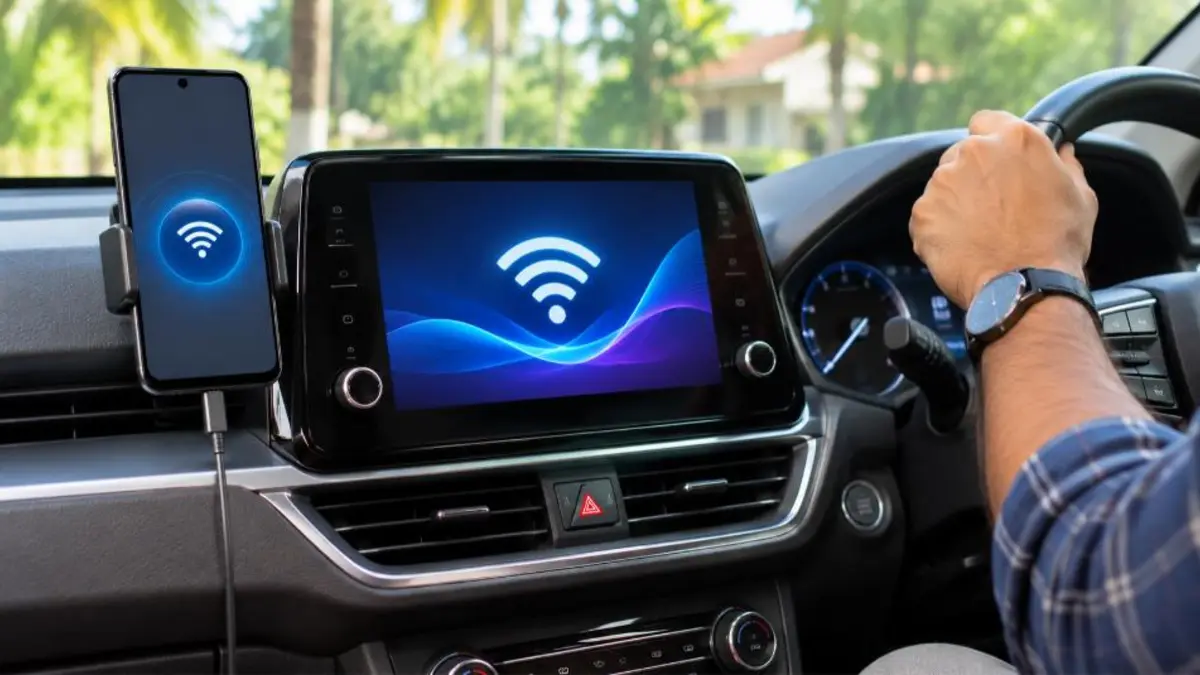
- Delete your phone from the car’s Bluetooth list and delete the car from your phone, then pair again.
- Make sure the car is in pairing or “add device” mode, usually from the infotainment settings.
- Many cars allow only a limited number of paired phones; remove old phones from the list.
- Accept the contacts and call history access prompt on your phone if you want hands-free calling to work fully.
- Restart the car’s infotainment system by switching the ignition off and on.
Bluetooth Not Connecting to Speaker or TV
Portable speakers, soundbars and smart TVs follow the same basic rules, but there are a few differences. Many soundbars need you to select the Bluetooth input with the remote before they appear on your phone. Smart TVs may list your phone under “Bluetooth devices” or “Sound output” settings, and some allow only one audio device at a time. If your speaker supports party mode or stereo pairing with a second speaker, disable those modes temporarily while connecting it to a new phone. When the speaker still refuses to connect, hold its Bluetooth button until it clears its memory, and then pair again from scratch.
For TVs, also check for a software update in the TV settings, since manufacturers often release fixes for audio and Bluetooth stability. Keep the TV and the speaker within a clear line of sight for the most stable connection.
When to Visit a Service Centre
- Bluetooth will not turn on at all, or the toggle is greyed out.
- No device can connect to your phone, even after resetting network settings.
- The problem started after the phone was dropped or exposed to water.
- Earbuds connect but have no sound in one side even after reset.
Visit an authorised service centre for diagnosis, especially if your device is under warranty.
Final Tips Before You Give Up
If you have tried every fix and Bluetooth is still not connecting, take a short break and try once more with a fully charged phone and accessory, in a quiet room away from other wireless devices. Boot your Android phone in Safe Mode to check whether a third-party app is interfering – if Bluetooth works in Safe Mode, uninstall recently added apps one by one. On iPhone, a full backup and restore can fix deep software issues. Only after these steps should you conclude that the hardware needs repair.
For official step-by-step help, you can also check Google’s Android Bluetooth help page and Apple Support for Bluetooth accessories. These pages are updated with each software release and explain menu names for the latest versions, which is useful if your Bluetooth not connecting problem appears after a major update.
Frequently Asked Questions (FAQ)
Why is my Bluetooth not connecting to my earbuds?
Usually the earbuds are not in pairing mode, are connected to another device, or have old pairing data. Forget the device, reset the earbuds and pair again.
Does resetting network settings delete my data?
No. It only removes saved Wi-Fi networks, Bluetooth pairings and mobile network settings. Your photos, apps and files stay safe.
Why does Bluetooth keep disconnecting?
Low battery, distance, interference or battery saver settings are common causes. Keep devices close, charge them and turn off aggressive battery optimisation for the companion app.
Can a phone case cause Bluetooth not connecting?
Thick metal cases or magnetic accessories can weaken wireless signals slightly. If you face frequent drops, test without the case.
Is Bluetooth not connecting a hardware problem?
Usually not. Most cases are software or settings issues. If no device connects after all fixes, the Bluetooth chip may need service.
How do I fix Bluetooth not connecting after an update?
Restart your phone, forget the device, clear Bluetooth cache on Android, and reset network settings if needed. Install any follow-up update released by the manufacturer.
Should I buy new earbuds if Bluetooth is not connecting?
Not immediately. Try all the fixes, test the earbuds with another phone and check the warranty. Replace them only if they fail with every device.
Conclusion
Most cases of Bluetooth not connecting can be solved at home. Start with simple steps like turning Bluetooth off and on, restarting both devices and forgetting the old pairing. If that doesn’t work, reset the accessory, clear Bluetooth cache, reset network settings and update software. With these fixes, your earbuds, speakers, car and smartwatch should connect smoothly again.