
Touch screen not working is one of the most frustrating phone problems, because without touch you cannot unlock the phone, answer calls or even reach the settings to fix it. The good news is that most touch problems on Android phones come from software glitches, screen protectors, moisture or settings, not from a broken display. This guide covers 12 easy fixes for a touch screen not working in 2026, starting with quick checks that take seconds and moving to deeper solutions for Samsung, Xiaomi, Redmi, Realme, Vivo, Oppo, OnePlus, Motorola and Pixel phones.
Table of Contents
Work through the fixes in order. If you face touch screen not working issues only in some areas, or it is responding on its own (ghost touch), you will find specific advice for that too.
Why Is My Touch Screen Not Working?
Before you try fixes, it helps to understand the common causes. A touch screen not working problem usually falls into one of these groups:
| Cause | Typical symptom | Fix difficulty |
|---|---|---|
| Temporary software freeze | Screen visible but nothing responds | Easy |
| Dirty screen, water or oily fingers | Missed taps, jumpy scrolling | Easy |
| Thick or cracked screen protector | Edges or one area unresponsive | Easy |
| Faulty app or launcher | Touch fails only in one app or home screen | Medium |
| Wrong touch or gesture settings | Taps register late or need pressure | Medium |
| Charger interference | Ghost touches only while charging | Easy |
| Buggy system update | Problem started after an update | Medium |
| Physical damage to digitizer | Dead zones, cracks, problem after a fall | Repair needed |
Fix 1: Restart or Force Restart the Phone
A simple restart clears temporary memory and closes frozen processes. If your touch screen is not working at all, you cannot use the on-screen power menu, so use a force restart with the buttons:
- Most Android phones: Press and hold the Power button for 10 to 20 seconds until the phone vibrates and restarts.
- Samsung Galaxy: Hold Power and Volume Down together for about 10 seconds.
- Pixel: Hold the Power button for about 30 seconds, or Power plus Volume Up on some models.
- Xiaomi, Redmi, Poco, Realme, Vivo, Oppo, OnePlus: Hold Power (or Power plus Volume Up) for 10 to 15 seconds.
This one step fixes a surprising number of cases where the touch screen is not working after the phone was used heavily or left in a hot place.
Fix 2: Clean the Screen and Dry Your Hands
Capacitive touch screens detect the small electrical charge from your finger. Water drops, sweat, cream, oil or dust can confuse the sensor. Turn the screen off, wipe it gently with a soft microfibre cloth slightly dampened with water, and let it dry completely. Dry your hands too. If the phone was exposed to rain or water, keep it off and let it dry for several hours before testing again.
Fix 3: Remove the Screen Protector and Case
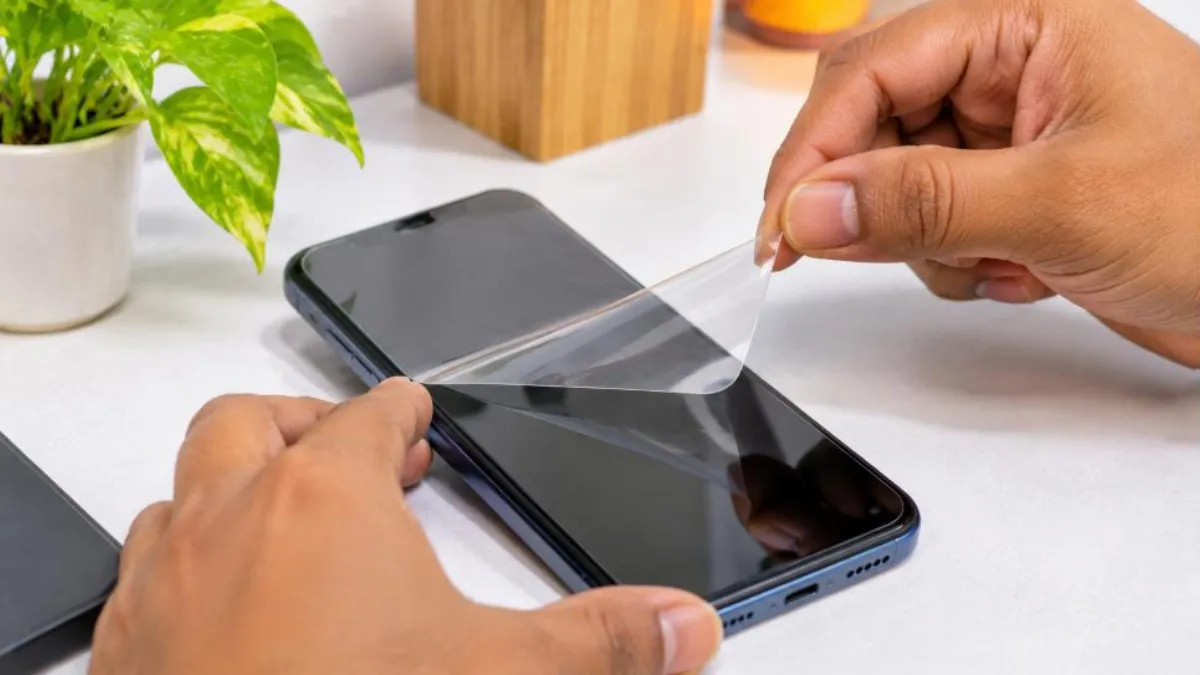
Thick tempered glass, a cracked protector or air bubbles near the edges can block touch in certain areas. A tight case can also press on the screen edges and create false touches. Remove both and test. If the touch screen not working issue disappears, replace the protector with a good-quality one designed for your exact model. After installing a new protector, check whether your phone has a “Touch sensitivity” or “Screen protector mode” setting and turn it on.
Fix 4: Unplug the Charger
Cheap or damaged chargers and cables can cause electrical noise that leads to ghost touches or unresponsive areas while charging. Unplug the charger and test the screen. If touch works normally on battery, switch to the original charger or a certified one. Our guide on phone not charging fixes also helps you choose a safe charger and cable.
Fix 5: Turn On Touch Sensitivity
Many phones have a setting that increases touch sensitivity, useful with screen protectors or gloves.
- Samsung: Settings > Display > Touch sensitivity.
- Pixel: Settings > Display > Increase touch sensitivity (on supported models).
- Others: Search “touch” or “glove mode” in Settings.
Use voice commands, or connect a USB mouse with an OTG adapter, if a touch screen not working problem stops you to reach these settings.
Fix 6: Use Safe Mode to Find a Bad App
A recently installed app, especially a launcher, screen filter, game booster or “cleaner”, can interfere with touch. Safe Mode loads Android with only pre-installed apps.
- Press and hold the Power button until the power menu appears.
- Touch and hold Power off (or Restart on some phones) until you see the Safe Mode prompt.
- Tap OK to restart in Safe Mode.
- Test the screen. If it works, a third-party app is the culprit.
- Restart normally and uninstall recently added apps one by one until the problem stops.
Fix 7: Check Display and Accessibility Settings
Some settings change how taps are recognised. Check these if the touch screen is not working the way you expect:
- Touch and hold delay: Settings > Accessibility > Interaction controls; set to Short.
- Tap duration or ignore repeated touches: Turn off on Samsung under Accessibility > Interaction and dexterity.
- Pocket mode or accidental touch protection: Can block touch if the proximity sensor is covered.
- Screen pinning or one-handed mode: Can make parts of the screen seem unresponsive.
Fix 8: Update the Software
Phone makers release updates that fix touch bugs. Go to Settings > System > Software update (or Settings > Software update on Samsung) and install any pending update. Also update all apps from the Play Store. If your touch screen not working problem started right after an update, check the manufacturer’s community forum; a fix is often released within weeks.
Fix 9: Free Up Storage and Memory
When storage is almost full, the phone slows down and touch responses lag. Delete unused apps, clear large videos and empty the trash in your gallery. Aim to keep at least 10 to 15 percent of storage free. See our full guide on how to free up Android storage. Also close heavy games running in the background.
Fix 10: Let an Overheated Phone Cool Down
Heat can make the screen behave strangely and trigger thermal throttling. If the phone feels hot, stop charging, close games and keep it in a cool, shaded place for 15 to 20 minutes. Never put it in a fridge. Read our phone overheating fix guide for long-term prevention.
Fix 11: Wipe the Cache Partition (Some Phones)
On some Android phones, clearing the system cache from recovery mode fixes stubborn glitches without deleting your data. The steps vary by brand. On many older Samsung and Motorola phones, you turn the phone off, hold Power and Volume Up (and sometimes connect a USB cable) to enter recovery, then use the volume keys to select “Wipe cache partition” and the Power key to confirm. Many newer phones no longer show this option. If your model does not have it, skip to the next fix.
Fix 12: Back Up and Factory Reset
If nothing else works and the touch screen is not working even in Safe Mode, a factory reset rules out deep software corruption. This erases all data, so back up first:
- Back up photos to Google Photos and chats to Google Drive or your messaging app’s backup.
- Note your Google account password; you will need it after the reset.
- Go to Settings > System > Reset options > Erase all data (factory reset). On Samsung: Settings > General management > Reset > Factory data reset.
- Follow the prompts and wait for the phone to restart.
- Test the screen before restoring apps.
If touch fails during setup right after the reset, the problem is almost certainly hardware.
How to Control Your Phone When Touch Fails Completely
When the touch screen is not working at all, you can still do a lot without touching the display:
- Use a USB mouse or keyboard: Connect through a USB OTG adapter. A cursor appears and you can click to unlock, back up and change settings.
- Use Google Assistant or Gemini: Say “Hey Google” to open settings, make calls or send messages, if voice unlock is set up.
- Use Find Hub from another device: Locate, lock or erase the phone from a computer; see our guide on Google Find My Device.
- Back up automatically: Plug in the charger and connect to Wi-Fi; Google backup may run overnight if it was already enabled.
Ghost Touch: Screen Tapping on Its Own
Ghost touch is the opposite of a touch screen not working: the phone opens apps or types by itself. Common causes and fixes:
| Cause | What to do |
|---|---|
| Faulty charger | Unplug and use an original charger |
| Moisture under protector | Remove protector, dry the phone |
| Pressure from case | Remove the case and test |
| Software bug | Update the phone and test in Safe Mode |
| Damaged digitizer | Visit an authorised service centre |
Only Part of the Screen Not Responding?
If the top, bottom or edge of the display does not respond, test it properly. Turn on Developer options (Settings > About phone > tap Build number seven times), then in Developer options enable Pointer location or Show taps. Drag your finger across the whole screen. Gaps in the line show dead zones. Dead zones after a drop usually mean the touch layer is damaged and needs replacement, while dead zones that come and go often point to a protector or software issue.
On Samsung phones, you can also dial *#0*# in the Phone app on many models to open the hardware test menu and run the Touch test. Some other brands have similar diagnostic codes or a built-in “Phone diagnostics” app under Settings or the service app.
Brand-Specific Tips
Samsung Galaxy
Turn on Touch sensitivity under Display settings when using a protector. Use the Samsung Members app for diagnostics, which includes a touch screen test, and check Device care for software issues.
Xiaomi, Redmi and Poco
Look for “Prevent accidental touches” or “Pocket mode” under Additional settings or Lock screen, and turn it off if touch fails when the phone is in a cover with a flap. HyperOS updates frequently include touch fixes.
Realme, Oppo and OnePlus
Check Settings > Additional settings > Accessibility for touch settings, and disable gaming tools that change touch response while testing.
Vivo
Use the iManager app’s phone check, and look for Smart motion or Accidental touch prevention settings that can block taps.
Google Pixel and Motorola
Pixel phones offer “Increase touch sensitivity” on supported models. Both brands provide diagnostic tools via the settings or support apps; see the official Android Help Center for model-specific guidance.
When Is It a Hardware Problem?
Software fixes cannot solve physical damage. Your touch screen not working issue is likely hardware if:
- The problem began after a drop, pressure or water exposure.
- There are visible cracks, lines, black spots or a lifted screen edge.
- Touch fails even in recovery mode, Safe Mode and after a factory reset.
- The battery is swollen and pushing the screen up (stop using the phone immediately).
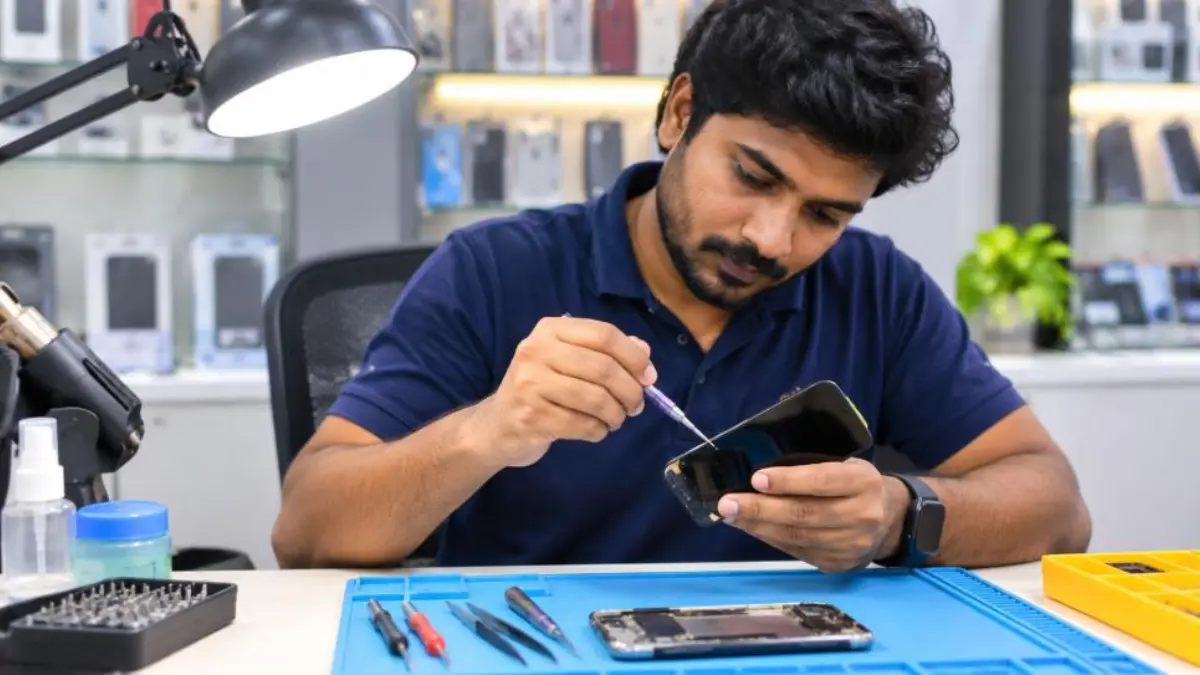
Visit an authorised service centre for an inspection. Ask for a written estimate and use genuine parts; low-quality replacement screens can have poor touch response. If the phone is under warranty or covered by screen protection insurance, keep the invoice handy.
How Much Does a Screen Repair Cost?
Costs depend heavily on the model and whether the display uses AMOLED or LCD. Budget phones with LCD screens are much cheaper to repair than flagship AMOLED or foldable displays. Always compare the authorised service quote with the phone’s current value before deciding. For older budget phones, upgrading can sometimes make more sense than an expensive repair.
Prevention Tips
- Use a quality screen protector made for your exact model.
- Keep the phone away from water, steam and extreme heat.
- Use original or certified chargers and cables.
- Install updates regularly and avoid unknown apps.
- Use a case with raised edges to protect the screen in falls.
- Clean the screen gently every few days.
What About Touch Calibration Apps?
The Play Store has many “touch calibration” or “touch repair” apps. Modern capacitive screens do not need manual calibration the way old resistive screens did, so most of these apps cannot fix real problems, and some are filled with ads or ask for unnecessary permissions. If you want to test the screen, use the built-in Pointer location option or your phone maker’s official diagnostics app instead. Spend your time on the proven fixes above rather than installing tools that promise miracles.
Tablets and Foldable Phones
The same steps apply to Android tablets and foldables. On foldables, check the crease area and the protective film carefully, because the pre-installed film is part of the display and should not be peeled off. On tablets, palm rejection settings and stylus modes can sometimes make touch seem unresponsive, so look for these under the display or stylus settings.
Quick Summary Table: Touch Screen Not Working Fixes
| Symptom | Try first | Then try |
|---|---|---|
| Screen frozen, no response at all | Force restart | Safe Mode, then factory reset |
| Missed taps in some areas | Remove protector and case | Pointer location test |
| Problem only while charging | Unplug charger | Use original charger and cable |
| Problem only in one app | Update or reinstall the app | Clear the app’s cache |
| Problem after an update | Install the latest patch | Wipe cache or reset |
| Problem after a fall | Inspect for cracks | Service centre |
Keep this table handy. In most cases, a touch screen not working problem is solved by the first two columns within ten minutes.
Remember, a touch screen not working on one day and fine the next usually points to software or moisture, not hardware. Track when the touch screen not working problem happens, such as while charging, after a game or in rain, because that pattern tells you which fix to use first.
Frequently Asked Questions
Why is my touch screen not working suddenly?
Sudden touch screen not working issues are usually caused by a software freeze, moisture, a faulty charger or a misbehaving app. A force restart and cleaning the screen fix most cases.
How do I fix touch screen not working without restarting from the screen?
Use the hardware buttons. Hold the Power button, or Power plus Volume Down on Samsung, for 10 to 20 seconds to force restart.
Can a screen protector cause touch screen not working problems?
Yes. Thick, cracked or poorly fitted protectors can block touch, especially near the edges. Remove it and test, then turn on touch sensitivity with a new protector.
Is touch screen not working after water damage fixable?
Turn the phone off immediately and let it dry fully. If touch still fails after drying, internal components may be damaged and need a service centre check.
Will a factory reset fix touch screen not working?
It fixes software causes. If touch fails even during setup after a reset, the issue is hardware and needs repair.
How can I back up my phone if the touch screen is not working?
Connect a USB mouse through an OTG adapter to navigate, or let Google backup run automatically on Wi-Fi while charging if it was already enabled.
Does ghost touch mean the screen is broken?
Not always. Chargers, moisture and cases often cause it. If it continues after these checks, the digitizer may be faulty.
Conclusion
A touch screen not working problem looks serious, but most of the time it is a quick fix. Start with a force restart, clean and dry the screen, remove the protector and charger, and test in Safe Mode to catch bad apps. Update the software, free up storage and cool down an overheated phone. If you still face touch screen not working issues after a factory reset, or the problem started after a fall, visit an authorised service centre. With these 12 easy fixes, you can get your Android phone responding smoothly again in 2026.