
GPS not working on your Android phone can leave you lost in an unfamiliar city, stop your cab or food delivery app from finding you and make Google Maps show the wrong location. In 2026, most cases of GPS not working are caused by location settings, battery savers, app permissions, a weak satellite signal indoors or a confused compass, not a broken GPS chip. This guide gives you 12 easy fixes for GPS not working on Samsung, Xiaomi, Redmi, Realme, Vivo, Oppo, OnePlus, Motorola and Pixel phones, from quick toggles to calibration and advanced resets.
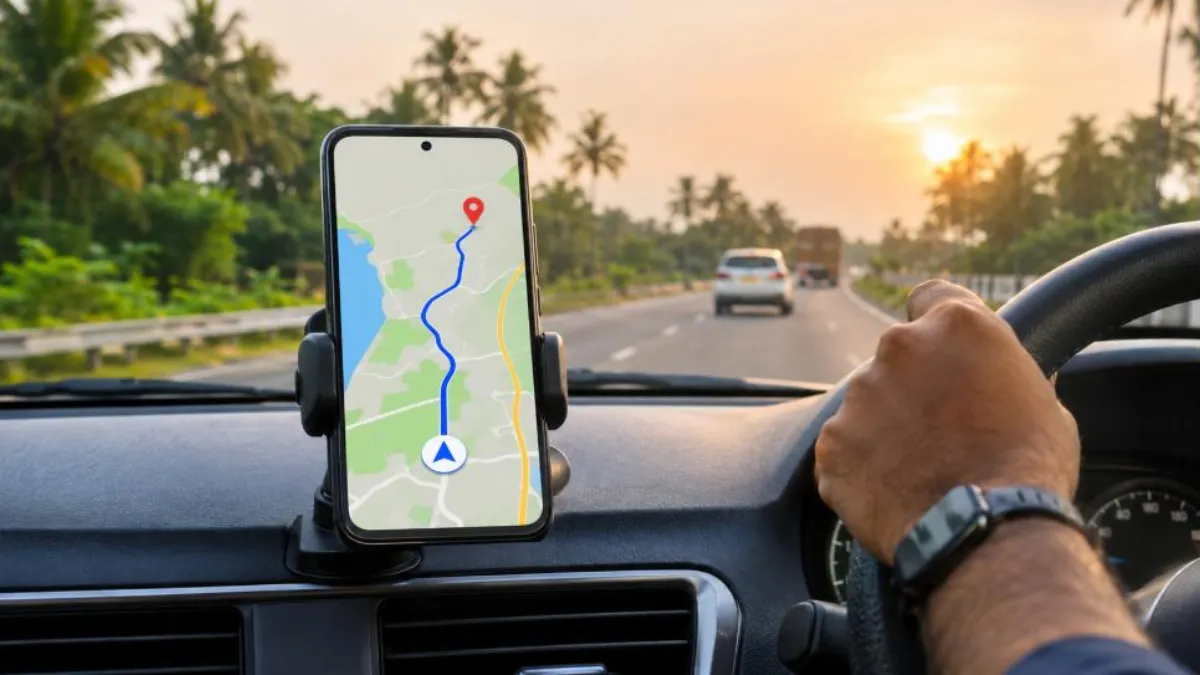
Table of Contents
Try the fixes in order. Most people solve GPS not working within the first five steps.
Common Signs of GPS Not Working
| Symptom | Likely cause |
|---|---|
| “Searching for GPS” or no blue dot | Location off, indoors or weak signal |
| Blue dot in the wrong place | Poor accuracy mode or Wi-Fi scanning off |
| Arrow points the wrong direction | Compass needs calibration or magnetic interference |
| Location jumps around | Tall buildings, metal case or poor signal |
| Works in Maps but not in one app | App permission set to “Don’t allow” or approximate |
| Stops when screen is off | Battery saver or background location blocked |
Fix 1: Turn Location Off and On
Swipe down to open quick settings, tap Location to turn it off, wait ten seconds and turn it back on. This resets the location service and often fixes GPS not working after a long trip or a system update. If there is no Location tile, add it by tapping the pencil (edit) icon in quick settings.
Fix 2: Restart the Phone
A restart clears stuck processes, including Google Play services, which handles location for most apps. Hold the Power button and tap Restart, then open Google Maps and wait a minute outdoors.
Fix 3: Go Outside and Wait
GPS satellites send weak signals that struggle to pass through concrete roofs, basements and metro tunnels. Step outside into an open area away from tall buildings, hold the phone normally and wait one or two minutes. The first fix after the phone has been off for a while can take longer. Indoors, your phone relies more on Wi-Fi and mobile networks, so accuracy drops; this is normal and not GPS not working in the true sense.
Fix 4: Turn On Location Accuracy
Google Location Accuracy uses Wi-Fi, mobile networks and sensors along with GPS to find your location faster and more precisely.
- Open Settings > Location.
- Tap Location services > Google Location Accuracy.
- Turn on Improve Location Accuracy.
- Also open Wi-Fi scanning and Bluetooth scanning and turn both on. These let the phone use nearby networks for positioning even when Wi-Fi itself is off.
On Samsung, the path is Settings > Location > Location services. Names vary slightly on other brands, so search “accuracy” in Settings.
Fix 5: Check App Location Permissions
If GPS not working happens only in one app, such as a cab, delivery or fitness app, its permission may be the issue.
- Go to Settings > Apps > [app] > Permissions > Location.
- Select “Allow only while using the app” or “Allow all the time” if the app needs tracking in the background, such as fitness or family safety apps.
- Turn on “Use precise location”. If only approximate location is allowed, the app gets a rough area instead of your exact spot.
Fix 6: Turn Off Battery Saver for Navigation
Power saving modes often limit GPS when the screen is off or reduce how frequently location updates. This causes navigation to freeze or lag. Turn off Battery Saver while navigating, and set the navigation app’s battery usage to Unrestricted under Settings > Apps > [app] > Battery. On Xiaomi, set Battery saver for Maps to No restrictions; on Samsung, remove Maps from Sleeping apps.
Fix 7: Calibrate the Compass
If the blue dot is correct but the beam points the wrong way, the compass needs calibration. In Google Maps, tap the blue dot and choose Calibrate, then move your phone in a figure-eight motion several times. Keep it away from magnets, laptop speakers and metal objects. Magnetic phone cases and car mounts with magnets are common causes of compass errors that look like GPS not working.
Fix 8: Remove Magnetic Cases and Mounts
Thick metal cases, magnetic flip covers and magnetic car mounts can interfere with the compass and sometimes weaken signal reception. Remove the case and test GPS outdoors. If accuracy improves, choose a non-magnetic case or a clamp-style car mount. Wireless charging magnets on the back of the phone can also confuse the compass on some models.
Fix 9: Clear Cache of Google Maps and Google Play Services
Corrupted cached data can cause GPS not working in Maps or wrong location history.
- Go to Settings > Apps > Maps > Storage & cache > Clear cache.
- Go to Settings > Apps > Google Play services > Storage > Clear cache (do not tap Manage storage unless you know what it does).
- Restart the phone and test Maps outdoors.
Also update Google Maps and Google Play services from the Play Store, because location fixes often arrive through these updates.
Fix 10: Check Date, Time and Time Zone
GPS relies on precise timing. If your phone’s date or time is wrong, the phone may struggle to lock onto satellites. Go to Settings > System > Date & time and turn on Set time automatically and Set time zone automatically. This small setting quietly fixes many cases of GPS not working after travelling abroad.
Fix 11: Turn Off Mock Location and VPN
If you enabled Developer options in the past, a mock location app may still be selected. Open Settings > System > Developer options > Select mock location app and choose “No app”. Some VPN apps also change the apparent location for certain services. Turn off the VPN and test. Remove any “fake GPS” apps you no longer need.
Fix 12: Reset Network Settings or Factory Reset
Resetting network settings clears Wi-Fi, mobile and Bluetooth configurations that location services use. Go to Settings > System > Reset options > Reset Wi-Fi, mobile & Bluetooth (on Samsung: General management > Reset > Reset network settings). You will need to re-enter Wi-Fi passwords afterwards.
If GPS not working continues outdoors even after all fixes, back up your data and perform a factory reset as a last software step. If the problem remains after the reset, the GPS antenna or chip may be faulty and needs a service centre inspection.

Brand-Specific GPS Tips
Samsung Galaxy
Check Settings > Location > App permissions and make sure Google Maps has precise location. In Battery settings, remove navigation apps from Sleeping apps and set them to Unrestricted. Samsung’s power saving mode can disable some location features while the screen is off.
Xiaomi, Redmi and Poco
Set Battery saver to No restrictions for Maps and delivery apps, enable Autostart, and allow “Display pop-up windows while running in the background” where navigation overlays are needed. Make sure Location accuracy is on.
Realme, Oppo and OnePlus
Allow background activity and turn off battery optimisation for navigation and cab apps. Some models have a “High accuracy” location option under Location settings; enable it.
Vivo and iQOO
Allow high background power consumption for location-based apps and keep location services on in the background for fitness or family tracking apps.
Google Pixel and Motorola
Pixel phones support multi-band GNSS on many models, which helps accuracy in cities. Keep Location Accuracy on, and check Adaptive Battery settings if navigation stops in the background.
GPS Not Working in Specific Apps
Google Maps
Tap the blue dot to see accuracy, calibrate if needed, and make sure Maps has precise location. If Maps is stuck on an old location, turn location off and on and clear Maps cache.
Cab and delivery apps
Ola, Uber, Rapido, Swiggy, Zomato and similar apps need location “While using the app” and precise location. If the pickup pin is wrong, drag it to the right place manually and check that battery saver is off.
Fitness and running apps
Fitness apps need “Allow all the time” to track routes when the screen is off. Turn off battery optimisation for them, or your route map will show straight lines and gaps.
Family safety and Find Hub
For location sharing to work, allow background location and keep the device online. Our guide on Google Find My Device explains how to locate a lost phone safely.
Why GPS Is Less Accurate Indoors and in Cities
It helps to know how location works so you can tell real GPS not working from normal limitations. Your phone listens to signals from satellite systems such as GPS, GLONASS, Galileo, BeiDou and India’s NavIC on supported phones. It needs a clear view of several satellites to calculate a precise position. Inside buildings, under flyovers, in basements and between tall towers, signals bounce or get blocked, so the phone falls back on Wi-Fi and mobile tower data. That is why accuracy may drop to tens of metres indoors even on a perfectly healthy phone.
| Place | Typical accuracy | What helps |
|---|---|---|
| Open road or field | Very good | Nothing needed |
| City street with tall buildings | Moderate, may drift | Location Accuracy, Wi-Fi scanning |
| Inside a house | Lower | Wi-Fi on, move near a window |
| Basement or metro | Poor or none | Wait until you are outside |
| Inside a car | Good | Avoid metallic window films, use a mount near the windscreen |
Car Navigation Tips
Many people first notice GPS not working while driving. Use these tips for reliable car navigation:
- Mount the phone on the windscreen or dashboard with a clear view of the sky, not in a cup holder or pocket.
- Download offline maps for long trips or areas with poor mobile coverage.
- Keep the phone charging, but use a quality car charger to avoid overheating.
- If the phone gets hot in sunlight, location and performance may throttle; read our phone overheating fix guide.
- Turn on “Keep screen on” during navigation in your Maps app settings if available.
How to Check Whether Your GPS Hardware Works
If you suspect the GPS chip itself, test it with a satellite status view. Several reputable GPS test apps show how many satellites your phone can see and the signal strength of each. Stand outdoors for a few minutes. If the app sees many satellites with good signal and gets a position fix, your hardware is fine and the problem is a setting or app. If it sees none even under an open sky after several minutes, the antenna may be damaged, especially after a drop or water exposure.
Some phones also have built-in diagnostics. On many Samsung models, the Samsung Members app includes sensor and GPS tests. Other brands include a phone check tool in their service or support apps.
Prevention Tips
- Keep Location Accuracy, Wi-Fi scanning and automatic time enabled.
- Give precise location only to apps that genuinely need it, but make sure navigation apps have it.
- Avoid magnetic cases and mounts if you use navigation often.
- Keep Google Maps and Google Play services updated.
- Do not install random “GPS booster” apps that promise better accuracy; they rarely help and may misuse your location data.
For official help, see the Google Maps Help page on location accuracy.
Quick Recap
When you face GPS not working, think in three layers. First, the phone settings: location on, accuracy on, correct time. Second, the app: permission, precise location and no battery restriction. Third, the environment: open sky, no magnetic interference. Fixing GPS not working usually means correcting just one of these. If GPS not working persists outdoors after all three layers are checked, consider a hardware test and service visit.
Real Examples
Arun, delivery partner in Kochi: Arun’s delivery app kept showing him a few streets away from his real position. He found that the app had only approximate location permission. After switching on precise location and removing battery restrictions, the pin matched his position and order assignments improved.
Neha, morning runner: Neha’s running app drew straight lines across buildings. The app was restricted in the background by battery saver. She set it to Unrestricted and allowed location all the time, and her next run was mapped accurately.
Suresh, new car owner: Suresh’s navigation arrow spun randomly. The culprit was a magnetic car mount. Switching to a clamp mount and calibrating the compass solved it in minutes.
Location Privacy While Fixing GPS
While troubleshooting, you may be tempted to give every app “Allow all the time” permission. Do not. Background location reveals your daily routine, so grant it only to apps that need it, such as family safety, fitness tracking or delivery partner apps you work with. Review location permissions every few months under Settings > Location > App location permissions, and turn off Location History in your Google account if you do not want a timeline saved. Good privacy habits and accurate location can go together.
Frequently Asked Questions
Why is my GPS not working suddenly?
Sudden GPS not working issues usually come from location being turned off, a battery saver, a recent update or being indoors. Toggle location, restart and test outdoors.
Why does Google Maps show the wrong location?
Turn on Google Location Accuracy and Wi-Fi scanning, calibrate the compass, and clear the Maps cache. Indoors, small errors are normal.
Can GPS work without internet?
Yes. GPS itself does not need internet, but maps and faster fixes do. Download offline maps for areas with no signal.
Why is GPS not working in my cab or delivery app?
The app may have only approximate location or be restricted by battery settings. Allow precise location while using the app and remove battery limits.
How do I calibrate GPS on Android?
Calibrate the compass in Google Maps by tapping the blue dot and following the figure-eight instructions. GPS itself does not need manual calibration.
Does a phone case affect GPS?
Metal or magnetic cases can interfere with the compass and signal. Remove the case and test outdoors.
Is GPS not working a hardware problem?
Rarely. If a satellite test app shows no satellites outdoors after all software fixes and a reset, the antenna may need repair.

Before you visit a service centre for GPS not working, write down when the problem happens, which apps are affected and whether it occurs outdoors. Share this with the technician; it saves diagnosis time and helps them decide whether GPS not working is caused by the antenna, a software bug or simply a setting that was missed. Many service centres will first ask you to try the same steps listed in this guide, so having already done them speeds things up considerably and may save you an unnecessary repair bill.
Keep in mind that a phone that has been switched off or in airplane mode for many days, or one that has travelled a long distance, can take a little longer for the first position lock. Give it a few minutes outdoors before concluding that something is wrong.
Conclusion
GPS not working on Android in 2026 is usually easy to fix. Toggle location, restart, go outside, enable Google Location Accuracy, check app permissions and battery limits, calibrate the compass and correct your phone’s time. Clear Maps and Play services cache, remove mock location apps and reset network settings if needed. With these 12 easy fixes, your navigation, cab bookings and fitness tracking should be accurate again.