Opened your camera and saw a black screen, a “Camera failed” error, or an app that keeps closing? A phone camera not working problem is very common on Android phones and iPhones. In most cases, it is caused by a software glitch, app permission, storage issue or a conflicting app, and you can fix it yourself in a few minutes.
This guide gives 12 easy fixes for a phone camera not working, from quick restarts to safe mode checks, plus signs that point to hardware damage and when to visit a service centre.
Phone Camera Not Working: Quick Fix Table
| Symptom | Likely cause | Try first |
|---|---|---|
| Black screen in camera app | App glitch or another app using camera | Close all apps, restart phone |
| “Camera failed” or “Can’t connect to camera” | Cache corruption or system bug | Clear camera app cache, update software |
| Camera app crashes | Storage full or outdated app | Free storage, update app |
| Front camera works, back doesn’t (or vice versa) | Hardware fault or lens damage | Test in safe mode, then service centre |
| Blurry photos | Dirty lens, focus issue, case blocking | Clean lens, remove case |
| Camera works in one app only | Permission denied | Allow camera permission for that app |
12 Easy Fixes for Phone Camera Not Working
1. Restart your phone
A simple restart closes background processes that may be holding the camera. Hold the power button and tap Restart. Then open the camera again.
2. Close other apps using the camera
Video calls, flashlight apps, scanner apps, social media and QR scanners can lock the camera. Close all recent apps and try again.
3. Clean the camera lens
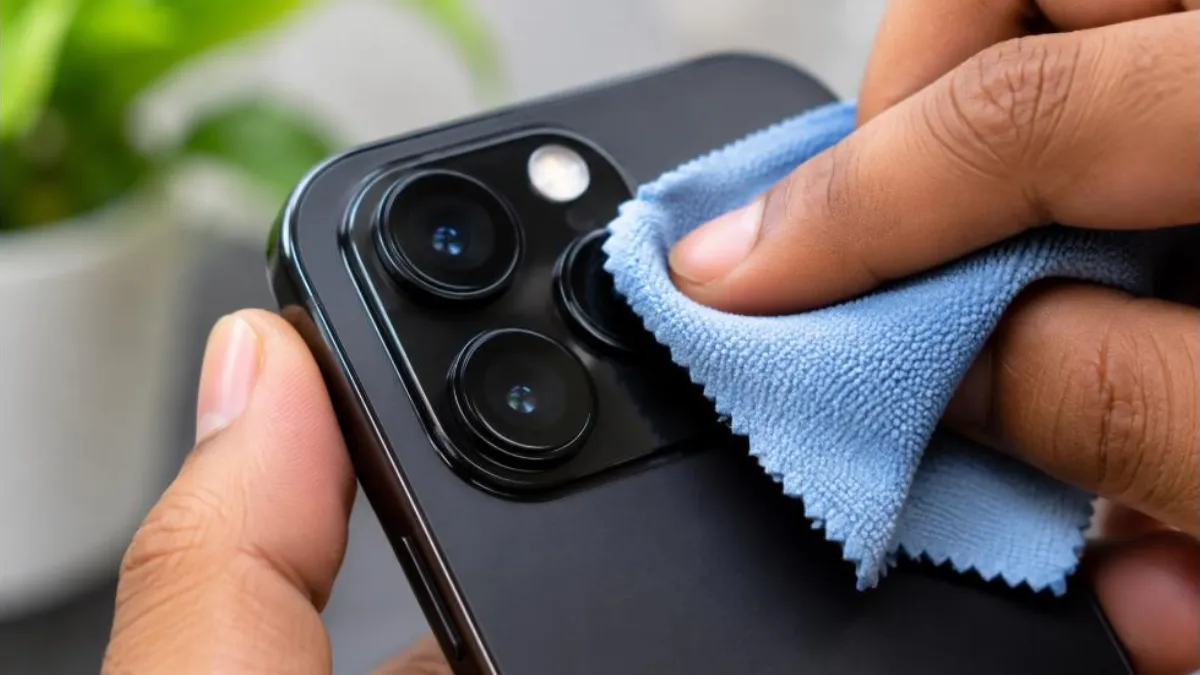
Fingerprints, dust or a scratched screen protector can make photos blurry or dark. Wipe the lens with a soft microfibre cloth. Remove thick or misaligned phone cases.
4. Clear cache and data of the camera app (Android)
- Go to Settings > Apps > Camera.
- Tap Storage > Clear cache.
- If the problem continues, tap Clear data or Clear storage (this resets camera settings, not your photos).
5. Check camera permissions
If the camera works in the default app but not in WhatsApp, Instagram or Google Meet, check permissions: Settings > Apps > [App] > Permissions > Camera > Allow. On iPhone, go to Settings > Privacy & Security > Camera and turn on access for the app.
6. Check privacy toggles
Newer Android versions have a “Camera access” quick-settings toggle. If it is off, all apps see a black screen. Swipe down from the top and turn camera access on.
7. Free up storage
When storage is almost full, the camera may fail to save photos or crash. Delete unused apps and large videos, or move photos to cloud storage.
8. Update the camera app and system software
Bugs in older versions often cause camera failures. Update the Camera app from the Play Store (if available separately) and install the latest system update from Settings > System > Software update. On iPhone, go to Settings > General > Software Update.
9. Turn off battery saver
Some battery or power saving modes limit camera functions, especially flash and high-resolution modes. Turn off battery saver and try again.
10. Boot into safe mode
Safe mode starts the phone with only pre-installed apps. If the camera works in safe mode, a third-party app is causing the problem.
- On most Android phones: press and hold the power button, then long-press “Power off” until “Safe mode” appears; tap OK.
- Test the camera. If it works, restart normally and uninstall recently installed apps one by one, especially camera filters, cleaners and flashlight apps.
11. Reset all settings
Resetting settings can fix hidden configuration problems without deleting your data. On Android, look for Settings > System > Reset options > Reset app preferences. On iPhone, Settings > General > Transfer or Reset iPhone > Reset > Reset All Settings.
12. Factory reset (last option)
If nothing works and the issue started after a software change, back up your data and do a factory reset. If the camera still fails after a reset, the problem is almost certainly hardware.
Phone Camera Not Working After an Update
Sometimes a phone camera not working issue appears right after a system update. Try these steps:
- Restart twice; the first boot after an update may still be optimising apps.
- Clear the camera app cache and data.
- Check for a follow-up patch update; manufacturers often release fixes quickly.
- Reset app preferences.
Front Camera Not Working
If only the selfie camera fails:
- Remove screen protectors or cases that cover the punch-hole or notch.
- Check if face unlock works; if it does, the camera hardware is probably fine.
- Try a third-party camera app to see if the default app is the problem.
- If the front camera shows black in all apps and in safe mode, it may need repair.
Camera Not Working in WhatsApp, Instagram or Video Calls
When the camera works in the phone’s camera app but not in other apps:
- Allow camera permission for the app.
- Update the app from the Play Store or App Store.
- Clear the app’s cache.
- Make sure no other app is using the camera at the same time.
- Restart the phone.
Signs of Hardware Damage
- Camera shows black or a distorted image in all apps and in safe mode.
- Rattling or clicking sound near the camera module.
- Visible cracks on the lens glass.
- Camera stopped working after a fall or water exposure.
- Focus keeps hunting and never locks (possible OIS or focus motor damage).
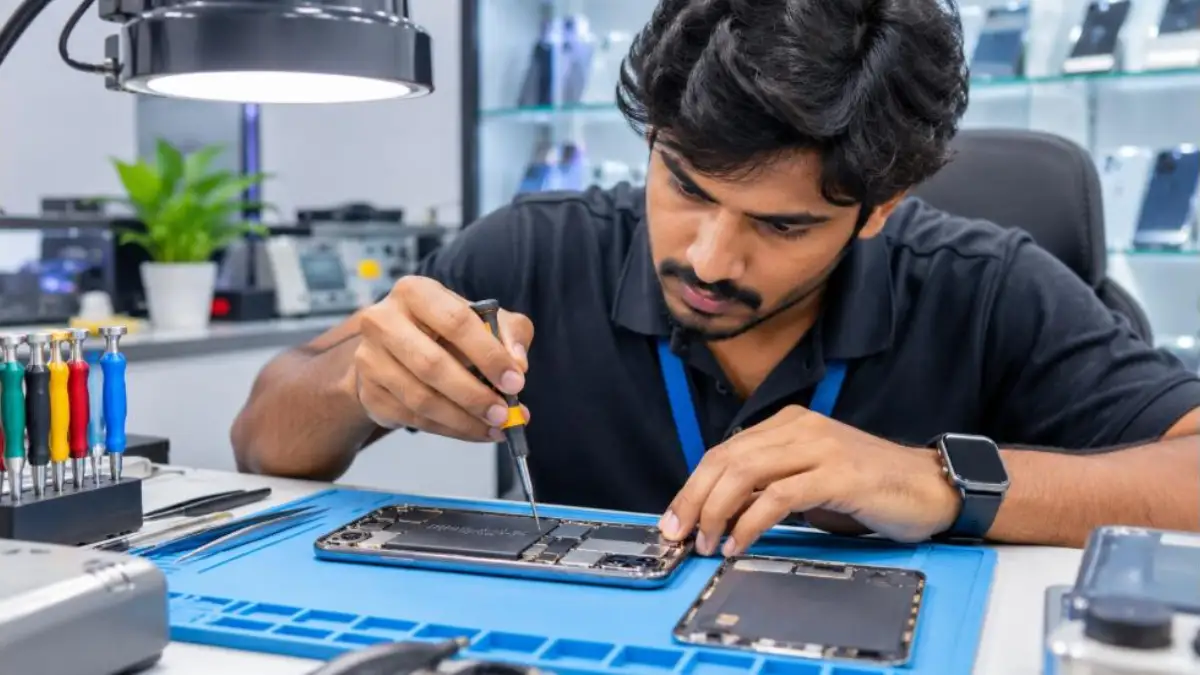
In these cases, a phone camera not working issue needs professional repair. Visit an authorised service centre, especially if the phone is under warranty.
Brand-Specific Tips
| Brand | Where to clear camera cache / reset |
|---|---|
| Samsung | Settings > Apps > Camera > Storage; also Camera settings > Reset settings |
| Xiaomi / Redmi / POCO | Settings > Apps > Manage apps > Camera > Clear data |
| Vivo / iQOO | Settings > Apps > Camera > Storage |
| Oppo / Realme / OnePlus | Settings > Apps > App management > Camera > Storage usage |
| iPhone | No cache option; restart, update iOS, reset all settings |
Menu names vary by version. Search “Camera” in the Settings search bar to find it quickly.
Related Fixes
If your phone also shows other issues, see our guides on phone hanging problem, touch screen not working and Android screen recording. For official help, see the Android Help Center.
Why Is My Phone Camera Not Working? Common Causes
Understanding the cause helps you pick the right fix faster. A phone camera not working problem usually comes from one of these:
- Software glitch: Temporary errors in the camera app or system service.
- Conflicting apps: Another app holding the camera in the background.
- Permissions: The app is not allowed to use the camera.
- Privacy toggle: Camera access is switched off for all apps.
- Low storage: No space to save photos or temporary files.
- Corrupted cache: Old or damaged temporary data in the camera app.
- Malicious or buggy apps: Cleaner, booster or filter apps interfering.
- Hardware damage: Drops, water or loose connectors.
Phone Camera Not Working After Water Damage
If your phone fell into water or got wet in rain and now the camera shows fog or black screen:
- Switch off the phone immediately.
- Do not charge it.
- Wipe it dry and leave it in a dry, ventilated place.
- Avoid hair dryers, which can push water deeper or damage parts.
- Visit a service centre quickly; water can corrode parts over days.
Rice is a popular trick, but it is not very effective and can leave dust in ports. A professional inspection is better.
Camera Flash Not Working
Sometimes the camera works but the flash does not. Check if battery saver is on, if the phone is overheating (many phones disable flash when hot), and if the flashlight works from quick settings. If the flashlight works but flash in the camera does not, reset camera settings. If neither works, the LED may be faulty.
Camera Overheating Warning
Long video recording, 4K mode, sunlight and gaming can heat the phone and trigger a camera shutdown. Let the phone cool down, remove the case, lower video resolution and avoid recording in direct sun for long periods.
Camera Not Working on Low-Storage Phones
Budget phones with 32 GB or 64 GB storage often show a phone camera not working error when space runs out. Move photos and videos to cloud or a memory card, set the camera to save on SD card if supported, and delete old WhatsApp media regularly.
Using a Third-Party Camera App as a Test
Install a reputable camera app from the Play Store and test. If it works, the problem is with the default camera app, and clearing its data or updating it should help. If the third-party app also shows a black screen, the problem is with system services or hardware.
Phone Camera Not Working on iPhone: Extra Steps
- Force restart: press and release Volume Up, then Volume Down, then hold the Side button until the Apple logo appears.
- Check Screen Time restrictions: Settings > Screen Time > Content & Privacy Restrictions > Allowed Apps > make sure Camera is on.
- Switch between photo and video modes and between front and rear cameras to see which one fails.
- Remove MagSafe accessories or metal cases that may interfere with optical image stabilisation.
- Update iOS and, if needed, contact Apple Support for diagnostics.
These steps solve most cases of iPhone phone camera not working after drops of performance or updates.
Phone Camera Not Working: Step-by-Step Checklist
- Restart the phone.
- Close all background apps.
- Check the camera privacy toggle.
- Clean the lens and remove the case.
- Clear camera app cache and data.
- Check app permissions.
- Free up storage.
- Update apps and system software.
- Test in safe mode.
- Reset settings.
- Back up and factory reset.
- Visit an authorised service centre.
Follow the checklist in order. Most users fix a phone camera not working issue within the first five steps.
Prevent Future Camera Problems
- Use a case with a raised lip to protect the lens.
- Avoid installing unknown camera or beauty filter apps from outside the Play Store.
- Keep at least 10–15% storage free.
- Install updates regularly.
- Avoid using the phone in heavy rain or dusty environments without protection.
- Clean the lens gently once a week.
Warranty and Service Centre Tips
If your phone is under warranty, avoid local repair shops for camera issues, because opening the phone can void the warranty. Before visiting the service centre:
- Back up photos, contacts and chats.
- Note when the problem started and what you already tried.
- Carry the invoice and warranty card, or check digital warranty status on the brand’s website.
- Remove your SIM and memory card.
- Ask for a written estimate and expected delivery date.
Out-of-warranty repairs can still be done at authorised centres with genuine parts. Compare the repair cost with the phone’s current value before deciding.
Real Example
Arjun’s Android phone showed a black screen every time he opened the camera. Restarting did not help. He noticed that a new flashlight app had been installed a day earlier. In safe mode, the camera worked perfectly. After uninstalling the flashlight app, the camera started working normally. Many cases of a phone camera not working are solved this way, by finding and removing a conflicting app.
Tips for Better Photos After the Fix
Once your camera is back, a few habits will help you take clearer pictures. Hold the phone with both hands, tap the subject to focus, and wait a second before pressing the shutter. Use natural light whenever possible and avoid digital zoom, which reduces quality. Turn on gridlines in camera settings to keep horizons straight. In low light, rest the phone on a stable surface or use night mode. Clean the lens regularly, because a small smudge can make every photo look hazy.
Also check your camera’s resolution and storage settings. Saving photos in high-efficiency formats can save space while keeping good quality, and turning on cloud backup ensures that memories are safe even if the phone has problems later.
Bookmark this page so you can quickly return to these steps whenever a phone camera not working issue appears on your phone or a family member’s phone. Sharing it with friends can save them an unnecessary trip to the repair shop for simple software problems.
Remember that patience helps: try one fix at a time and test the camera after each step, so you know exactly what solved the problem and can repeat it if it ever happens again.
With these fixes, most camera problems disappear quickly, and you can get back to capturing everyday moments.
Keep Your Camera Software Healthy
Restart your phone at least once a week, review app permissions every few months, and remove apps you no longer use. These simple maintenance habits reduce glitches in the camera and many other phone features. When a major Android or iOS update arrives, wait a day or two and read user feedback if your phone is your main work device, then install it once early bugs are fixed. Healthy software habits mean fewer surprises when you need your camera the most.
If a phone camera not working issue returns often, note the pattern, such as after specific apps or updates, and share it with the service centre. A recurring phone camera not working error is easier to diagnose with these details.
Frequently Asked Questions
Why is my phone camera showing a black screen?
Usually another app is using the camera, camera access is turned off in privacy settings, or the camera app has a glitch. Restart and clear the app cache.
Will clearing camera data delete my photos?
No. It only resets the camera app’s settings. Photos are stored in the gallery.
Can a software update fix a camera problem?
Yes, if the problem is caused by a bug. Install the latest update.
How much does camera repair cost?
It depends on the phone model and which camera module is damaged. Get a quote from an authorised service centre.
Why are my photos blurry?
Dirty lens, phone case blocking the lens, low light or a focus fault. Clean the lens and tap to focus.
Conclusion
A phone camera not working problem is usually caused by software, permissions or a conflicting app. Restart the phone, close other apps, clean the lens, clear the camera cache, check permissions and update software. Use safe mode to find faulty apps. If the camera still fails in safe mode or after a reset, visit an authorised service centre for hardware repair.