
Notifications not showing on your Android phone can make you miss important WhatsApp messages, bank OTPs, emails and calls. Often the phone receives the message, but the alert never appears until you open the app. In 2026, aggressive battery-saving features, Do Not Disturb schedules, per-app notification permissions and background restrictions are the most common reasons for notifications not showing. This guide explains 11 easy fixes that work on Samsung, Xiaomi, Redmi, Poco, Realme, Oppo, Vivo, OnePlus, Motorola and Pixel phones.
Table of Contents
Start with the quick checks, then move on to battery and brand-specific settings, which solve most delayed or missing notifications on Chinese-brand phones in particular.
Why Are Notifications Not Showing?
| Cause | What you notice |
|---|---|
| Do Not Disturb or Focus mode | No sound or banners for most apps |
| App notification permission off | One app never alerts |
| Battery optimisation | Alerts arrive late, only when you open the app |
| Background data restricted | Messages arrive only on Wi-Fi or after unlocking |
| App killed by memory cleaner | Alerts stop after you swipe the app away |
| Lock screen settings | Alerts appear only when the phone is unlocked |
| Notification channel muted | Some types of alerts from an app are missing |
| Outdated app or system | Problem started after an update |
Fix 1: Restart Your Phone
A restart refreshes system services that deliver notifications. Hold the Power button (or Power and Volume Down on some Samsung phones), tap Restart, and check whether notifications not showing is solved before changing settings.
Fix 2: Turn Off Do Not Disturb and Modes
Do Not Disturb silences alerts and can hide banners. Swipe down the quick settings and turn off Do Not Disturb. Also check schedules:
- Pixel and stock Android: Settings > Notifications > Do Not Disturb (or Modes), and review schedules like Sleeping or Bedtime.
- Samsung: Settings > Notifications > Do not disturb, and check Modes and Routines.
- Xiaomi and others: Search “Do not disturb” in Settings.
Many people set Bedtime mode once and forget that it silences alerts every night, then think notifications not showing is a bug.
Fix 3: Allow Notifications for the App
Since Android 13, apps must ask permission to show notifications. If you tapped “Don’t allow” once, the app stays silent.
- Open Settings > Apps and select the app.
- Tap Notifications.
- Turn on All notifications or Show notifications.
- Open each category (channel) and make sure the important ones are on, with sound and pop-up enabled.
Fix 4: Remove Battery Restrictions
Battery optimisation is the biggest cause of notifications not showing on time. The system puts apps to sleep in the background to save power, so messages are delivered only when you open the app.
- Stock Android and Pixel: Settings > Apps > [app] > App battery usage > Unrestricted.
- Samsung: Settings > Apps > [app] > Battery > Unrestricted. Also check Settings > Battery > Background usage limits and remove the app from Sleeping or Deep sleeping apps.
- Xiaomi, Redmi, Poco: Settings > Apps > Manage apps > [app] > Battery saver > No restrictions.
- Realme, Oppo, OnePlus: Settings > Apps > [app] > Battery usage > allow background activity.
- Vivo: Settings > Battery > Background power consumption management > allow high background power for the app.
Do this only for apps where timely alerts matter, such as messaging, banking, email and work apps, to keep battery life reasonable.
Fix 5: Enable Autostart and Lock the App
Several brands add an extra layer that stops apps from starting in the background.
- Xiaomi/Redmi/Poco: Settings > Apps > Manage apps > [app] > turn on Autostart.
- Vivo and Oppo: Look for Auto-launch or Startup manager and allow the app.
- Lock in recents: Open the recent apps screen, long-press or swipe down on the app card and tap the lock icon so “Clear all” does not kill it.
Fix 6: Allow Background Data
If background data is blocked, the app cannot receive messages when you are not using it. Go to Settings > Apps > [app] > Mobile data (or Data usage) and turn on Background data. If Data Saver is enabled in Network settings, add the app to the unrestricted list. Also see our guide on mobile data not working if the connection itself is the problem.
Fix 7: Check Lock Screen Notification Settings
Sometimes notifications are working but hidden on the lock screen, which looks like notifications not showing at all.
- Stock Android: Settings > Notifications > Notifications on lock screen; choose Show all notifications (or hide silent ones, as you prefer).
- Samsung: Settings > Lock screen > Notifications; choose Details or Icons only, and make sure the app is not excluded.
- Sensitive content: If “Hide sensitive content” is on, the alert appears but the message text is hidden until you unlock.
Fix 8: Turn On Pop-ups, Sound and Badges
Each app’s notification channel can be set to silent or minimised. For apps like WhatsApp, a channel such as “Message notifications” might be set to Silent, so the alert goes straight into the shade without a banner. Open Settings > Apps > [app] > Notifications, tap the specific category and set it to Default or Alerting with Pop on screen enabled. Choose a sound and turn on the app icon badge if you like seeing unread counts.
Inside the app, also check its own settings. WhatsApp, Gmail, Instagram and banking apps all have in-app notification switches that can override system settings.
Fix 9: Clear App Cache and Update
A corrupted cache or an old app version can break the notification service. Go to Settings > Apps > [app] > Storage & cache > Clear cache. Then open the Play Store, search for the app and install any update. Avoid “Clear storage” unless you have a backup, because it resets the app and may delete local data.
Fix 10: Update Google Play Services and Android
Most Android apps receive push notifications through Google’s Firebase Cloud Messaging, which relies on Google Play services. If it is outdated or restricted, notifications not showing can affect many apps at once.
- Open Settings > Apps > See all apps > Google Play services.
- Make sure battery usage is not restricted and background data is allowed.
- Tap App details in store and update it if an update is available.
- Install pending system updates from Settings > System > Software update.
Fix 11: Reset App Preferences
If you have changed many settings and cannot find the one causing trouble, reset app preferences. This restores default permissions, notification settings, background data restrictions and default apps without deleting any data.
- Stock Android: Settings > System > Reset options > Reset app preferences.
- Samsung: Settings > Apps > three-dot menu > Reset app preferences.
After resetting, open your important apps once and allow notifications again when prompted.
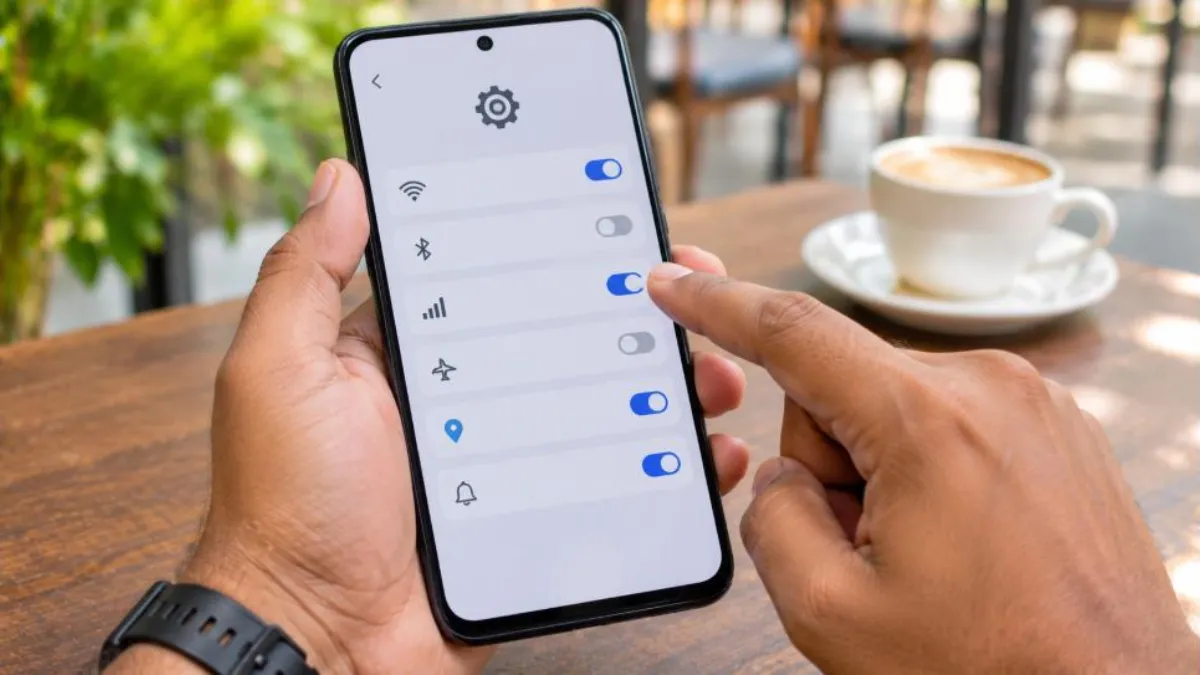
Brand-Specific Settings That Hide Notifications
Samsung Galaxy
Samsung’s Device care can put unused apps to sleep automatically. Go to Settings > Battery > Background usage limits and turn off “Put unused apps to sleep”, or add your important apps to “Never sleeping apps”. Also check Notification categories and the “Notification reminders” option.
Xiaomi, Redmi and Poco (HyperOS/MIUI)
Besides battery saver and autostart, check Settings > Notifications & status bar > App notifications, and in Floating notifications and Lock screen notifications allow the app. Xiaomi’s Security app may also have a cleaner that kills background apps; exclude your messaging apps.
Realme, Oppo and OnePlus
Turn off “Optimise battery use” for the app, allow background activity and auto-launch, and lock it in recent apps. Check the Smart power saving settings, which can freeze idle apps.
Vivo and iQOO
Allow high background power consumption and auto-start for the app in iManager or Battery settings, and make sure notifications are allowed under Status bar and notifications.
Google Pixel and Motorola
These phones usually deliver notifications reliably. Check Adaptive Battery, per-app battery settings and Do Not Disturb modes. On Pixel, “Notification cooldown” can lower the volume of repeated alerts, which some people mistake for missing alerts.
WhatsApp Notifications Not Showing
WhatsApp is the app people complain about most. Do the following in order:
- In WhatsApp, open Settings > Notifications and make sure Conversation tones, message and group notifications are on with “High priority notifications” enabled.
- Check that the chat is not muted (look for the crossed speaker icon).
- Allow notifications and set battery to Unrestricted for WhatsApp in phone settings.
- Log out of WhatsApp Web sessions you no longer use, because active sessions can sometimes change how alerts appear on the phone.
- Update WhatsApp from the Play Store.
For backup or storage issues, see our guide to freeing up Android storage, as a full phone can also delay alerts.
Gmail and Email Notifications Not Showing
For Gmail, open the app, tap the menu > Settings > your account > Notifications and choose All or High priority only. Then tap Manage notifications to check system-level channels. Make sure Sync Gmail is enabled in the account settings, and that Google account sync is on under Settings > Passwords & accounts. Work email apps such as Outlook have similar switches plus a “sync frequency” option; choose push or the shortest interval.
Bank OTP and SMS Notifications Not Showing
When SMS alerts or OTPs do not appear, the cause is usually the messaging app or a spam filter rather than push notifications.
- Check that your default SMS app has notifications allowed, including the “OTP” or “Transactions” categories some apps create.
- Look in the Spam or Blocked folder of your messages app.
- If you use a dual SIM, confirm the bank’s number is registered on the SIM that is active for SMS.
- Clear space if storage is almost full; incoming messages can fail on a full phone.
Notifications Delayed vs Notifications Not Showing
It helps to tell the difference. If alerts arrive in a burst when you unlock the phone or open the app, the phone is receiving them late because of battery or background limits. If they never arrive even when you open the app, the problem is with the app’s account, network or permission. The table below shows what to focus on.
| Behaviour | Likely cause | Main fix |
|---|---|---|
| All alerts arrive when you unlock | Doze and battery optimisation | Set app battery to Unrestricted |
| Alerts appear in shade but no banner | Channel set to Silent | Enable Pop on screen and sound |
| Only one app silent | App permission off | Allow notifications in app info |
| All apps silent at night | Bedtime or DND schedule | Edit or remove schedule |
| Nothing arrives on mobile data | Background data blocked | Allow background data |
Test Your Notifications
After changing settings, test properly. Lock the phone, put it aside for ten minutes so it enters idle mode, then ask a friend to send you a WhatsApp message or email. If the alert arrives instantly, the fix worked. Repeat the test on mobile data and on Wi-Fi. Android’s notification history (Settings > Notifications > Notification history) is also useful: turn it on to see alerts you may have dismissed accidentally.
Smartwatch and Earbud Notifications
If alerts show on your phone but not on a smartwatch or fitness band, the companion app needs notification access. Go to Settings > Notifications > Device & app notifications (or Special app access > Notification access) and allow the watch app. Also keep Bluetooth connected; see our Bluetooth not connecting guide if pairing keeps dropping.
Work Profile and Second Space Issues
If you use a work profile, Dual Apps, Second Space or App Clone, notifications can go to a different profile. Apps in a paused work profile stay silent until you turn the profile back on from quick settings. Cloned WhatsApp or Telegram apps have their own notification permission and battery settings, so repeat the fixes for the clone as well. On Xiaomi’s Second Space, notifications from the other space may not appear at all while you are in the main space, which can look like notifications not showing.
Network Problems That Block Push Alerts
Push notifications need a steady internet connection. A few network settings can quietly block them:
- VPN or firewall apps: Some block Google’s push service ports; disable the VPN briefly to test.
- Private DNS or ad blockers: Aggressive DNS filters may block notification servers.
- Wi-Fi sleep settings: On some phones, Wi-Fi disconnects when the screen is off; set Wi-Fi to stay on during sleep where the option exists.
- Weak signal: In areas with poor coverage, alerts arrive late; try Wi-Fi calling or another network.
If you still see notifications not showing on Wi-Fi only, our guide to hotspot and Wi-Fi problems can help you check your connection settings.
For official guidance on notification controls, see Google’s Android Help page on managing notifications, and for WhatsApp-specific steps visit the WhatsApp Help Center.
Prevention Tips
- Avoid third-party “cleaner” and “booster” apps that kill background processes.
- Do not swipe away messaging apps from recents all the time.
- Review Do Not Disturb schedules after updates.
- Keep apps and Google Play services updated.
- Give battery exemptions only to apps that truly need instant alerts.
Quick Recap
Most cases of notifications not showing come down to three things: permission, battery and Do Not Disturb. Check those first whenever you face notifications not showing for a single app. If you see notifications not showing for every app, look at Google Play services, network filters and system updates. And if notifications not showing returns after every restart, a cleaner app or brand battery manager is almost certainly closing your apps, so review those settings carefully.
One last tip: whenever you install a new phone or a major Android update, run through this checklist once. Updates often reset battery and permission choices, and that is when notifications not showing tends to return. Spending five minutes on the settings above after each update prevents missed OTPs, delayed payment alerts and unread work messages. If someone in your family uses an older phone, set it up for them too, because elderly users are often the most affected by notifications not showing and may not realise anything is wrong.
Frequently Asked Questions
Why are my notifications not showing until I open the app?
Battery optimisation is putting the app to sleep. Set the app’s battery usage to Unrestricted and, on Xiaomi, Vivo or Oppo, enable autostart. This is the most common reason for notifications not showing on time.
Why are WhatsApp notifications not showing?
Check WhatsApp’s in-app notification settings, unmute chats, allow notifications and unrestricted battery for WhatsApp, and update the app.
Do notifications not showing mean my phone is hacked?
Almost never. It is usually a setting or battery feature. If you also see unknown apps, pop-up ads or high data use, scan with Google Play Protect.
How do I see notifications I swiped away?
Turn on Notification history in Settings > Notifications. On Samsung, it is under Advanced settings.
Why are notifications not showing on my lock screen?
Lock screen notifications may be set to hide or to icons only. Change this under Settings > Notifications or Lock screen.
Will a factory reset fix notifications not showing?
It can, but try resetting app preferences first. It restores default notification and battery settings without deleting data.
Conclusion
Notifications not showing on Android in 2026 is almost always fixable in a few minutes. Turn off Do Not Disturb, allow notifications for the app, remove battery restrictions, enable autostart on brands that need it, allow background data and check lock screen and channel settings. Keep the app and Google Play services updated, and reset app preferences if nothing else works. With these 11 easy fixes, your important messages, OTPs and calls will alert you on time again.