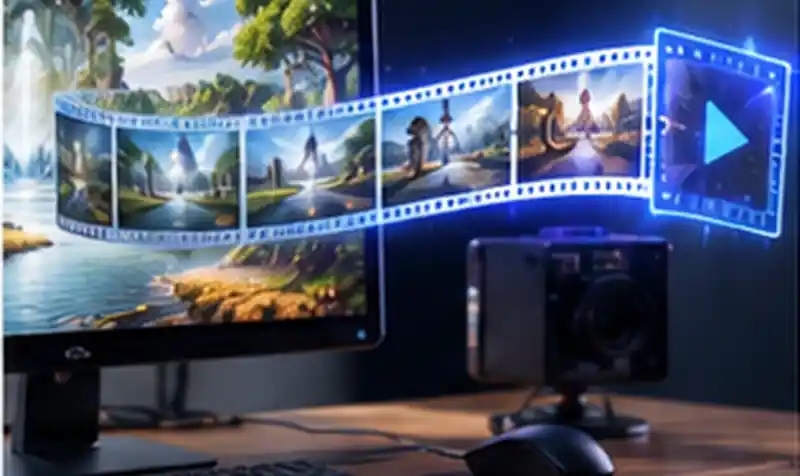
A single still photo can now become a smooth, cinematic clip in under a minute, no filming or editing skills required. The best free image-to-video AI generators in 2026 turn product shots, portraits, and landscapes into eye-catching motion content that performs noticeably better on social feeds than static images ever could.
This shift matters for small businesses and creators alike, since video consistently outperforms static posts across Instagram, Facebook, and TikTok algorithms. Instead of hiring a videographer, you can upload one image, add a short motion prompt, and export a shareable clip within minutes. Here are the five best free tools worth trying right now.
[rank_math_toc]
What to Look For in an Image-to-Video Tool
Prioritise tools offering genuinely free credits (not just a one-time trial), reasonable output resolution, fast processing, and control over motion direction and intensity. Some tools handle facial animation beautifully but struggle with landscapes, so match the tool to your specific use case rather than picking the most popular name blindly.
1. Kling AI Image-to-Video
Kling’s free tier converts static images into smooth, realistic motion clips with impressively natural physics, especially for scenes involving water, fabric, or hair movement. Upload your photo on klingai.com, describe the desired motion in a short prompt, and generate your clip within a couple of minutes on the standard free plan.
2. Pika Labs
Pika offers strong image-to-video conversion with a generous daily free credit system. It’s particularly good at adding subtle camera movement, like gentle zooms or pans, to otherwise static portraits and product photography, giving even simple e-commerce photos a noticeably more premium, dynamic feel for social posts.
3. Canva Magic Media
Bundled free inside every Canva account, Magic Media’s image-to-video feature is the easiest entry point for beginners already familiar with Canva’s design tools. Upload an image, choose an animation style, and export directly into a larger design project, complete with text overlays and branded templates, all in one place.
4. Runway Gen Image-to-Video
Runway’s free credits extend to image-to-video generation, known for cinematic quality and fine-grained motion control. It works especially well for artistic or stylised content, letting you specify exact camera paths and movement intensity, though the free tier’s monthly credit limit means it’s best used selectively for hero content.
5. Fotor AI Image to Video
Fotor’s free image-to-video generator is browser-based and requires no installation, making it convenient for quick one-off clips. It handles simple animations like light zooms, pans, and gentle parallax effects well, and integrates neatly with Fotor’s existing photo editing tools if you want to enhance the image first.
How to Get the Cleanest Results
Start with a high-resolution source image; blurry or low-quality photos animate poorly regardless of the tool. Keep motion prompts specific rather than generic, mentioning direction and speed. Test a short generation first before spending your full free credit allowance on a longer or higher-resolution export.
Best Use Cases for Each Tool
Use Kling for lifestyle and nature photography where realistic physics matter most, Pika for quick product photo animations, Canva when you’re already building a broader design and want everything in one dashboard, Runway for artistic or cinematic hero content, and Fotor for fast, casual one-off clips that don’t need heavy customisation or fine control.
Matching the right tool to the right image type saves credits and produces noticeably better results than defaulting to whichever app you tried first. Many creators keep two tools installed permanently, one for polished hero content and another for quick, disposable social posts throughout the week.
Combining Tools for a Complete Workflow
Many creators animate a photo in one tool, then bring the clip into a simple video editor like CapCut to add captions, music, and transitions before publishing. This two-step workflow costs nothing extra beyond the free credits already used and consistently produces noticeably more polished, share-ready results than posting a raw generated clip straight from any single tool alone.
Frequently Asked Questions
Can I animate any photo with these free tools?
Most photos work, but clear subjects with defined edges animate more naturally than cluttered or very low-resolution images, so choose your source photo carefully.
Do free plans limit video length?
Yes, free tiers typically cap clips at a few seconds, with longer durations and higher resolutions usually reserved for paid subscription tiers on each platform.
Which tool is best for animating product photos?
Pika Labs and Canva Magic Media both handle subtle, professional-looking motion well for e-commerce product shots without exaggerated or unnatural movement.
Is it legal to animate photos I don’t own?
Only animate images you own the rights to or have explicit permission to use, since copyright rules apply to AI-generated derivatives just as they do to original photos.
Final Thoughts
These five best free image-to-video AI generators make motion content accessible to absolutely anyone in 2026, no camera or editing degree required. Try two or three tools with the same photo to see which style suits your brand best. For related tools, check our guides on AI video generators and AI voice cloning with Kits.ai.