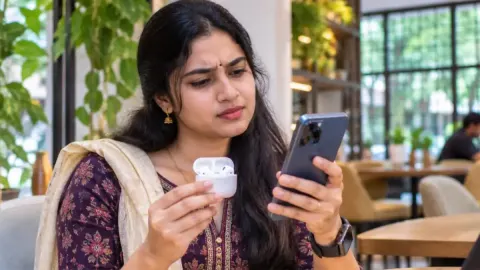

You turn on mobile hotspot to share internet with your laptop, but the laptop can’t find the network, connects without internet, or keeps disconnecting. A hotspot not working problem can stop your work, online class or video call in the middle. Most of the time, the cause is a simple setting, a data plan limit or a software glitch that you can fix yourself in minutes.
This guide explains the common reasons for hotspot not working, 12 easy fixes for Android and iPhone, tips for laptops and smart TVs, and how to keep your hotspot fast and secure.
Table of Contents
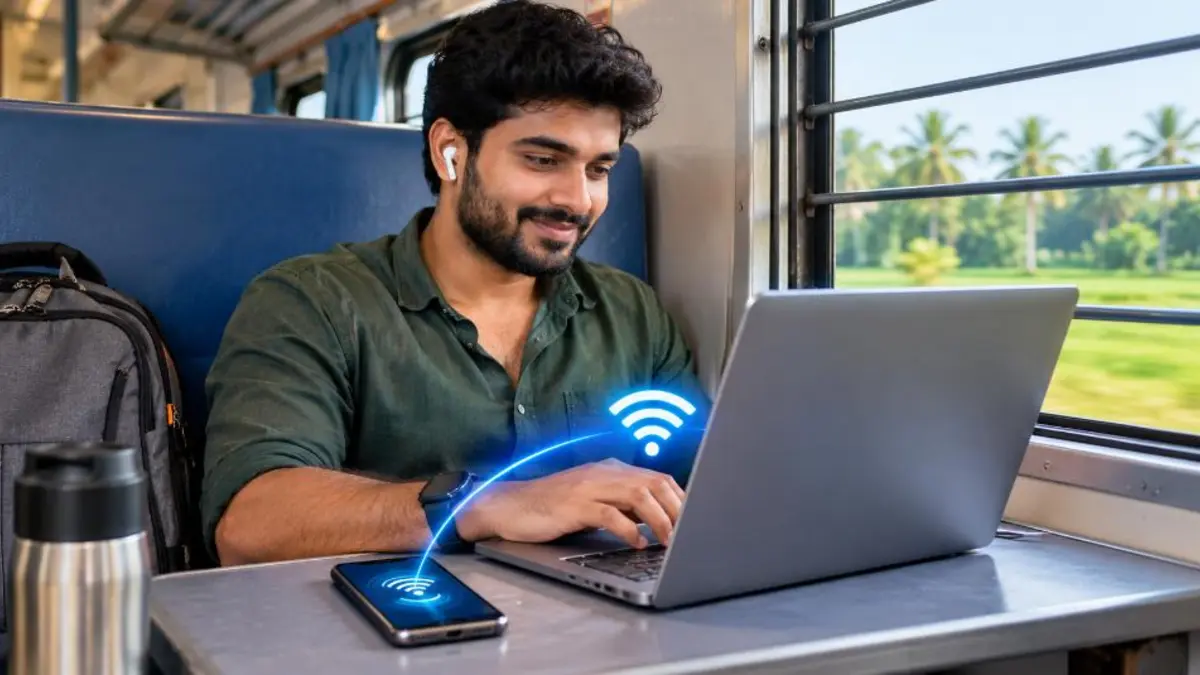
Why Is My Hotspot Not Working?
- Mobile data is off or exhausted: Hotspot shares your mobile data. If data is off or your daily limit is over, connected devices get no internet.
- Plan restrictions: Some prepaid or postpaid plans limit or block tethering.
- Wrong password or security type: Devices fail to connect if the password or encryption setting doesn’t match.
- Band compatibility: Older laptops may not support the 5 GHz band your phone is using.
- Battery saver and data saver: These modes can turn off hotspot or restrict background data.
- Auto turn-off timer: Many phones switch off hotspot automatically when no device is connected for a few minutes.
- Too many devices: Some phones limit the number of connected devices.
- Network settings or software bugs: Corrupted settings or outdated software can cause hotspot not working issues.
12 Easy Fixes for Hotspot Not Working
1. Check mobile data and balance
Open a website on your phone with Wi-Fi turned off. If the phone itself has no internet, the hotspot won’t work either. Check your data balance in your operator’s app, recharge if needed, and make sure mobile data is turned on.
2. Turn hotspot off and on
Switch off the hotspot, wait 10 seconds and turn it on again. On the connected device, turn Wi-Fi off and on and reconnect. This simple step fixes many cases of hotspot not working.
3. Restart your phone and the connected device
A restart clears temporary glitches in the network stack. Restart your phone and the laptop or tablet, then turn on hotspot again.
4. Forget the network and reconnect
On the laptop or other device, forget the saved hotspot network and connect again by entering the password fresh. This fixes problems caused by changed passwords or security settings.
5. Change the hotspot band to 2.4 GHz
Many phones use 5 GHz by default for faster speed, but older laptops, printers and smart TVs only support 2.4 GHz.
- Android: Settings > Network & internet > Hotspot & tethering > Wi-Fi hotspot > AP band (or “Speed and compatibility”) and choose 2.4 GHz or “Extend compatibility”.
- iPhone: Turn on Maximise Compatibility in Settings > Personal Hotspot.
6. Change the hotspot name and password
Use a simple hotspot name without special characters and a new password of at least 8 characters. Some devices struggle with unusual names or emojis in the network name.
7. Turn off battery saver and data saver
Battery saver can disable hotspot to save power, and data saver may block data for background use. Turn both off while using hotspot. On iPhone, turn off Low Power Mode and Low Data Mode for mobile data.
8. Disable the auto turn-off timer
Many Android phones have a setting like “Turn off hotspot automatically” when no devices are connected. Disable it if your hotspot keeps switching off while you are setting up your laptop.
9. Check the connected device limit
Some phones allow only a certain number of devices. Disconnect devices you are not using, or increase the limit in hotspot settings if your phone offers that option.
10. Reset network settings
If the hotspot is still not working, reset network settings. This clears Wi-Fi, mobile data and Bluetooth settings, so note your Wi-Fi passwords first.
- Android: Settings > System > Reset options > Reset Wi-Fi, mobile & Bluetooth.
- iPhone: Settings > General > Transfer or Reset iPhone > Reset > Reset Network Settings.
11. Check APN settings
Incorrect APN (Access Point Name) settings can let your phone browse but block tethering. Reset APN to default in Settings > Network > SIM > Access Point Names > Reset to default on Android. Your operator can also send the correct settings.
12. Update software
Install pending system updates on your phone and laptop. Updates often fix bugs that cause hotspot not working or frequent disconnections.
Hotspot Not Working on iPhone: Extra Steps
- Allow Others to Join: Go to Settings > Personal Hotspot and make sure Allow Others to Join is on. Keep this screen open while connecting the other device.
- Personal Hotspot missing: If the option is missing, go to Settings > Mobile Data > Mobile Data Network and check the Personal Hotspot APN. Restarting or updating carrier settings (Settings > General > About) can bring it back.
- Family Sharing devices: Use Family Sharing settings under Personal Hotspot to let family devices join automatically.
- Mac and iPad: Apple devices signed in with the same Apple ID can use Instant Hotspot from the Wi-Fi menu without a password.
Hotspot Not Working on Laptop: Windows and Mac Fixes
Sometimes the phone is fine and the problem is on the laptop side. Try these steps if your hotspot is not working with a laptop:
- Windows: Open Settings > Network & internet > Wi-Fi > Manage known networks, forget the hotspot and reconnect.
- Run the network troubleshooter from Windows settings.
- Open Command Prompt as administrator and run network reset commands, or use Network reset in advanced network settings (this reinstalls network adapters).
- Update the Wi-Fi driver from Device Manager or the laptop maker’s website.
- Mac: Remove the hotspot from System Settings > Wi-Fi > Known networks and reconnect. Renew the DHCP lease in advanced Wi-Fi settings.
- Disable VPN apps temporarily – some VPNs block local connections or cause DNS issues.
If your laptop shows “connected, no internet” on every Wi-Fi network, see our guide on WiFi connected but no internet fixes.
Use USB or Bluetooth Tethering as an Alternative
If Wi-Fi hotspot is not working, you can still share internet in other ways:
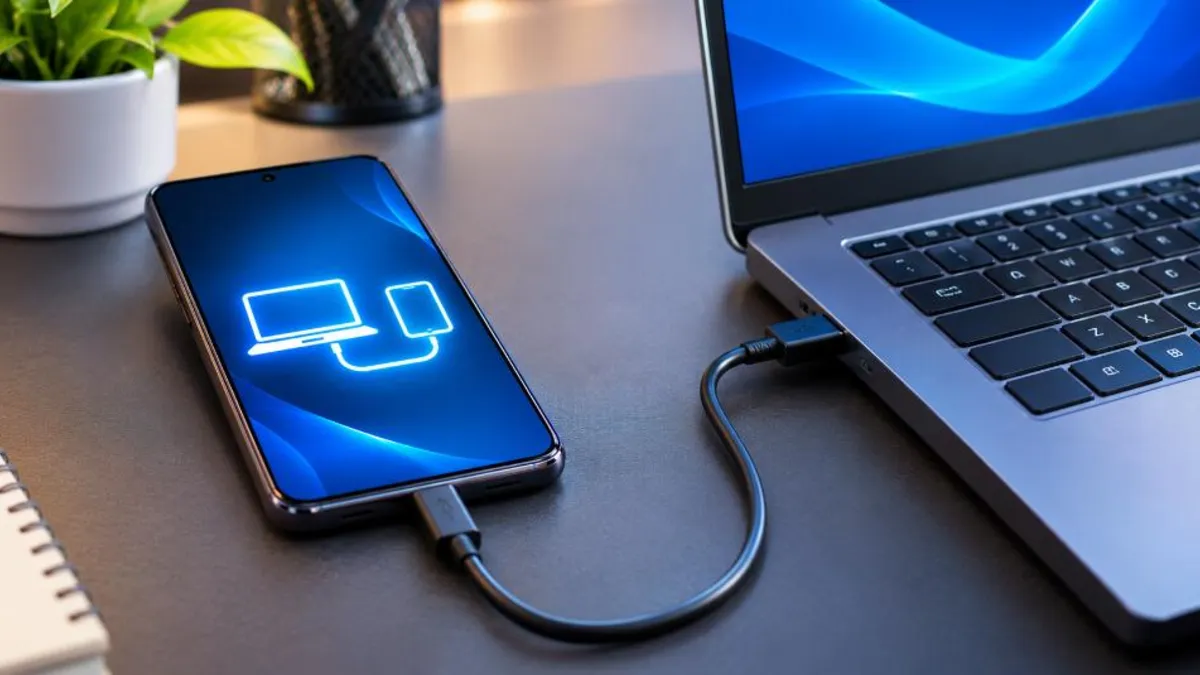
- USB tethering: Connect your phone to the laptop with a USB cable and turn on USB tethering in hotspot settings. It is stable, fast and charges your phone at the same time.
- Bluetooth tethering: Pair the phone and laptop over Bluetooth and turn on Bluetooth tethering. It is slower but uses less battery and is useful for email and light browsing.
Hotspot Working but Very Slow?
Sometimes the hotspot is technically working, but speed is too slow for video calls or downloads. Improve speed with these tips:
- Move to a place with better mobile signal – near a window or higher floor.
- Switch to 5 GHz band if all your devices support it, for faster local speed.
- Disconnect devices that are downloading updates or streaming in the background.
- Turn off automatic updates and cloud backups on the laptop while using hotspot.
- Check if your plan’s high-speed data limit is over; speeds drop after the daily limit.
- Prefer 5G if your phone, plan and area support it.
How Much Data Does Hotspot Use?
| Activity on laptop | Approximate data use per hour |
|---|---|
| Email and web browsing | 50–150 MB |
| Video call (standard quality) | 300–700 MB |
| HD video streaming | 1–3 GB |
| Online class | 300 MB–1 GB |
| Software and OS updates | Can be several GB |
Laptops use far more data than phones because of background updates and higher-quality video. Set your laptop’s Wi-Fi connection as “metered” on Windows to reduce background data when using a hotspot.
Hotspot Not Working on Samsung, Xiaomi, Vivo, Oppo and Realme
| Brand | Where to check hotspot settings | Common fix |
|---|---|---|
| Samsung | Settings > Connections > Mobile Hotspot and Tethering | Change band to 2.4 GHz; turn off “Turn off when no device connected” |
| Xiaomi / Redmi / POCO | Settings > Connection & sharing > Portable hotspot | Disable “Turn off hotspot automatically”; check data usage limit |
| Vivo / iQOO | Settings > Personal hotspot | Reset hotspot password; disable battery saver |
| Oppo / Realme / OnePlus | Settings > Connection & sharing > Personal hotspot | Turn on “Extend compatibility”; reset APN |
| Google Pixel | Settings > Network & internet > Hotspot & tethering | Turn on “Extend compatibility”; disable auto turn-off |
Menu names can vary slightly by software version, but the same settings exist on most phones. If your hotspot is not working after a brand-specific update, restart the phone and recheck these options.
Does Your Mobile Plan Allow Hotspot?
Most prepaid and postpaid plans from Indian operators allow hotspot or tethering using your regular data quota. However, a few special plans, unlimited 5G offers or data add-ons may have conditions. If hotspot is not working only on certain plans or after a recharge, check your plan details in the operator’s app or contact customer care. Remember that once your daily high-speed data is used up, speed reduces sharply, which can feel like the hotspot is not working even though it is technically connected.
Hotspot Not Working with Smart TV, Printer or Gaming Console
- Smart TVs and streaming sticks: Many support only 2.4 GHz. Turn on compatibility mode and keep the phone near the TV.
- Printers: Printers often need a stable network with a fixed name and password. Avoid changing your hotspot name frequently.
- Gaming consoles: Consoles download large updates; check your data balance and use 5 GHz if supported for lower latency.
- IoT devices: Smart plugs and cameras usually support 2.4 GHz only and may not work with hidden networks.
Hotspot Not Working: Quick Troubleshooting Table
| Problem | Likely cause | Fix |
|---|---|---|
| Hotspot not visible | 5 GHz band or hidden network | Switch to 2.4 GHz; disable “hide network” |
| Connected, no internet | Mobile data off or exhausted | Turn on data; recharge; reset APN |
| Keeps disconnecting | Battery saver or auto turn-off | Disable both; keep phone charging |
| Wrong password error | Changed password saved on laptop | Forget network and reconnect |
| Very slow | Weak signal or data limit reached | Move to better signal; check plan |
| Hotspot option greyed out | Plan or carrier restriction | Update carrier settings; contact operator |
How to Prevent Hotspot Problems
- Keep your phone software and carrier settings updated.
- Use a simple hotspot name and a strong password that you don’t change often.
- Set compatibility mode if you connect older devices regularly.
- Monitor data usage so you don’t run out in the middle of work.
- Keep a USB cable handy for USB tethering as a backup.
Keep Your Hotspot Secure
- Always use WPA2 or WPA3 security, never an open hotspot.
- Use a strong password and change it if you shared it with someone temporarily.
- Check the connected devices list and remove unknown devices.
- Turn off hotspot when you are not using it.
- Avoid naming the hotspot with your full name or phone number.
Step-by-Step Example: Fixing Hotspot Not Working for a Laptop
Let’s say your laptop can see your phone’s hotspot but shows “No internet”. Here is a simple order to follow:
- On the phone, turn off Wi-Fi and open a website using mobile data. If it doesn’t load, recharge or turn on mobile data.
- Turn the hotspot off and on, and switch the band to 2.4 GHz or turn on compatibility mode.
- On the laptop, forget the hotspot network, restart Wi-Fi and connect again with the password.
- Disable any VPN on both devices and try again.
- If it still fails, connect the phone to the laptop using a USB cable and turn on USB tethering.
- If USB tethering works, the issue is with Wi-Fi settings – reset network settings on the phone and update the laptop’s Wi-Fi driver.
Following a fixed order saves time and helps you identify exactly where the hotspot not working problem lies – the phone’s data, the Wi-Fi link or the laptop.
Hotspot Tips for Students and Remote Workers
Many students and remote workers in India depend on mobile hotspot for online classes, exams and office calls. A hotspot not working at the wrong moment can be stressful, so prepare in advance. Keep a backup data pack ready, test your hotspot connection 15 minutes before an important class or meeting, and keep your phone on charge throughout. Place the phone near a window for better signal and avoid using the phone for heavy tasks like gaming or streaming while sharing internet. If your internet use is high every month, compare plans with larger daily data limits or consider a home broadband connection as a more stable primary option, keeping hotspot as a backup.
Official Help Resources
For device-specific instructions, visit Google Android Help or Apple iPhone Support. Your phone manufacturer’s support website and your mobile operator’s help pages also explain hotspot and tethering settings for your exact model and plan. If you still find your hotspot not working after following official guidance, contact your operator’s customer care to confirm that tethering is active on your connection.
Related reading: if your phone gets hot while sharing internet, check our phone overheating fix guide, and if battery drops quickly, see phone battery draining fast fixes.
Hotspot problems are frustrating, but they are rarely permanent. In most cases, a combination of checking mobile data, switching the band, disabling battery saver and resetting network settings solves the issue within minutes. Bookmark this guide so you can quickly fix your hotspot not working problem the next time it appears, whether you are at home, travelling or attending an online class.
Frequently Asked Questions (FAQ)
Why is my hotspot connected but no internet?
Your phone’s mobile data may be off, exhausted, or blocked for tethering. Check the data balance, turn data on and reset APN settings if needed.
Why can’t my laptop find my hotspot?
The laptop may not support the 5 GHz band. Switch your hotspot to 2.4 GHz or turn on Maximise Compatibility on iPhone.
Does hotspot drain battery fast?
Yes. Hotspot uses mobile data and Wi-Fi radios together, so keep your phone charging during long sessions.
Why is my hotspot not working after an update?
Updates can reset hotspot or APN settings. Restart your phone, check the band and password, reset APN to default and reset network settings if needed.
Can a VPN cause hotspot not working?
Yes. A VPN on your phone or laptop can interfere with sharing. Disable the VPN temporarily and check whether the hotspot works.
How many devices can connect to my hotspot?
It depends on your phone. Many phones allow up to 8–10 devices, but performance drops as more devices connect.
Is USB tethering better than Wi-Fi hotspot?
USB tethering is usually more stable and charges your phone at the same time, making it a good option when Wi-Fi hotspot is not working well.
Why does my hotspot turn off automatically?
Many phones switch off hotspot when no device is connected for a while to save battery. Disable the auto turn-off option in hotspot settings.
Conclusion
A hotspot not working problem is usually easy to solve. Check mobile data and balance, restart both devices, switch to 2.4 GHz, turn off battery saver, and reset network settings if necessary. With these fixes, you can share your internet reliably wherever you are.