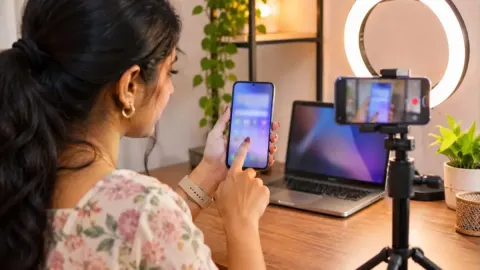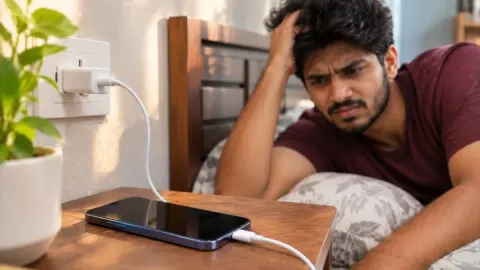

Your phone shows full signal bars, but nothing loads. WhatsApp is stuck on “connecting”, YouTube keeps buffering and UPI payments fail. Mobile Data Not Working is one of the most annoying phone problems, and it can happen on any network such as Jio, Airtel, Vi or BSNL. The good news is that most cases can be fixed in a few minutes without visiting a store. This 2026 guide gives you 12 easy fixes for Android and iPhone, from quick toggles to APN settings and network resets.
Work through the fixes in order. Start with the simplest ones, and test your connection after each step. In most cases, Mobile Data Not Working is solved within the first five steps.
Table of Contents

Why Is My Mobile Data Not Working?
Before fixing the problem, it helps to understand the common causes. Mobile data depends on your SIM, your phone settings, your recharge plan and the network tower near you. A problem in any one of these can stop the internet.
- Data pack expired or daily data limit exhausted
- Mobile data switch turned off or data saver restrictions
- Airplane mode was on and the network did not reconnect properly
- Wrong or missing APN (Access Point Name) settings
- Weak signal or network congestion in your area
- SIM card not inserted properly or damaged
- Wrong network mode selected (for example 2G only)
- Software bugs after an update
- Network outage from the operator
- VPN or firewall apps blocking traffic
Mobile Data Not Working: Is It the Phone or the Network?
| Test | Result | What it means |
|---|---|---|
| Connect to Wi-Fi | Internet works on Wi-Fi | Problem is with mobile data or SIM |
| Put SIM in another phone | Data works in other phone | Problem is in your phone settings |
| Ask a friend on same network nearby | Their data also fails | Likely a network outage |
| Check balance in operator app via Wi-Fi | Data exhausted | Recharge or wait for daily reset |
12 Easy Fixes for Mobile Data Not Working
1. Check your data balance and validity
Open your operator’s app (MyJio, Airtel Thanks, Vi app or BSNL Selfcare) over Wi-Fi, or dial the operator’s balance check code. If your daily data is exhausted, speed may drop drastically or stop until the next reset. Recharge or buy a data add-on if needed.
2. Turn mobile data off and on
Pull down the quick settings panel and tap the Mobile Data icon to turn it off. Wait 10 seconds and turn it back on. This simple toggle refreshes the data session and often fixes Mobile Data Not Working instantly.
3. Toggle airplane mode
Turn on airplane mode, wait 15 to 30 seconds, then turn it off. This forces the phone to reconnect to the nearest tower and register again on the network.
4. Restart your phone
A restart clears temporary glitches in the modem and network software. Switch the phone off completely, wait a few seconds, and switch it on.
5. Check the correct SIM is set for data
On dual SIM phones, the mobile data may be set to the wrong SIM. On Android, go to Settings > Network & internet > SIMs (or SIM card manager) and choose the SIM with an active data plan for Mobile data. On iPhone, go to Settings > Mobile Data > Mobile Data and select the correct line.
6. Check network mode
Go to Settings > Network > Preferred network type and select 5G/4G/3G/2G (auto) or LTE as available. If 5G is unstable in your area, switching to 4G can give a more stable connection.
7. Check APN settings
APN settings tell your phone how to connect to the operator’s internet. Wrong or missing APN is a common reason for Mobile Data Not Working, especially after inserting a new SIM or a software update. On Android, go to Settings > Network & internet > SIMs > Access Point Names. Select your operator’s APN, or tap “Reset to default”. Common APN names used by Indian operators include “jionet” for Jio, “airtelgprs.com” for Airtel, “www” or “portalnmms” for Vi and “bsnlnet” for BSNL, but always confirm the latest settings with your operator.
8. Turn off data saver and background restrictions
Data Saver on Android and Low Data Mode on iPhone can stop apps from using mobile data in the background. Go to Settings > Network > Data Saver and turn it off. Also check individual app settings to make sure “Background data” and “Mobile data” are allowed.
9. Disable VPN and private DNS
If you use a VPN, ad blocker or a custom private DNS, it may block traffic. Turn off the VPN and set Private DNS to “Automatic” on Android under Settings > Network & internet > Private DNS. Then test the connection again.
10. Remove and reinsert the SIM
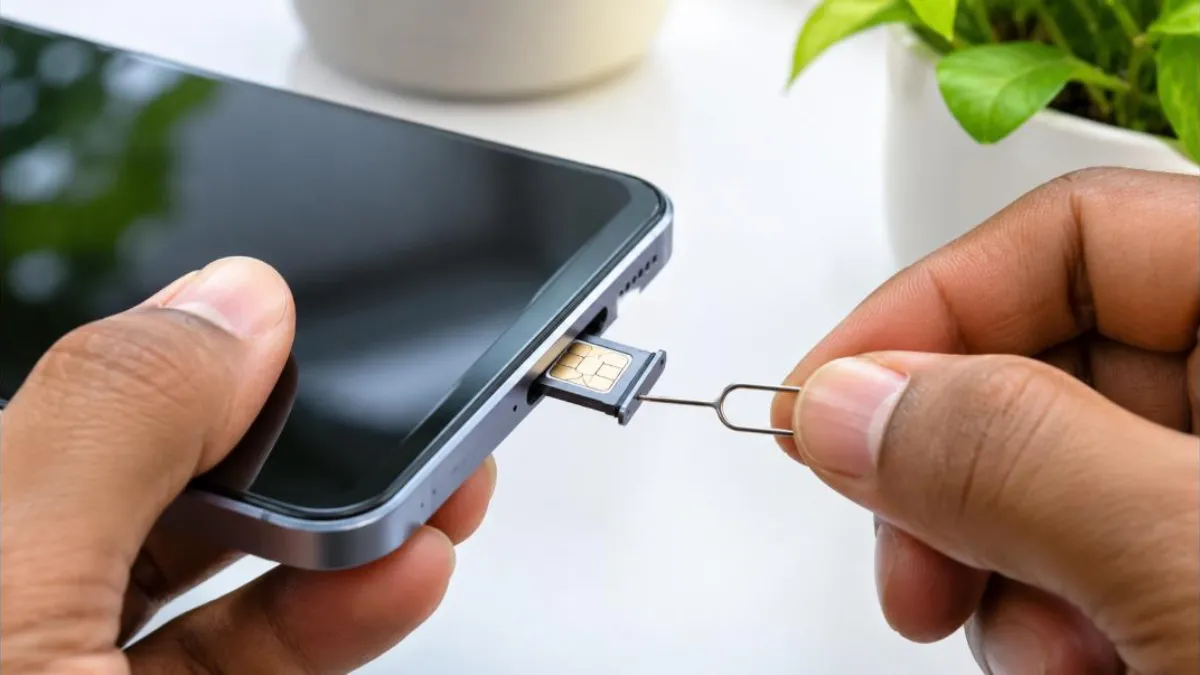
Power off the phone, use the SIM ejector tool to remove the SIM tray, check the SIM for dust or damage, clean it gently with a dry cloth and reinsert it. For eSIM users, check that the eSIM line is turned on.
11. Update your phone software
Software updates fix modem bugs and add carrier settings. On Android, go to Settings > System > Software update. On iPhone, go to Settings > General > Software Update. iPhones may also prompt a Carrier Settings Update; accept it.
12. Reset network settings
If nothing else works, reset network settings. This deletes saved Wi-Fi passwords, Bluetooth pairings and APN changes, but not your photos or apps. On Android, go to Settings > System > Reset options > Reset Wi-Fi, mobile and Bluetooth. On iPhone, go to Settings > General > Transfer or Reset iPhone > Reset > Reset Network Settings.
Mobile Data Not Working on Specific Networks
| Network | Quick tips |
|---|---|
| Jio | Check data balance in MyJio, ensure 4G/5G mode is enabled, check that VoLTE is on |
| Airtel | Use Airtel Thanks app to check pack, try toggling 5G off if unstable |
| Vi | Check validity in Vi app, reset APN to default |
| BSNL | Confirm 4G availability in your area, set APN to bsnlnet if missing |
If your Wi-Fi shows connected but has no internet instead, see our guide on Wi-Fi connected but no internet. If you share data with others, our hotspot not working fixes will also help.
Mobile Data Not Working on Android
Android phones from Samsung, Xiaomi, Redmi, Realme, Oppo, Vivo, OnePlus, Motorola and Google Pixel have slightly different menu names, but the logic is the same. Here are Android-specific checks:
- Check “Data usage” limits: some phones stop data when a set limit is reached.
- Look for “Data restrictions” in app info for apps that cannot connect.
- Clear the cache of the affected app, such as Chrome or WhatsApp.
- On Samsung, check “Connections > Data usage > Data saver”.
- On Xiaomi phones, check the “Security” app for data usage restrictions per app.
- Boot into safe mode to see if a third-party app is causing the issue.
Mobile Data Not Working on iPhone
- Go to Settings > Mobile Data and ensure Mobile Data is on.
- Scroll down and make sure the specific app has mobile data enabled.
- Turn off Low Data Mode under Mobile Data Options.
- Check for a Carrier Settings Update under Settings > General > About.
- Turn Wi-Fi Assist on or off to see if it changes behaviour.
- Reset network settings if needed.
Mobile Data Not Working After Recharge
Sometimes you recharge but data still does not start. This usually happens because the new plan has not activated yet or the phone is still using the old session. Wait a few minutes after payment, then toggle airplane mode. Check the operator app to confirm the plan is active. If the recharge was done through a third-party app, check that the correct number and circle were selected. If the plan shows active but data still fails after 30 minutes, contact your operator’s customer care.
Mobile Data Not Working in Some Apps Only
If the browser works but WhatsApp, Instagram or a banking app does not, the problem is likely app-specific:
- Check that the app is allowed to use mobile data in its app settings.
- Clear the app’s cache (not data) and reopen it.
- Update the app from the Play Store or App Store.
- Check if the app’s service is down using official status pages or news.
- For banking and UPI apps, make sure the SIM linked to the bank is in the phone and active.
Slow Mobile Data vs Mobile Data Not Working
| Symptom | Likely cause | Fix |
|---|---|---|
| No internet at all | Data off, APN wrong, pack expired | Check balance, toggle data, reset APN |
| Very slow speed | Daily limit reached, congestion, weak signal | Check balance, move to open area, try 4G mode |
| Works sometimes | Unstable signal or 5G handover issues | Lock to 4G temporarily |
| Works only on Wi-Fi | SIM or mobile data settings | Reinsert SIM, check data SIM selection |
| Stopped after update | Software bug or APN reset | Reset APN, reset network settings |
How to Check Network Speed
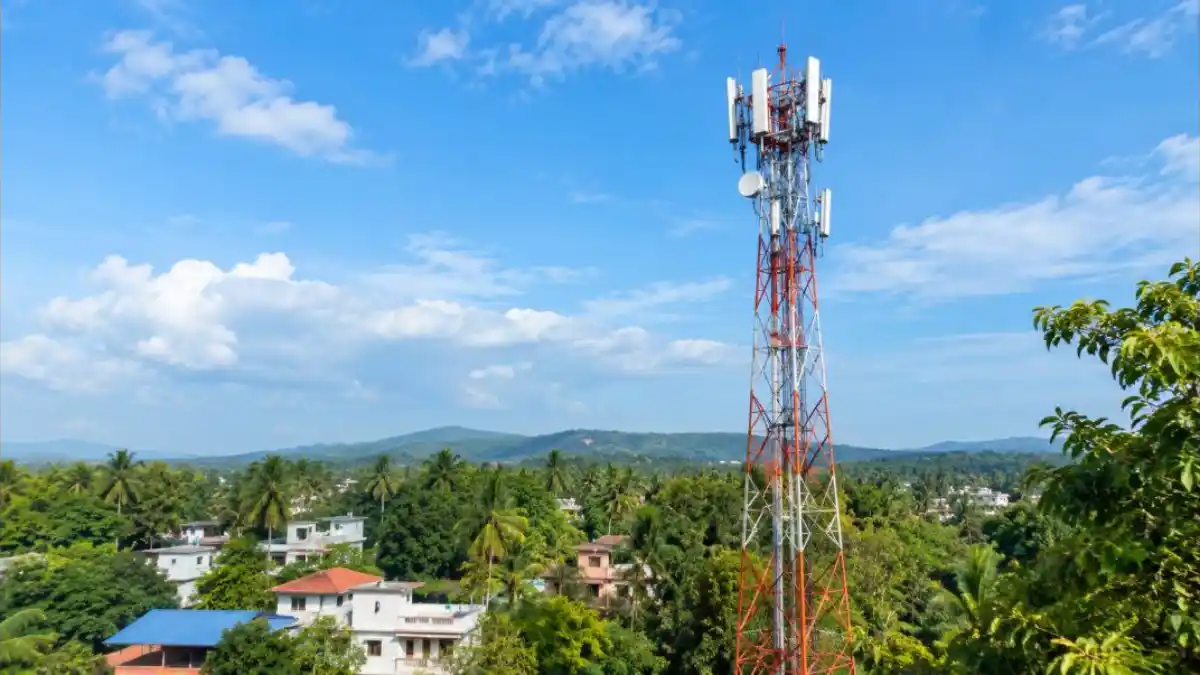
Use a trusted speed test app or website to check download and upload speeds and ping. Test at different times of the day. If speed is very low at peak hours but fine at night, it is likely congestion on the tower. You can also check signal strength on Android under Settings > About phone > Status > SIM status. Values closer to -80 dBm are better than values around -110 dBm.
When to Contact Your Operator
If Mobile Data Not Working continues and none of the fixes work, your SIM may need to be replaced, or there may be a technical issue on the network side. Contact customer care through the operator app or helpline. Be ready with:
- Your mobile number and the plan details
- The exact problem (no data, slow data, works only in some places)
- Steps you have already tried
- Your location or pin code where the issue happens
If your SIM is old or damaged, visit an operator store with your ID proof for a free or low-cost SIM replacement, as per the operator’s policy.
Prevent Mobile Data Not Working in Future
- Keep track of your daily data usage in phone settings.
- Set reminders before your plan expires.
- Keep your phone and apps updated.
- Avoid installing unknown VPN or data booster apps.
- Do not change APN settings unless you know the correct values.
- Restart your phone every few days.
Mobile Data Not Working: Step-by-Step Troubleshooting Order
When you are in a hurry, follow this order. It moves from the quickest fixes to the most time-consuming ones, so you waste less time.
- Check data balance and validity.
- Toggle mobile data off and on.
- Toggle airplane mode.
- Restart the phone.
- Confirm the correct SIM is chosen for data.
- Change network mode to 4G or auto.
- Reset APN to default.
- Turn off data saver, VPN and private DNS.
- Reinsert the SIM.
- Update phone software.
- Reset network settings.
- Contact the operator.
Mobile Data Not Working on Dual SIM Phones
Dual SIM phones are very common in India. Many people keep one SIM for calls and another for data. Problems arise when the phone switches data to the wrong SIM after a restart or update, or when “Data switching” automatically moves data to the second SIM during calls. Check your SIM settings and turn off automatic data switching if you notice Mobile Data Not Working only during or after calls. Also ensure both SIMs have active validity, because some operators restrict services on SIMs without a recharge.
Real-Life Examples
Example 1: Data stopped after a software update
Riya’s Android phone showed Mobile Data Not Working right after a system update. Toggling data did not help. She opened Access Point Names, tapped “Reset to default”, and the internet started working immediately.
Example 2: Dual SIM confusion
Arjun recharged his second SIM but forgot that mobile data was set to his first SIM, which had no data pack. After changing the data SIM in settings, his internet worked.
Example 3: Daily limit reached
Fathima watched videos all morning and by afternoon her internet stopped. Her operator app showed that the daily high-speed data was exhausted. She bought a small data add-on and continued working.
Example 4: Weak signal at home
Rahul’s data was very slow indoors but fine on the terrace. His house had thick walls that blocked the signal. He started using Wi-Fi calling and home broadband for heavy tasks indoors.
Mobile Data Not Working While Travelling
When you travel to another state or abroad, data may stop because of roaming settings. Within India, make sure “Roaming” is enabled in mobile network settings if your phone shows a roaming indicator. For international travel, check that your operator’s international roaming pack is active, and turn on data roaming only after activating a pack to avoid huge bills. In remote areas, hills and highways, network coverage may be weak, so download maps and important files in advance.
Mobile Data Not Working on a New Phone
If you just moved your SIM to a new phone, the APN may not be set automatically. Open Access Point Names and select or add your operator’s APN. Also check that the new phone supports the network bands your operator uses for 4G and 5G in India. Imported phones sometimes lack certain bands, which can cause Mobile Data Not Working or weak coverage.
Safety Tip: Beware of Fake Customer Care
When your data stops, you may search online for customer care numbers. Fraudsters create fake numbers and ask you to install remote access apps or share OTPs to “fix” your SIM. Always use the official operator app or the number printed on the operator’s official website. Never share OTPs, and never install apps suggested by callers.
Frequently Asked Questions
Why is my Mobile Data Not Working even with full signal?
Full signal bars show voice network strength, not internet availability. The cause may be an expired data pack, wrong APN, data saver, or network congestion. Check balance first, then toggle data and airplane mode.
How do I reset APN settings?
On Android, go to Settings > Network & internet > SIMs > Access Point Names, tap the menu and select “Reset to default”. Your operator’s default APN will be restored.
Will resetting network settings delete my data?
No. It removes saved Wi-Fi networks, Bluetooth pairings and network preferences, but your photos, apps and messages remain safe.
Why does mobile data work only in some places?
Coverage varies by location. Thick walls, basements, hills and distance from towers reduce signal. Try moving to an open area or near a window.
Can a SIM card stop working for data?
Yes. Old, damaged or deactivated SIMs can cause data issues. Visit your operator’s store for a replacement with ID proof.
Why is my Mobile Data Not Working after a recharge?
The plan may take a few minutes to activate. Toggle airplane mode, check the plan in the operator app and contact support if it is still not working after 30 minutes.
Does 5G drain data faster?
5G is faster, so videos may stream at higher quality and use more data. Adjust video quality in apps if you have limited data.
Conclusion
Mobile Data Not Working is frustrating, but it is usually caused by simple issues like an expired pack, a wrong data SIM, APN problems or a temporary network glitch. Follow the 12 fixes in order, test after each step and contact your operator only if nothing works. Keep your software updated and avoid untrusted apps for a smoother connection. For official guidance, see Android Help and Apple iPhone Support.