Your fingerprint sensor unlocks the phone, approves UPI payments and opens banking apps. When the fingerprint not working problem appears, you are forced to type PINs again and again, and some apps may refuse to work. The cause is often simple: wet or dirty fingers, a scratched or thick screen protector, poorly registered fingerprints, a software bug or, occasionally, a damaged sensor.
This guide gives 12 easy fixes for fingerprint not working on Android phones (side-mounted, rear and in-display sensors) and explains when you need a repair.
Fingerprint Not Working: Quick Diagnosis
| Symptom | Likely cause | First fix |
|---|---|---|
| Works sometimes, fails often | Poor fingerprint registration, dirty sensor | Clean sensor, re-register finger |
| Fails after new screen protector | Protector blocks in-display sensor | Use a compatible protector |
| Fails with wet or dry fingers | Moisture or very dry skin | Dry or lightly moisturise hands |
| Option missing in settings | Software bug or hardware fault | Restart, update, safe mode |
| Fails after screen replacement | Incompatible or uncalibrated display | Return to service centre |
| Banking app won’t accept fingerprint | App security or new fingerprint added | Re-enable biometric login in the app |
Types of Fingerprint Sensors
- Side-mounted: Built into the power button. Fast and reliable, but sensitive to finger position.
- Rear-mounted: On the back of older or budget phones.
- Optical in-display: Uses light under the screen; affected by screen protectors and brightness.
- Ultrasonic in-display: Uses sound waves; works better with wet fingers but needs compatible protectors.
12 Easy Fixes for Fingerprint Not Working
1. Clean the sensor and your finger
Oil, dust and sweat reduce accuracy. Wipe the sensor area with a soft microfibre cloth and make sure your finger is clean and dry.
2. Check your fingers
Very dry skin, cuts, wrinkles after washing, or calluses can affect recognition. Lightly moisturise dry fingers and wait a few minutes after washing hands or cooking.
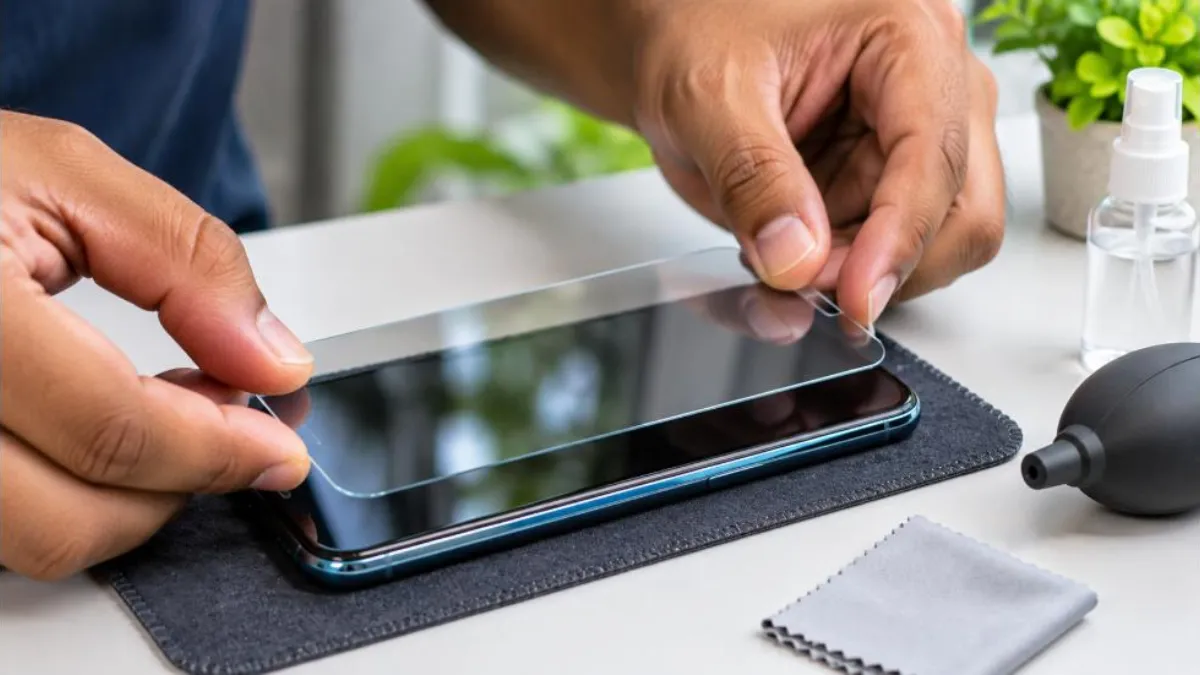
3. Remove or replace the screen protector
For in-display sensors, thick tempered glass, privacy protectors and cheap protectors with bubbles often cause the fingerprint not working issue. Use a protector labelled compatible with your phone’s fingerprint sensor, and re-register fingerprints after applying it.
4. Re-register your fingerprints
Delete existing fingerprints in Settings > Security (or Biometrics) and add them again. While registering, move your finger slightly in different positions and angles, including edges, so the phone captures a full print. Register the same finger twice as separate entries for better accuracy.
5. Restart the phone
A restart clears temporary bugs in the biometric service. After restart, Android usually asks for the PIN first for security; that is normal.
6. Update system software
Manufacturers frequently improve fingerprint speed and accuracy through updates. Install the latest system update and security patch.
7. Increase screen brightness (optical sensors)
Optical in-display sensors light up the area under your finger. In very bright sunlight or with low brightness settings, recognition can suffer. Make sure the sensor animation lights up fully and avoid covering it with a case edge.
8. Turn off power saving modes
Extreme battery saver modes can slow biometric services. Disable them temporarily and test.
9. Check for “screen protector mode” or touch sensitivity
Some phones have a “Touch sensitivity” or “Screen protector mode” toggle in Display settings. Turning it on can help both touch and in-display fingerprint recognition with thicker protectors.
10. Test in safe mode
If fingerprint works in safe mode, a third-party app (such as app lockers, security apps or screen overlays) is interfering. Uninstall recently added apps.
11. Clear cache of biometric or system apps
On some Android phones, clearing the cache of the fingerprint-related system app or “Settings” app can fix glitches. Avoid clearing data of system apps unless guided by official support.
12. Reset or repair
If the fingerprint not working issue continues, back up your data and factory reset. If the sensor still fails or the fingerprint option disappears from settings, visit an authorised service centre; the sensor or its connection may be damaged.
Fingerprint Not Working After Screen Replacement
In-display sensors are tightly matched to the original display. Third-party replacement screens may block or distort the sensor, or require calibration using brand service tools. If your fingerprint stopped working after a screen change, return to the repair shop or visit an authorised centre that can calibrate the sensor.
Fingerprint Not Working in Banking and UPI Apps
- After you add a new fingerprint, many banking apps disable biometric login for security; log in with your PIN and enable fingerprint again in the app settings.
- Make sure the app is updated.
- Check that the app has permission to use biometrics.
- Some apps disable biometrics if they detect rooted phones or developer options; follow the app’s security requirements.
Read our guide on UPI Lite for small payments without PIN, and keep your UPI PIN private.
Side-Mounted Sensor Tips
- Register your thumb for right-hand use and index finger for left-hand use.
- Rest your finger flat on the button instead of pressing hard.
- Check if “Press to unlock” or “Touch to unlock” settings suit your habit.
- Make sure the case does not cover the button edges.
Brand-Specific Settings
| Brand | Where to manage fingerprints |
|---|---|
| Samsung | Settings > Security and privacy > Biometrics > Fingerprints |
| Xiaomi / Redmi / POCO | Settings > Fingerprints, face data and screen lock |
| Vivo / iQOO | Settings > Security > Fingerprint |
| Oppo / Realme / OnePlus | Settings > Password & security > Fingerprint |
| Pixel / Motorola | Settings > Security & privacy > Device unlock > Fingerprint |
Why Fingerprint Not Working Problems Happen
- Surface issues: dirt, oil, scratches, thick or incompatible screen protectors.
- Finger condition: wet, very dry, cut or wrinkled skin.
- Registration quality: only part of the finger was scanned during setup.
- Software: bugs, outdated firmware, interfering apps.
- Hardware: drops, water damage, non-original screens or failing sensors.
Security Tips
- Always keep a strong backup PIN or password.
- Do not register other people’s fingers on your phone if it holds banking apps.
- Use lockdown mode or turn off biometrics temporarily if you feel unsafe.
- Keep your phone updated with security patches.

Related Guides
If touch is also unreliable, read our touch screen not working guide, and for display issues see phone screen flickering. Official help is available in the Android Help Center.
How to Register Fingerprints Correctly
- Clean the sensor and dry your hands.
- Go to fingerprint settings and tap Add fingerprint.
- Place the finger flat and lift after each vibration.
- For each touch, shift slightly: tip, centre, left edge, right edge and lower part.
- When the phone asks for edges, tilt the finger to cover sides.
- Repeat for the same finger as a second entry.
- Add the finger you naturally use when holding the phone in each hand.
Good registration is the single most effective fix for a fingerprint not working on and off. Many people rush through setup, which leads to poor recognition later.
Fingerprint Not Working in Winter or Summer
In cold or dry weather, skin becomes dry and fingerprints less distinct, while in hot and humid weather, sweaty fingers can blur the pattern. Keep a small hand cream for dry days and wipe sweaty hands before unlocking. Ultrasonic sensors handle moisture better than optical sensors, but all types work best with clean, normal skin.
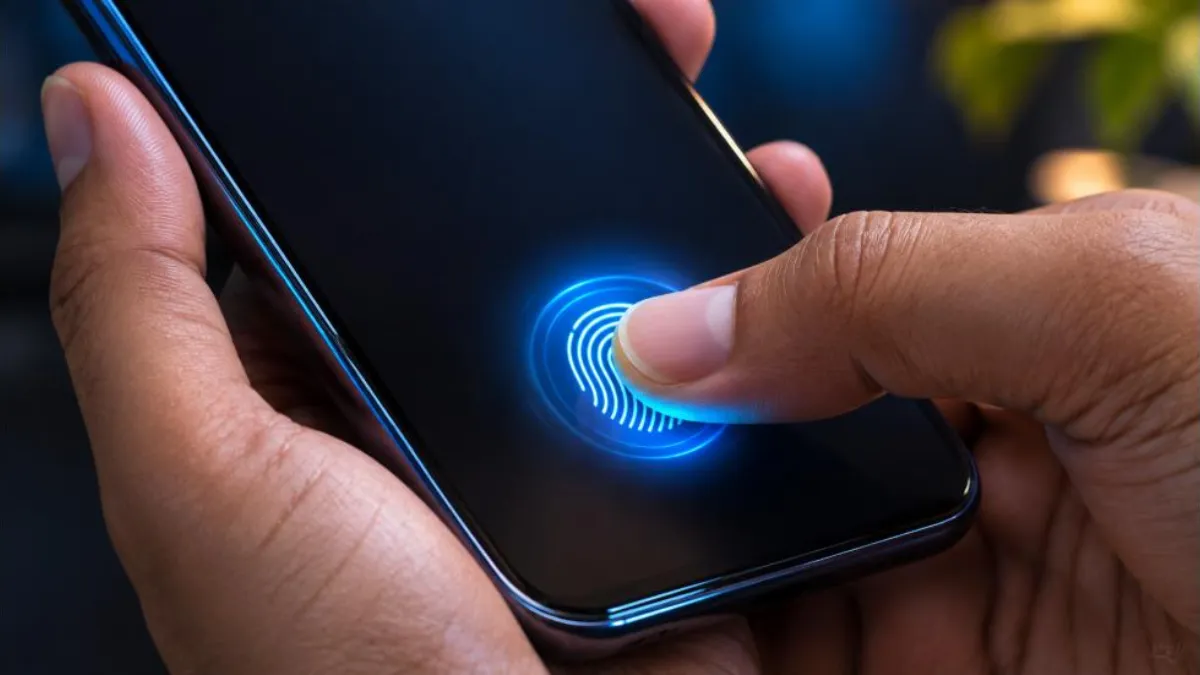
Fingerprint Not Working for Elderly Users
Older adults often have fainter fingerprints. If the fingerprint not working problem is frequent for an elderly family member, register multiple fingers, use face unlock where available, or choose a simple PIN for easier access. Make sure the backup method is memorable but not easy for others to guess.
Fingerprint Not Working for Workers With Rough Hands
Construction workers, farmers, cooks and others who use their hands heavily may have worn or cut fingerprints. Registering a less-used finger, such as the ring or little finger, or using face unlock can help. Clean the finger before scanning to remove dust or oil.
Developer Options and Root
Custom ROMs, rooting or certain developer settings can break fingerprint drivers or make banking apps disable biometrics. If you modified your phone’s software and fingerprint stopped working, return to official firmware. For most users, keeping the phone on official software is the safest option.
Step-by-Step Troubleshooting Order
- Clean the sensor and your finger.
- Remove or replace the screen protector.
- Restart the phone.
- Delete and re-register fingerprints carefully.
- Update system software.
- Turn on touch sensitivity or screen protector mode.
- Disable battery saver.
- Test in safe mode and remove conflicting apps.
- Reset settings or factory reset after backup.
- Visit an authorised service centre.
Real Example
Ajay’s new phone kept saying “Fingerprint not recognised” after he applied a thick privacy glass. He removed it, applied a thin compatible protector, re-registered his thumb twice and turned on touch sensitivity mode. The fingerprint not working problem disappeared and unlocking became instant again.
Fingerprint vs Face Unlock vs PIN
| Method | Speed | Security | Best use |
|---|---|---|---|
| Fingerprint | Fast | High on most phones | Daily unlock and app authentication |
| Face unlock (2D camera) | Fast | Lower on many Android phones | Convenience unlock only |
| Face unlock (3D, e.g. Face ID) | Fast | High | Unlock and payments |
| PIN/password | Slower | High if strong | Backup and sensitive actions |
When the fingerprint not working problem appears, use a strong PIN as backup. Avoid simple patterns that others can guess by watching you.
Keep Your Sensor Healthy
- Clean the sensor area weekly with a soft cloth.
- Avoid pressing the sensor with dirty or greasy fingers.
- Do not use sharp objects near the sensor.
- Replace scratched screen protectors on in-display sensors.
- Protect the phone from drops with a good case.
- Keep the phone away from water unless it is rated water-resistant, and dry it fully after exposure.
Children and Shared Phones
On shared family phones, avoid adding many fingerprints from different people, especially if banking apps are installed. Use separate user profiles where supported, or keep payment apps locked with an additional PIN. This protects your money even if the fingerprint not working issue forces you to share the phone’s PIN with family.
Understanding Error Messages
| Message | Meaning | What to do |
|---|---|---|
| “Fingerprint not recognised” | Scan did not match | Clean finger and sensor, press flat, re-register |
| “Too many attempts. Try later” | Temporary lockout for security | Wait and use PIN |
| “Fingerprint hardware not available” | Sensor not detected by system | Restart, update, service centre if persists |
| “Use PIN after restart” | Security requirement after reboot | Normal; enter PIN once |
| “Biometrics changed” in banking apps | New fingerprint added | Log in with PIN and re-enable biometrics |
Battery and Performance Settings
Aggressive app killers and some battery optimisation tools can stop biometric services in the background, causing delays or failures. Avoid third-party “cleaner” apps, and keep system apps related to security and biometrics excluded from battery optimisation if your phone allows it.
Final Thoughts
Most fingerprint problems are caused by small, fixable issues like dirt, screen protectors, dry fingers or incomplete registration. Work through the fixes in order, keep your software updated, and use a compatible protector. If hardware failure is suspected, an authorised service centre can test and replace the sensor or display with genuine parts, restoring quick and secure unlocking.
Buying Tips: Choosing a Phone With a Reliable Sensor
If you are buying a new phone and fingerprint reliability matters to you, consider these points. Side-mounted sensors in the power button are usually fast and accurate, and they are not affected by screen protectors. Ultrasonic in-display sensors work better with wet fingers than optical ones but need compatible protectors. Read reviews that test unlocking speed and accuracy over time, and check whether the brand offers regular software updates, because updates often improve recognition.
Accessories That Help
- Thin, case-friendly screen protectors approved for your model.
- Cases with precise cut-outs around side or rear sensors.
- Microfibre cleaning cloths kept in your bag or car.
- A small hand cream if your skin is often dry.
Maintenance Routine
Once a month, clean the sensor, check that the screen protector is intact, and review your registered fingerprints. If unlock speed has slowed, re-register your main finger. These small habits keep the sensor working smoothly for the life of the phone and reduce frustration in daily use, especially when making quick UPI payments at shops or unlocking the phone while travelling.
Quick Recap
When the fingerprint not working message keeps appearing, start with the basics: clean and dry your finger and the sensor, remove incompatible protectors, restart the phone and re-register your fingerprint properly. Then update software, check settings like touch sensitivity, test in safe mode and remove interfering apps. Only after these steps should you consider a reset or service centre visit. Most users get their sensor working again within minutes using these simple fixes, and good habits keep it working reliably for years.
Share this guide with friends and family who struggle with slow or failed unlocks, so they can fix the issue themselves without unnecessary repair costs. Stay secure and enjoy fast, easy access to your phone every day.
Thank you for reading this guide.
Frequently Asked Questions
Why is my fingerprint not working after a screen protector?
Many protectors block in-display sensors. Use a protector designed for your model and re-register fingerprints.
Does re-registering fingerprints help?
Yes. A complete, multi-angle scan often fixes repeated failures.
Why does fingerprint fail with wet hands?
Water changes the fingerprint pattern detected by optical and capacitive sensors. Dry your hands first.
Can a software update fix fingerprint problems?
Yes, updates often improve recognition and fix bugs.
How much does fingerprint sensor repair cost?
It depends on the model. In-display sensors may require display replacement. Get a quote from an authorised service centre.
Conclusion
A fingerprint not working problem is usually fixed by cleaning the sensor, using a compatible screen protector, re-registering fingerprints and updating software. Test in safe mode to rule out interfering apps. If the option disappears or the sensor fails after damage or screen replacement, visit an authorised service centre for diagnosis and calibration.