Is auto rotate not working on your phone? You turn the phone sideways to watch a video, view photos or type in landscape mode, but the screen stays stuck in portrait. This common problem can be caused by a simple setting, a specific app, a stuck sensor, software bugs or, rarely, hardware damage.
In this guide, we explain why auto rotate not working happens on Android phones and iPhones and share 12 easy fixes for 2026, from quick settings to sensor calibration and safe mode testing.
Why Is Auto Rotate Not Working?
| Cause | What You May Notice |
| Rotation lock turned on | No rotation in any app |
| App does not support landscape | Rotation works elsewhere but not in one app |
| Home screen rotation disabled | Apps rotate, but home screen stays portrait |
| Sensor glitch | Rotation works sometimes, then stops |
| Third-party app conflict | Problem started after installing a new app |
| Software bug | Problem started after an update |
| Hardware damage | Problem started after a fall; compass and motion apps also misbehave |
12 Easy Fixes for Auto Rotate Not Working
1. Check the Rotation Setting
On Android, swipe down from the top to open Quick Settings and look for “Auto rotate”, “Portrait” or “Rotation lock”. Tap to switch to auto rotate. On iPhone, open Control Centre and make sure the Portrait Orientation Lock (padlock with circular arrow) is turned off.
2. Hold the Phone Correctly
The phone detects orientation using gravity. If you are lying down with the phone held flat or tilted unusually, it may not rotate. Hold the phone upright and turn it clearly to the side to test.
3. Check the App
Some apps, especially certain banking, messaging or shopping apps, are designed only for portrait mode. Test rotation in a video app, the browser or the gallery. If those rotate, the issue is the specific app, not your phone.
4. Enable Home Screen Rotation
On many Android phones, the home screen does not rotate by default. Long-press an empty area of the home screen, open Home settings and turn on “Allow home screen rotation” or a similar option. On iPhone, the home screen rotates only on Plus/Max models in some versions and on iPad.
5. Restart the Phone
Sensor services sometimes freeze. A quick restart reloads them and often fixes auto rotate not working immediately.
6. Toggle Auto Rotate Off and On
Turn rotation lock on, wait a few seconds and turn it off again (or switch auto rotate off and on). This resets the setting and can wake up the sensor service.
7. Check Accessibility Settings
Some accessibility options can affect rotation. On Android, open Settings > Accessibility and look for “Auto-rotate screen” or display options; make sure rotation is allowed. On iPhone, check Display & Text Size and Zoom settings for unusual configurations.
8. Calibrate the Sensors
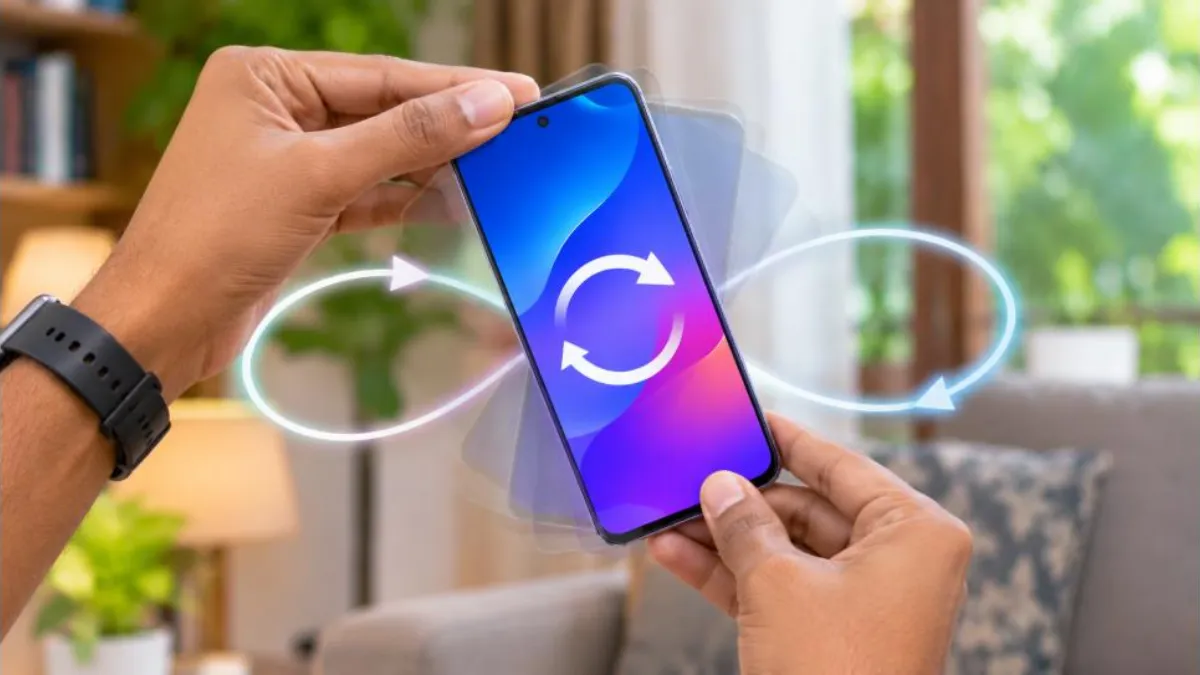
Auto rotation uses the accelerometer and gyroscope. Some phones include a sensor calibration option in settings or diagnostic menus. You can also open the Compass app (if available) and move the phone in a figure-eight pattern to recalibrate motion sensors. Remove magnetic cases or mounts that may interfere.
9. Test Sensors With Built-In Diagnostics
Many brands offer diagnostics. Samsung users can use the Samsung Members app > Support > Phone diagnostics > Sensors. Some phones open a test menu with special dialer codes; use only codes listed on your manufacturer’s official support page. If the accelerometer does not respond in tests, the problem may be hardware.
10. Boot Into Safe Mode
Third-party apps such as screen rotation controllers, launchers or games can override system rotation. Start the phone in safe mode (hold the power off option until “Safe mode” appears on most Android phones). If rotation works in safe mode, uninstall recently installed apps one by one.
11. Update Software
Install pending Android or iOS updates. Manufacturers fix sensor bugs through updates, especially after big version upgrades. Also update the apps where rotation fails.
12. Reset Settings or Factory Reset
If nothing works, reset all settings (iPhone) or reset app preferences and system settings (Android). As a last software step, back up data and do a factory reset. If auto rotate not working continues even after a reset, contact an authorised service centre.
Auto Rotate Not Working on Specific Brands
Samsung
Use the “Auto rotate” or “Portrait/Landscape” tile in Quick Settings. Long-press it to access more options. Samsung’s Good Lock or third-party launchers may override rotation; test with the default One UI Home launcher. Run sensor tests in Samsung Members if the issue continues.
Xiaomi, Redmi and POCO
Check the “Auto-rotate” toggle in Control Centre and look in Settings > Display for rotation options. Some Xiaomi phones also have a “Rotate screen” suggestion icon that appears when rotation is locked; tap it to rotate temporarily.
Realme, OPPO and OnePlus
Check Quick Settings for “Auto-rotate” and Settings > Display for screen rotation options. Game assistant features may lock orientation during gaming.
Vivo and iQOO
Look for “Portrait orientation lock” in the Control Centre. Ultra Game Mode can control rotation in games.
iPhone
Turn off Portrait Orientation Lock in Control Centre. If rotation still fails, check that Display Zoom is not causing layout limits on smaller iPhones, update iOS and restart.
Android “Rotate” Button Feature
When auto rotation is turned off on many Android phones, a small rotate icon appears in the navigation bar or corner when you turn the phone sideways. Tapping it rotates the screen just for that moment. Some people prefer this method because the phone does not rotate accidentally while lying down. If you see this icon, auto rotate not working is actually expected behaviour; simply tap the icon or enable auto rotate.

Free Apps to Test Sensors
If your phone does not have built-in diagnostics, reputable sensor test apps from the Play Store can show live readings from the accelerometer and gyroscope. When you tilt the phone, the values should change smoothly. If they stay at zero or jump randomly, the sensor may be faulty. Use well-reviewed apps from known developers and uninstall them after testing if you do not need them.
Auto Rotate Not Working After Screen Replacement
Sometimes rotation problems start after a screen or back panel replacement. During repair, a sensor cable may not be connected properly, or a non-original part may affect sensors. If auto rotate not working began right after a repair, return to the same service centre and ask them to check the connections. Authorised centres generally use original parts and offer a warranty on repairs.
Hardware Problems and Repairs
If the accelerometer or gyroscope is damaged, auto rotate not working will continue even after resets. Other signs of sensor damage include compass errors, step counters not counting and games that use motion controls not responding. Hardware sensor issues usually require a motherboard-level repair. Visit an authorised service centre, especially if your phone is under warranty. Avoid local repairs that involve replacing major parts unless you trust the technician.
Tips to Avoid Rotation Problems
- Keep software and apps updated.
- Avoid installing multiple rotation control or launcher apps.
- Use a good protective case to reduce damage from falls.
- Avoid magnetic accessories that may confuse sensors.
- Restart your phone once a week.
How Auto Rotation Works
Your phone uses an accelerometer to measure the direction of gravity and a gyroscope to detect rotation speed. When you turn the phone sideways, these sensors report the new orientation, and the system tells the app to switch layout. Apps must also support landscape mode. If any part of this chain fails, such as the sensor, the system setting or the app design, the result is auto rotate not working. Understanding this helps you test each part separately.
Auto Rotate Not Working in Video Apps
Video apps like YouTube usually have their own full-screen button. Even if auto rotation is off, tapping the full-screen icon switches to landscape. If the video does not rotate automatically, check whether the app’s own settings allow rotation, update the app and clear its cache. Some streaming apps lock orientation during ads or specific screens.
Auto Rotate Not Working in Games
Many games are designed for a fixed orientation and do not follow system rotation. Gaming modes on some phones can also lock orientation to prevent accidental changes during play. Check your phone’s game assistant settings if rotation behaves strangely only while gaming.
Auto Rotate Not Working on Tablets
Tablets work similarly to phones. Check rotation lock in Quick Settings or Control Centre, and on iPads with a side switch on older models, check whether the switch is set to lock rotation. Keyboard cases and stands may also affect detection when the tablet is placed flat.
Auto Rotate Not Working: Quick Diagnosis
| Situation | Most Likely Fix |
| No app rotates | Turn off rotation lock; restart phone |
| Only one app does not rotate | App supports portrait only; update the app |
| Home screen does not rotate | Enable home screen rotation in launcher settings |
| Rotation works in safe mode only | Uninstall conflicting third-party apps |
| Started after an update | Install follow-up update; reset settings |
| Started after a fall | Run sensor test; visit service centre |
Example: How Fathima Fixed Her Phone
Fathima, a college student in Kozhikode, found that auto rotate not working on her phone made it difficult to watch lecture videos. Quick Settings showed auto rotate was on. She restarted the phone, but nothing changed. Then she remembered installing a “screen rotation control” app for a game. She booted into safe mode, and rotation worked perfectly. After uninstalling that app and restarting normally, rotation returned. Her experience shows how third-party apps can override system settings.
Auto Rotate Not Working Checklist
- Rotation lock off in Quick Settings or Control Centre.
- Tested in multiple apps like gallery, browser and videos.
- Home screen rotation enabled if needed.
- Phone restarted.
- Sensors calibrated and magnetic accessories removed.
- Safe mode tested to rule out conflicting apps.
- Software and apps updated.
- Settings reset before considering factory reset.
Auto Rotate Not Working in Specific Situations
While Lying Down
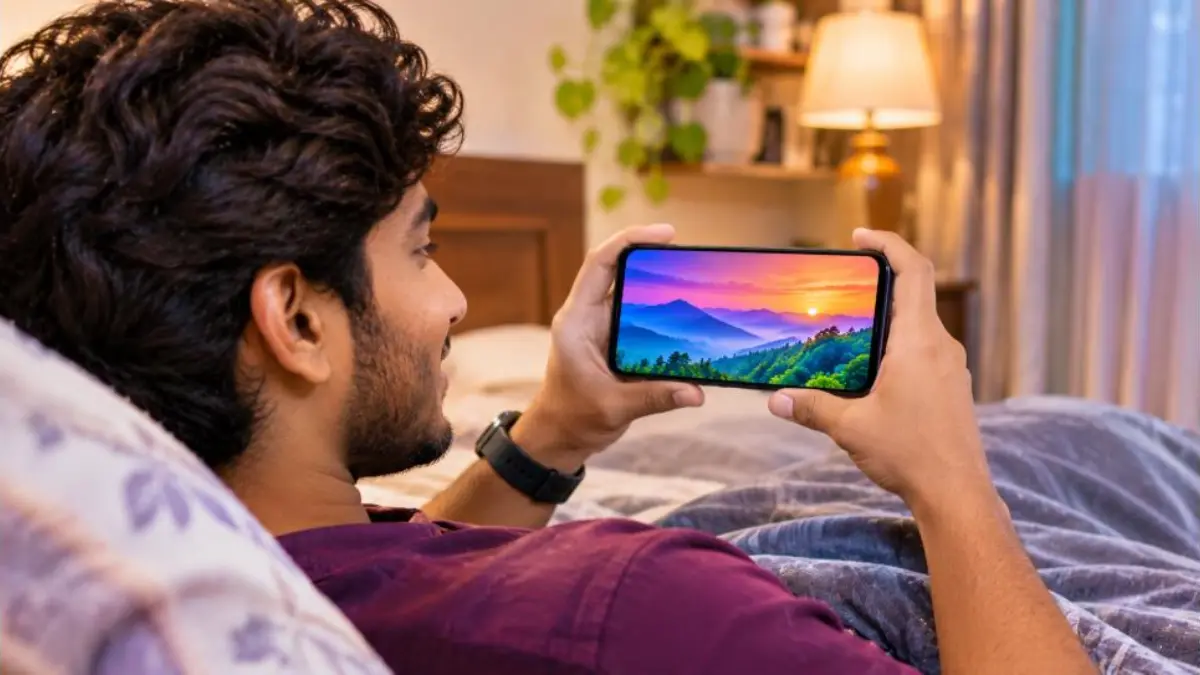
When you lie on your side, the phone and your eyes are both tilted, so the screen may rotate the wrong way or not at all. This is normal behaviour, not a fault. Many people turn rotation lock on at night and use the temporary rotate button only when needed. If you think auto rotate not working only in bed, test it while sitting upright before trying other fixes.
In the Camera App
Camera apps usually keep the interface fixed and rotate only the icons, while photos and videos are saved in the correct orientation. If your landscape videos look sideways later, check the gallery app and update the camera app. This is different from general auto rotate not working, because the camera handles orientation on its own.
In the Keyboard
Some keyboards switch to a wider layout in landscape. If the keyboard stays narrow, check keyboard settings for landscape options or one-handed mode, which can prevent full-width typing.
After Installing a Launcher
Third-party launchers often have their own rotation settings. If auto rotate not working started after switching launchers, open the launcher settings and allow rotation, or switch back to the default launcher to compare.
Accessibility Benefits of Rotation Lock
Rotation lock is not only a problem to fix; it is also a helpful feature. People who read in bed, use the phone while travelling or have limited hand movement may prefer a fixed orientation. Learning how to switch quickly between auto rotate and lock lets you choose the best mode for each situation. Once you understand these settings, an auto rotate not working moment becomes a simple tap rather than a frustrating problem.
Keep Your Phone in Good Shape
Sensors are tiny and sensitive components inside your phone. Regular care helps them last longer. Use a protective case with raised edges, avoid dropping the phone on hard floors, and keep it away from strong magnets and extreme heat. Clean the phone gently and avoid pressing hard on the back panel where some sensors are located.
When you buy a new phone, spend a few minutes exploring the display and rotation settings so you know where everything is. This small effort saves time later and helps you guide family members who face the same issue on their phones.
Finally, share these steps with friends and relatives. Many people visit repair shops for problems that a simple setting change can solve in seconds.
Frequently Asked Questions
Why is auto rotate not working on my phone?
Common reasons include rotation lock being on, apps that support only portrait mode, home screen rotation being disabled, sensor glitches, conflicting apps or software bugs.
How do I turn on auto rotate on Android?
Swipe down to open Quick Settings and tap “Auto rotate” or “Portrait” to switch it on. Some phones show “Rotation lock” instead.
How do I unlock rotation on iPhone?
Open Control Centre and tap the Portrait Orientation Lock icon so it turns off.
Why does YouTube rotate but my home screen does not?
Many launchers keep the home screen in portrait by default. Enable home screen rotation in launcher settings.
Can a broken sensor stop rotation?
Yes. If the accelerometer or gyroscope is damaged, rotation will not work. A service centre can confirm and repair it.
Does a factory reset fix rotation problems?
It fixes software-related causes. If the problem remains after reset, it is likely hardware.
Conclusion
When auto rotate not working, start with the simplest checks: turn off rotation lock, test different apps and enable home screen rotation. Then restart, recalibrate sensors, test in safe mode and update software. If auto rotate not working continues even after a reset, the sensor may be damaged and needs professional repair. With these steps, you can quickly get your screen rotating again for videos, photos and games. For official help, visit the Apple Support website or your Android brand’s support page. If your phone also has screen issues, read our guide on touch screen not working.